How to Manually Import a Student's Practice Score on StudySpaces
If a student completes a practice session on paper, you can manually enter their answers directly into StudySpaces so their knowledge tracking data stays accurate and up to date. Follow the steps below to import an offline practice score to a student's profile.
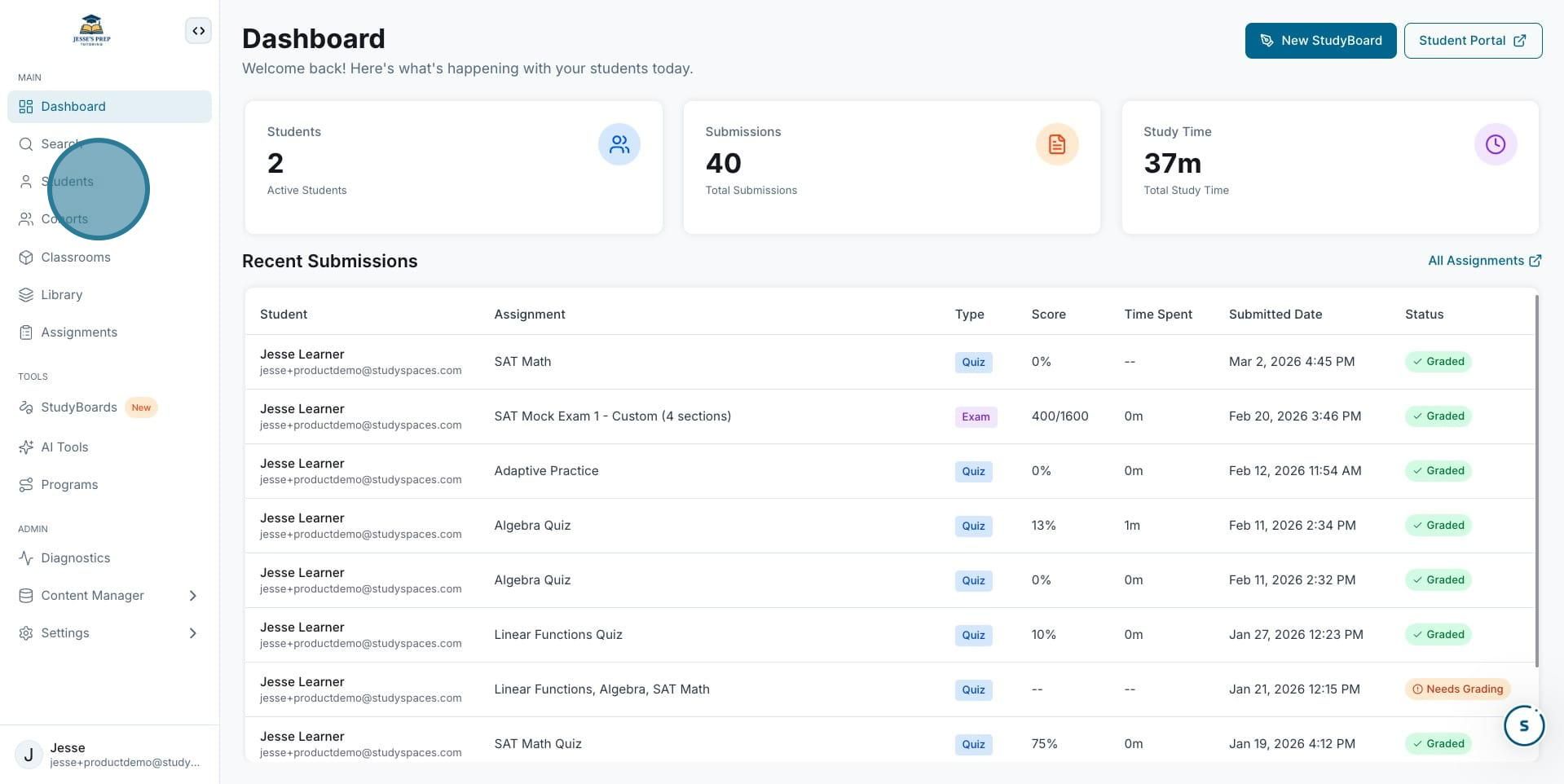
1. Starting from your workspace dashboard, open the Students section. In the left-hand navigation menu, click the Students icon to view all learners in your workspace.
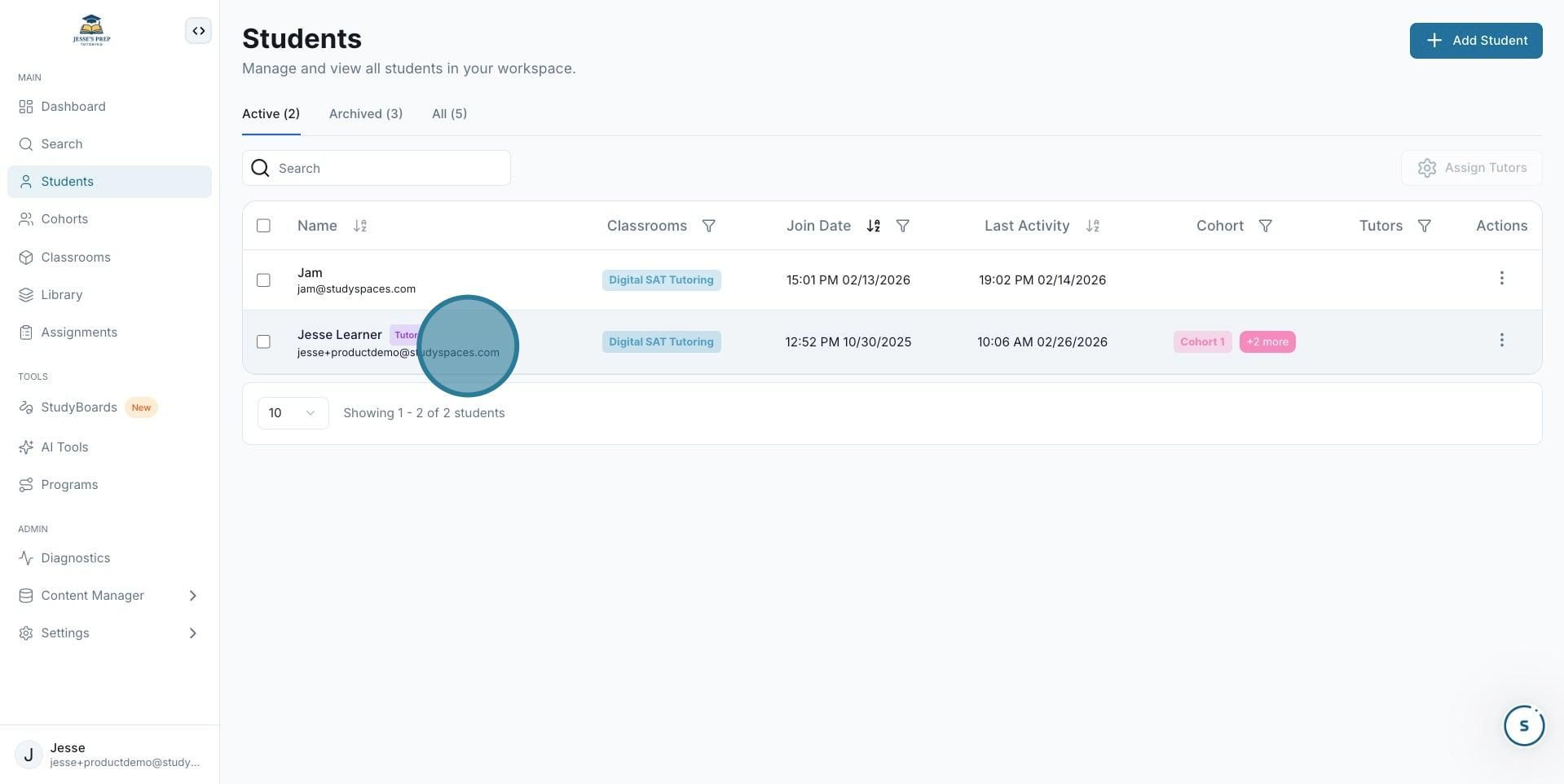
2. Select the student. Find the student whose offline practice you'd like to import and click their name to open their profile.
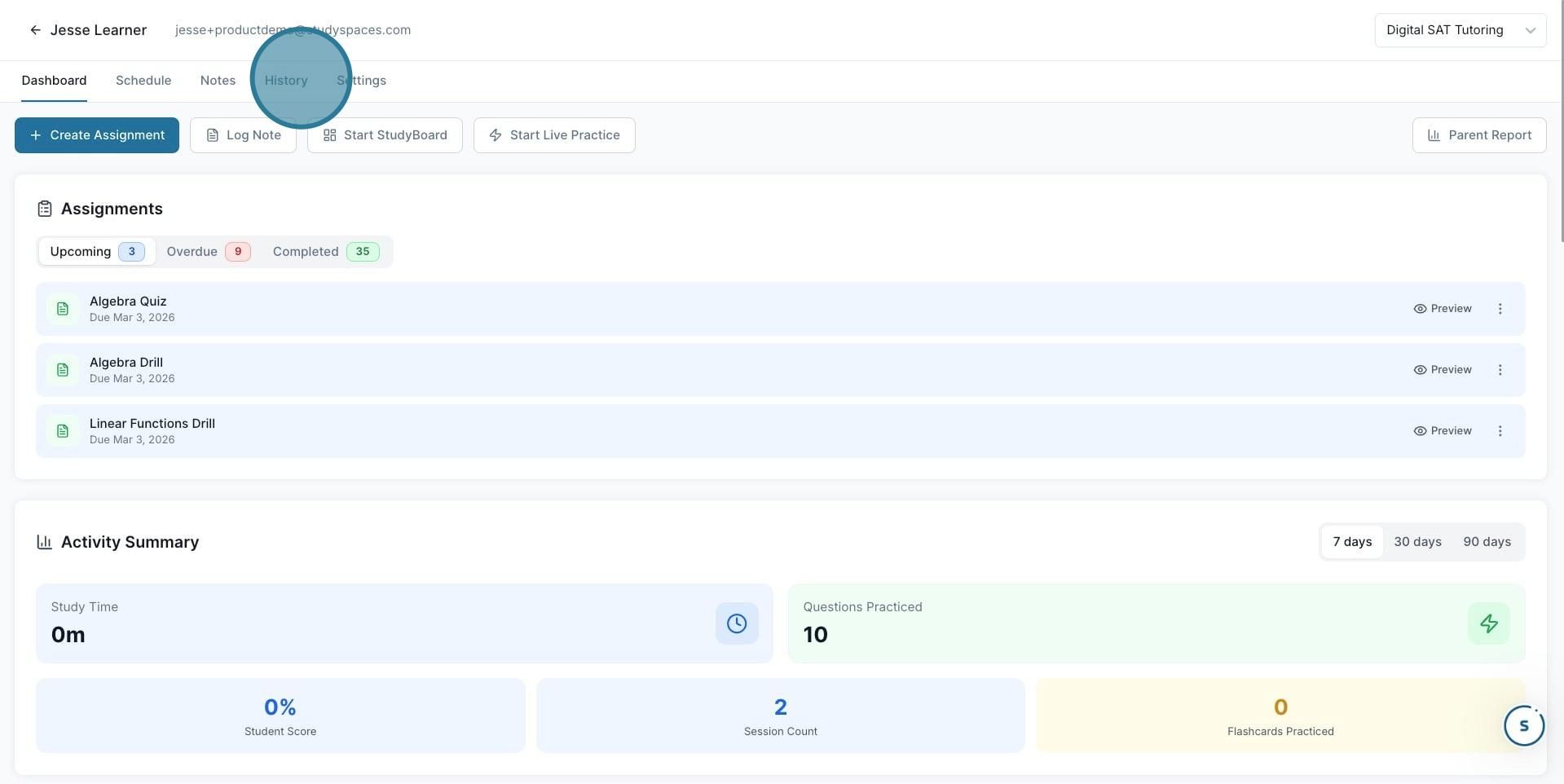
3. Go to the History tab. On the student's profile, click the History tab to view their past activity and submissions.
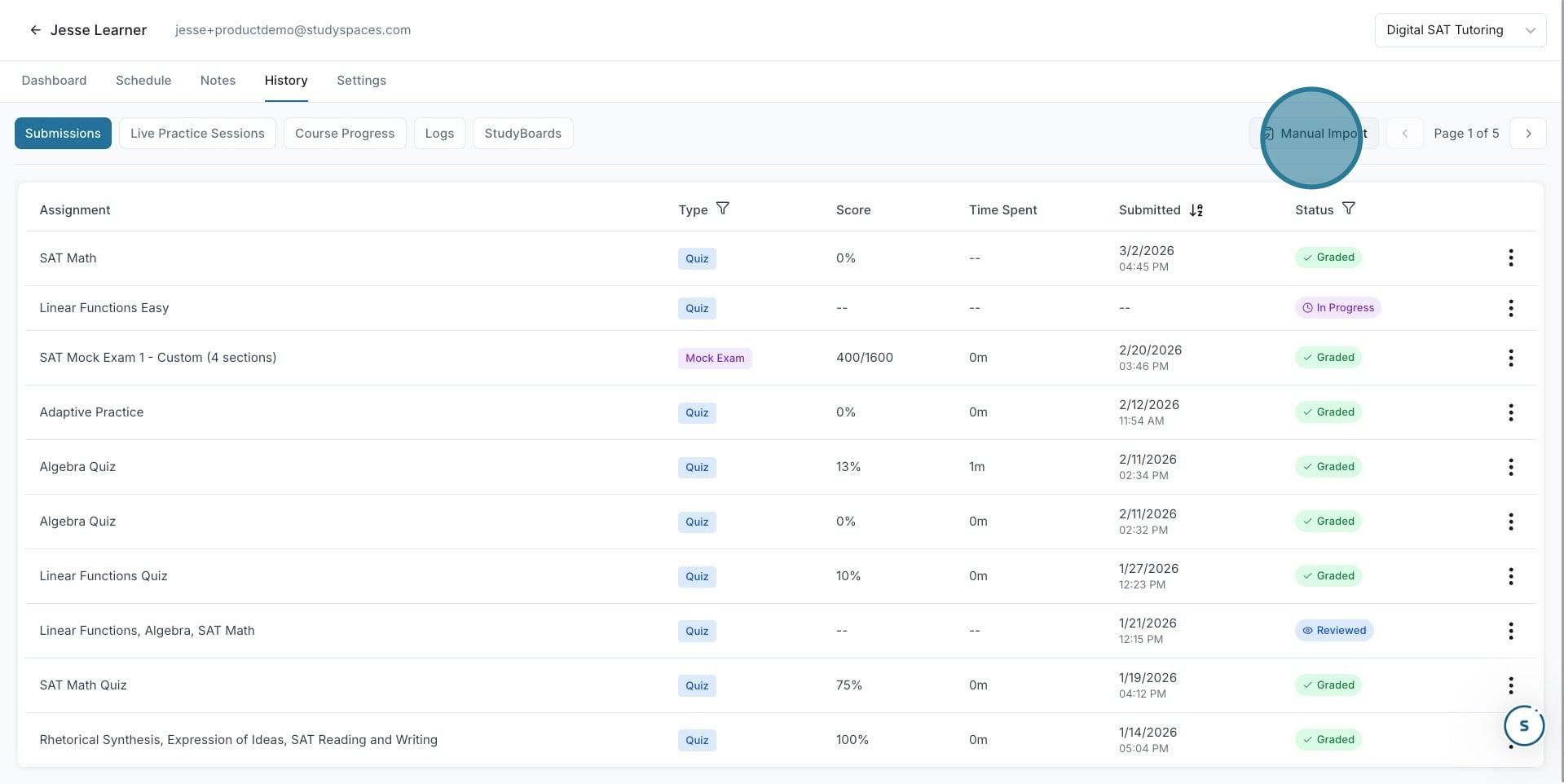
4. Click "Manual Import". In the top-right corner of the Submissions view, click the Manual Import button. This will open the offline exam import flow.
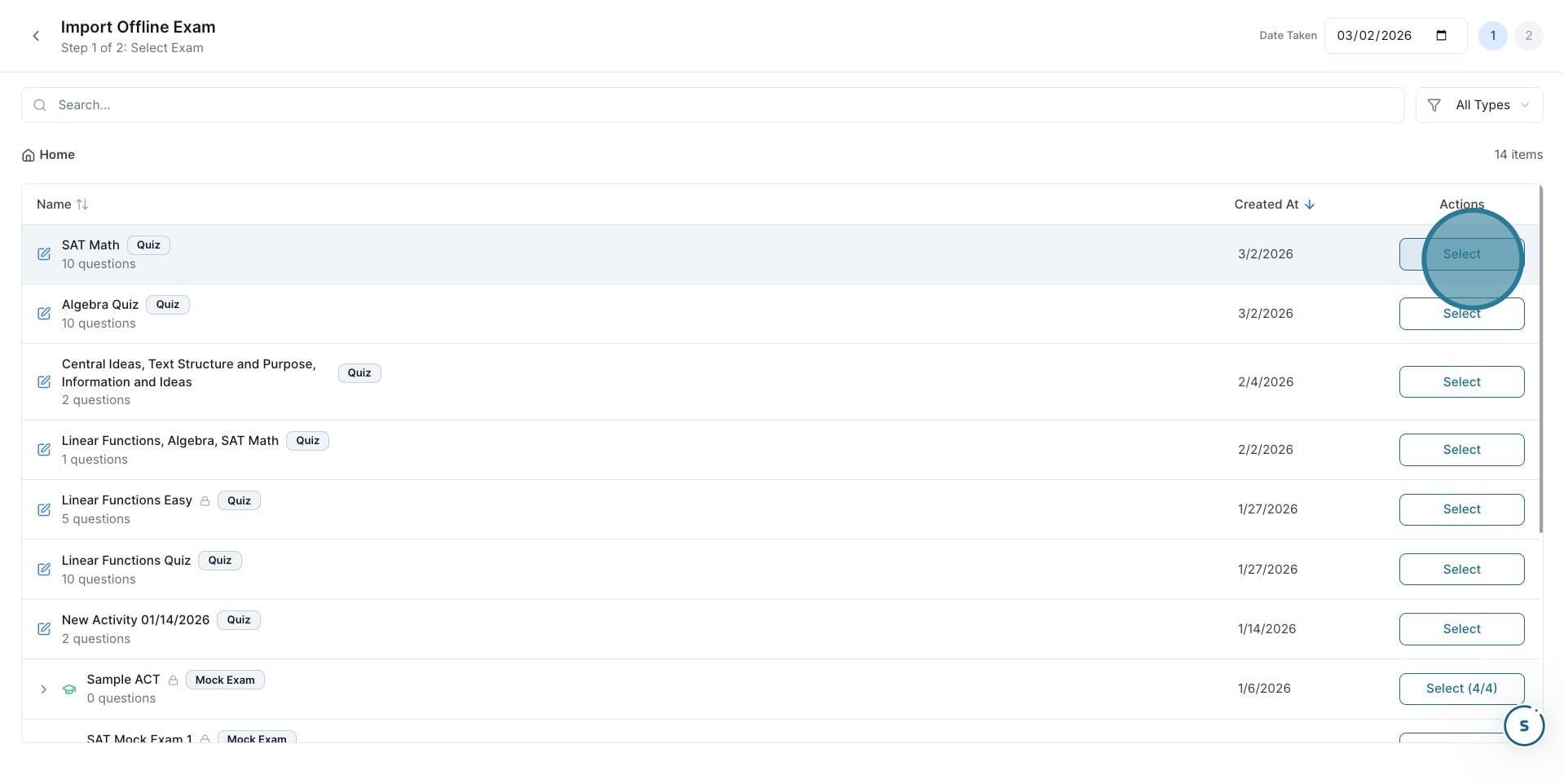
5. Choose the assignment to import. You'll see a list of available assignments from your library. Find the practice they completed on paper and click Select next to it.
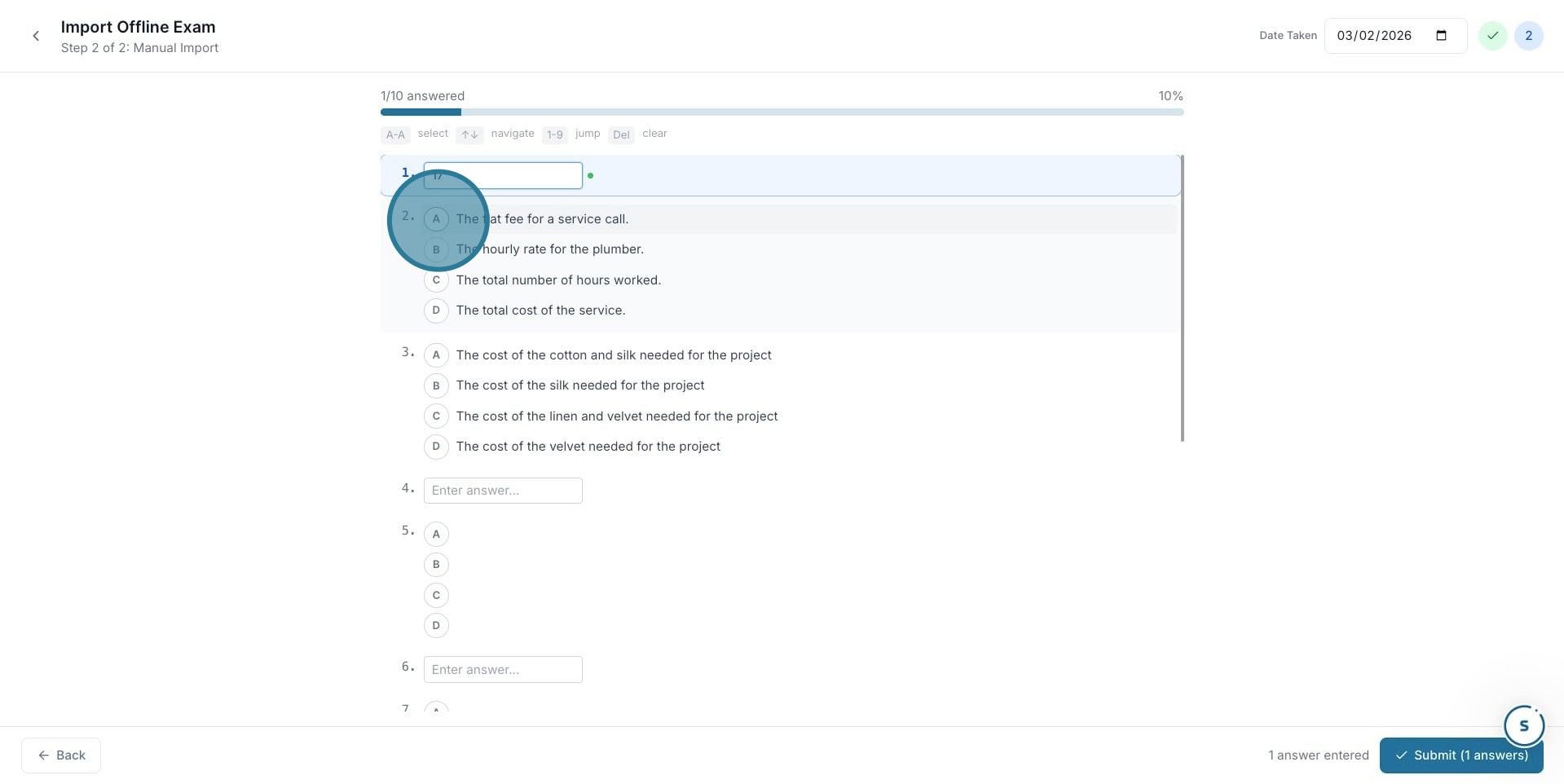
6. Enter the student's answers. You'll now see each question from the practice. Select the answer choice the student marked on their paper for each question. For free-response questions, type in their answer directly.
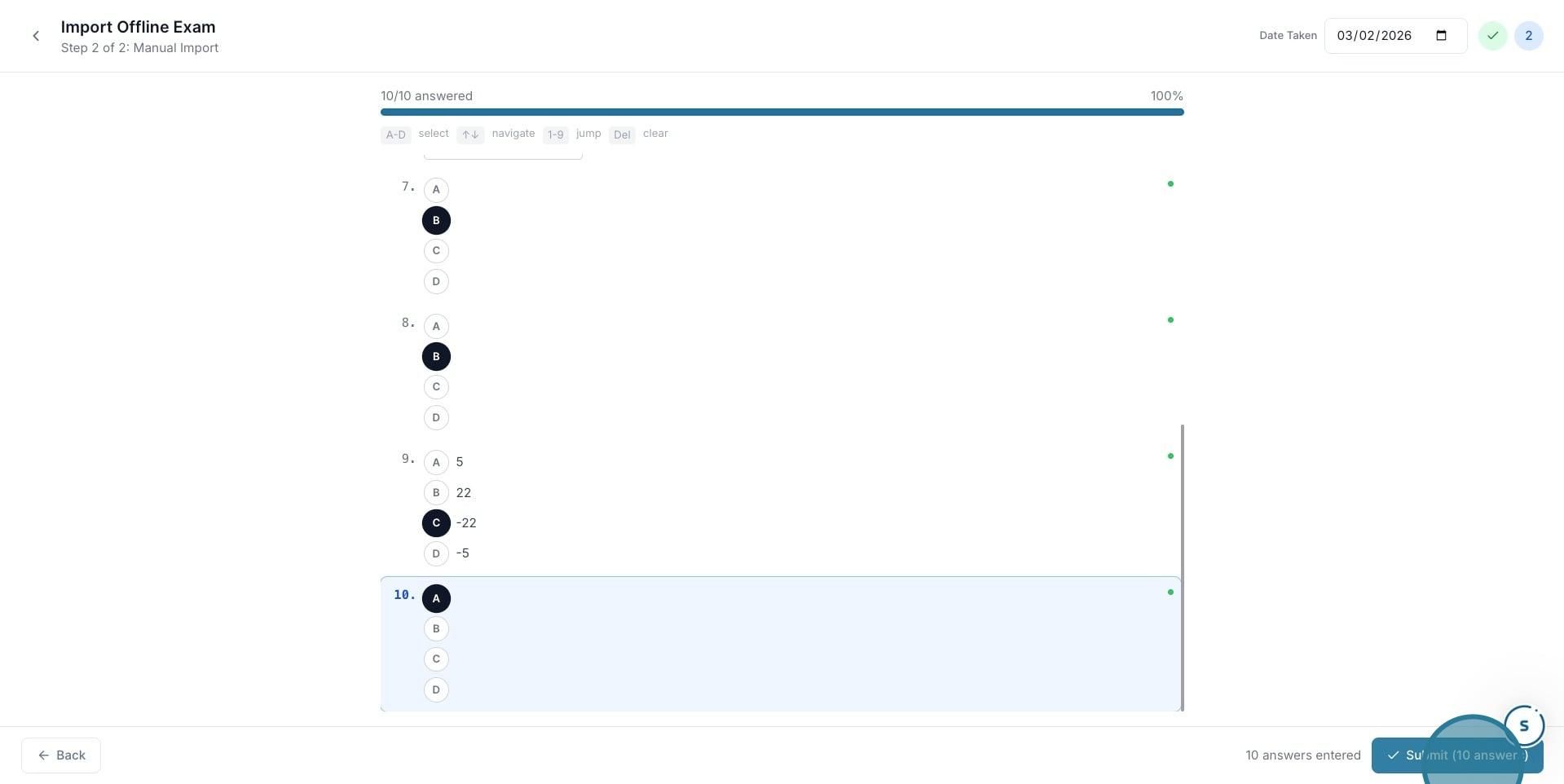
7. Submit the answers. Once you've entered all of the student's answers, click the Submit button to save the attempt.
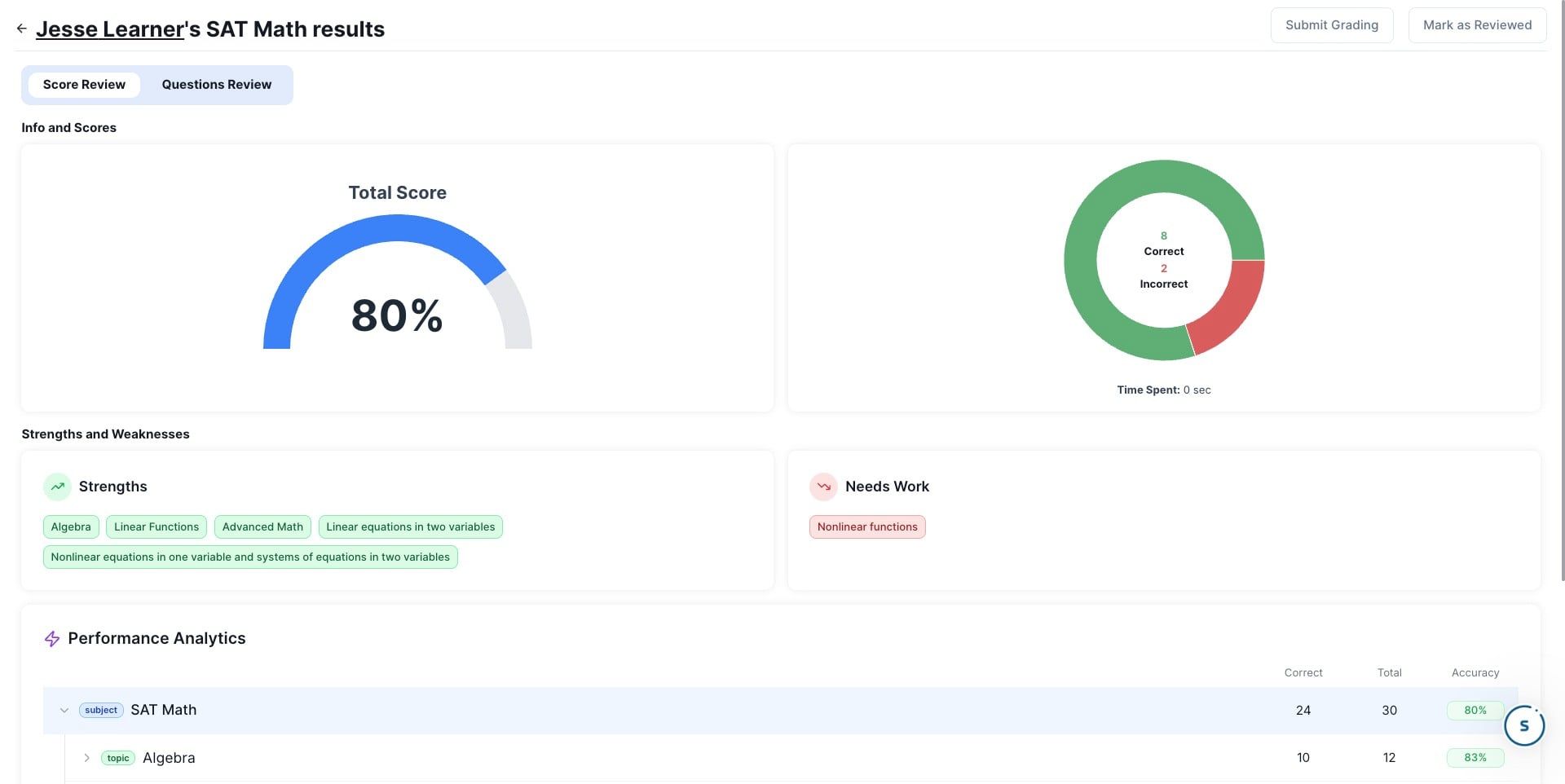
8. Done 🚀 ! The practice results are now saved to the student's profile. You'll be taken directly to their score review page, where you can see their total score, a breakdown of correct and incorrect answers, and an updated performance analysis across topics and skill areas. This data will be reflected in all of their knowledge tracking going forward.
Was this helpful?
Still need help? Ask the team