How to Create and Use StudyBoards for Collaborative Learning in StudySpaces
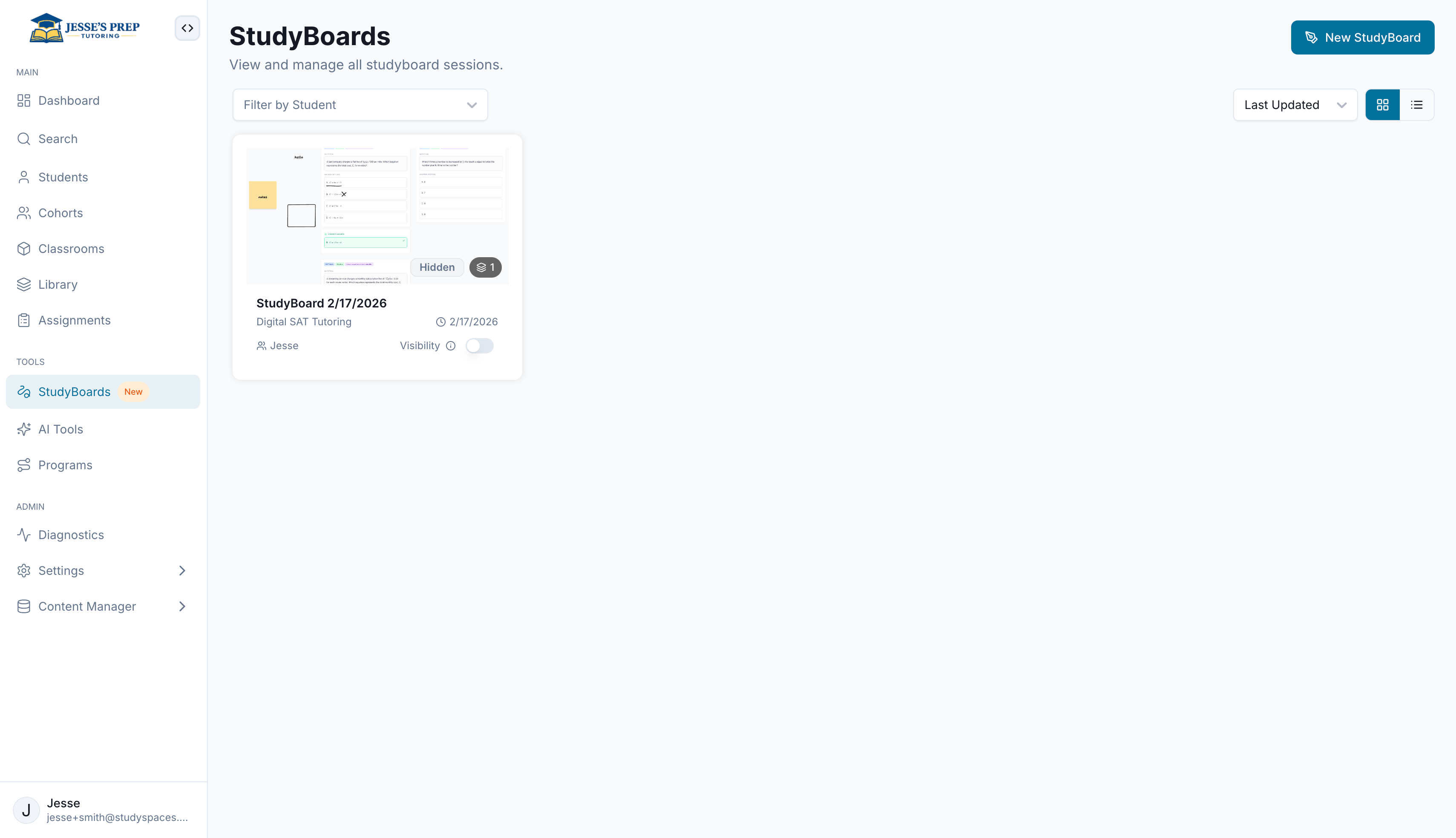
Click on "StudyBoards" on the sidebar to view all studyboards and create new ones. You can also create a new studyboard by clicking the “New StudyBoard” button on the dashboard.
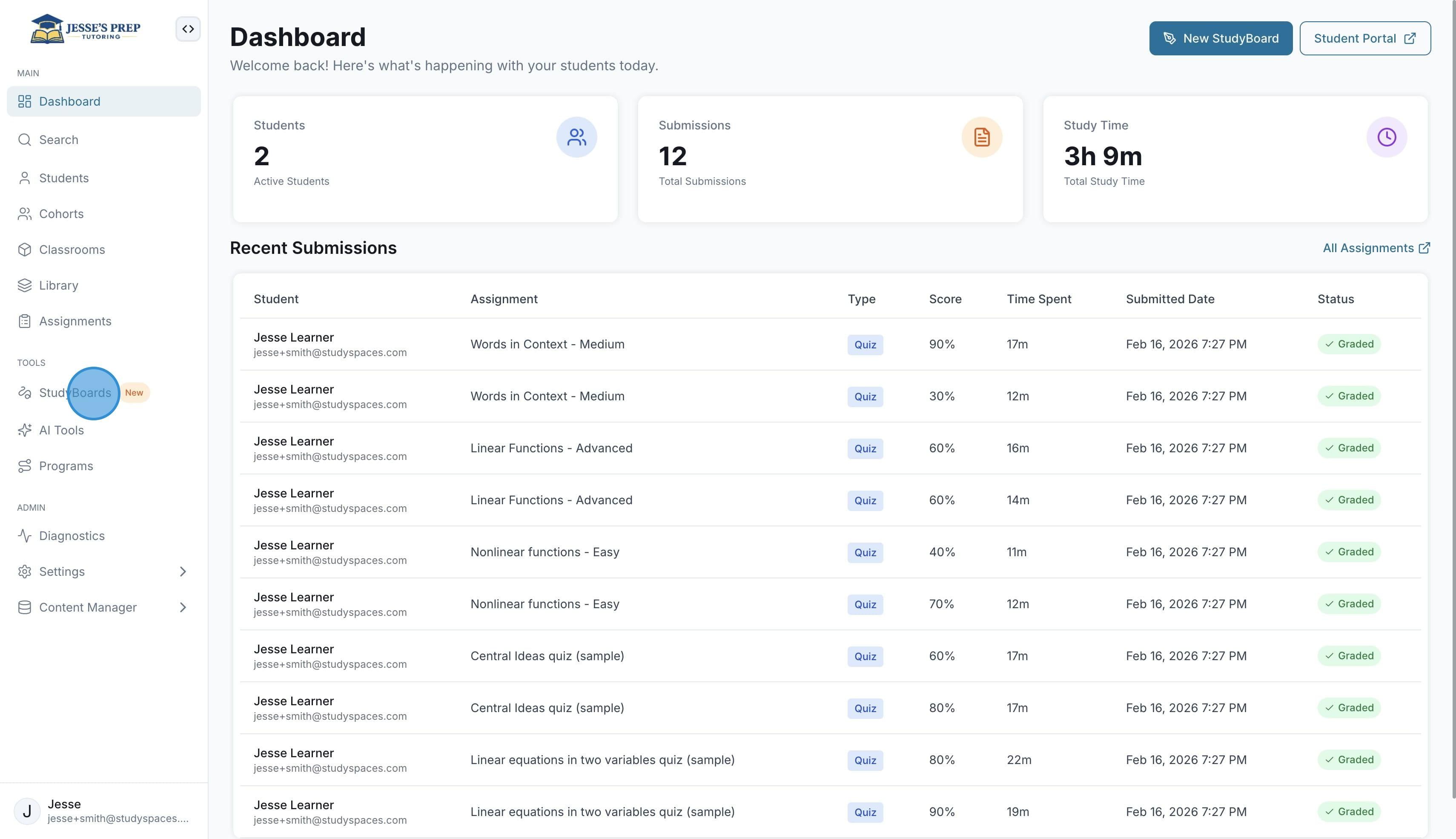
Create a New Studyboard to get started.
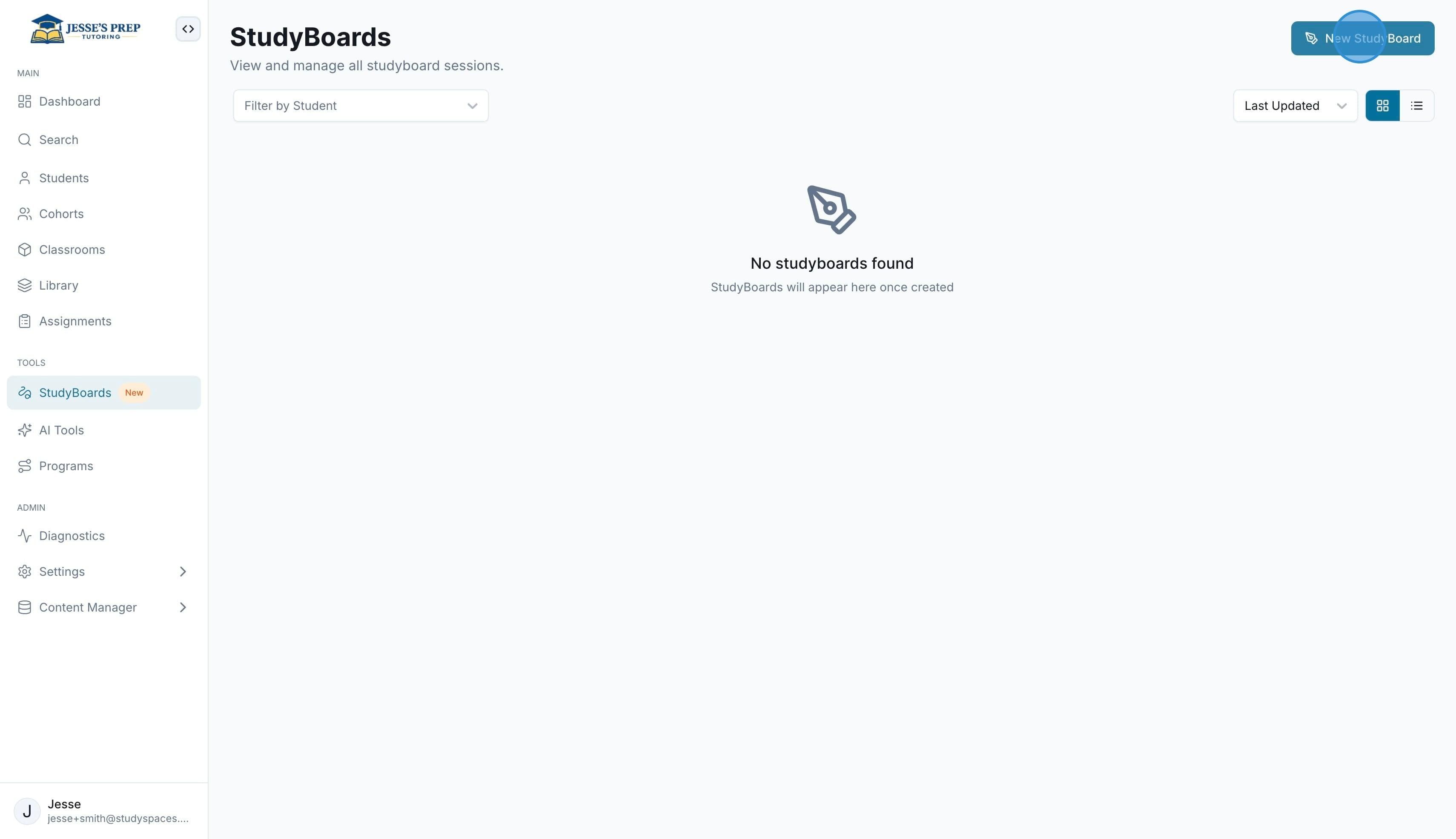
Each studyboard can have multiple tabs. Each tab can be an Infinite Whiteboard type (start from scratch) or a Document View type (upload a document and annotate over it).
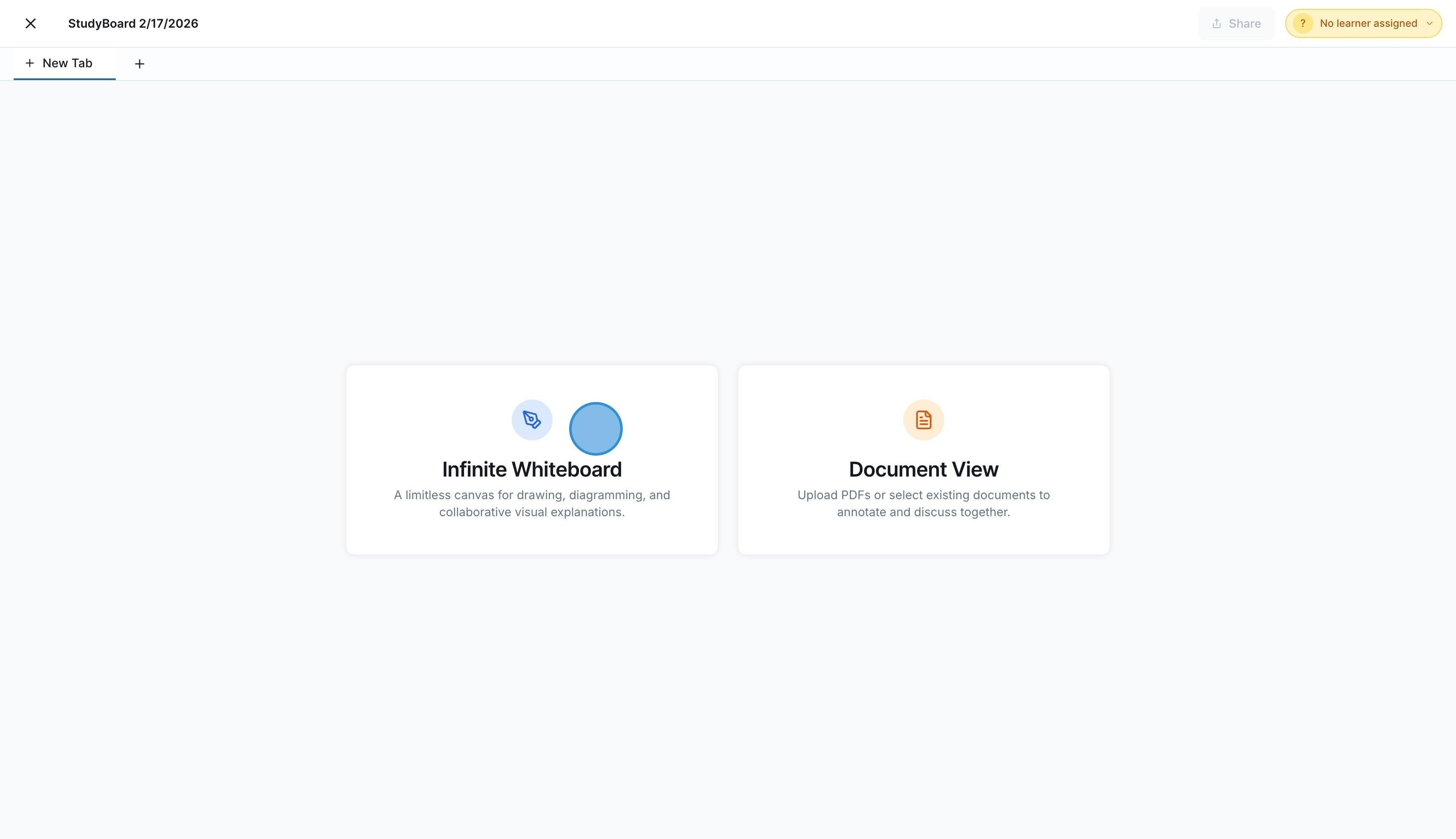
You can add students to a StudyBoard, allowing you to share it with them and collaborate on it together, among other features.
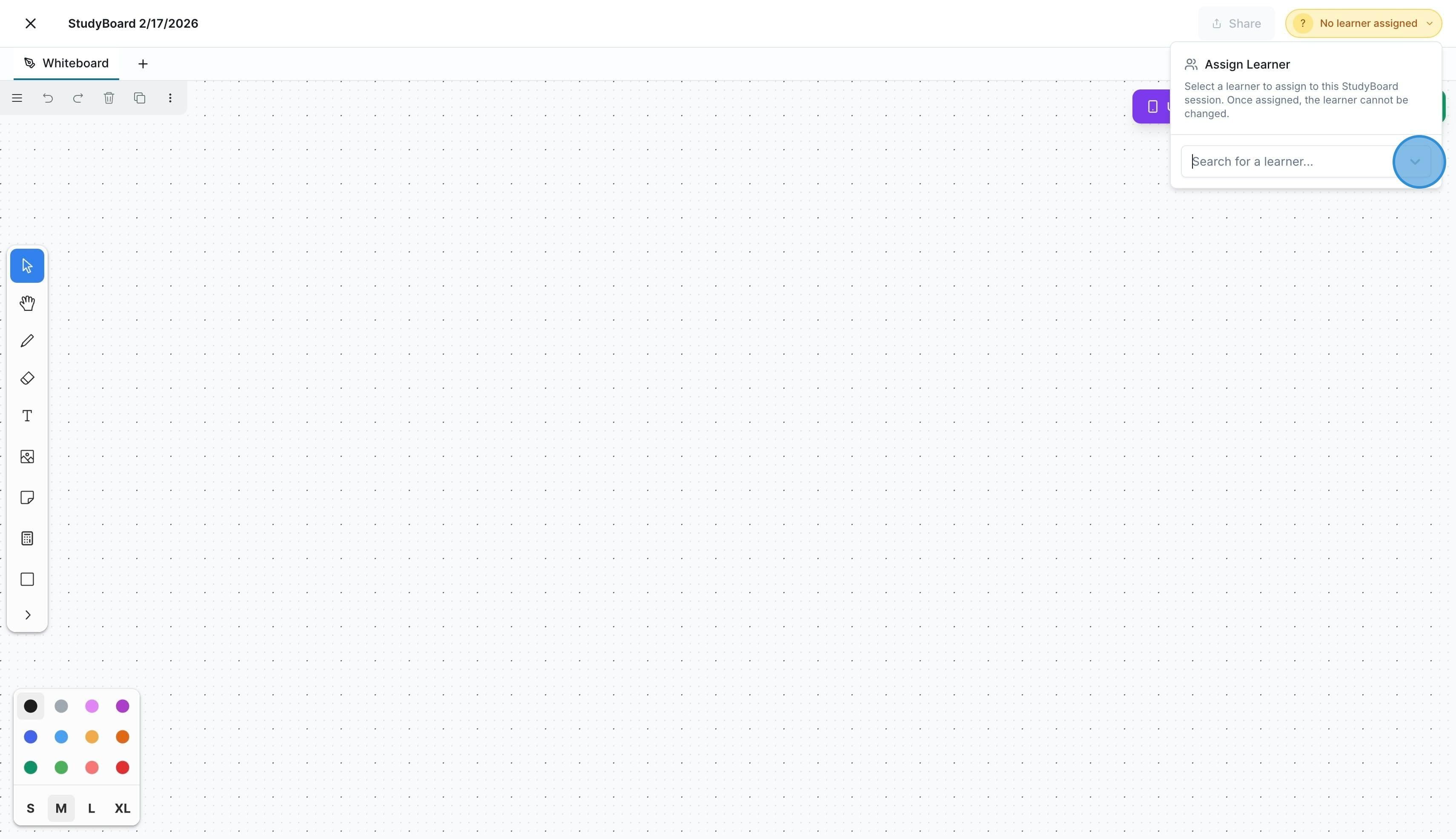
Once you add a student, click on "Share" and they will receive the link to access the StudyBoard.
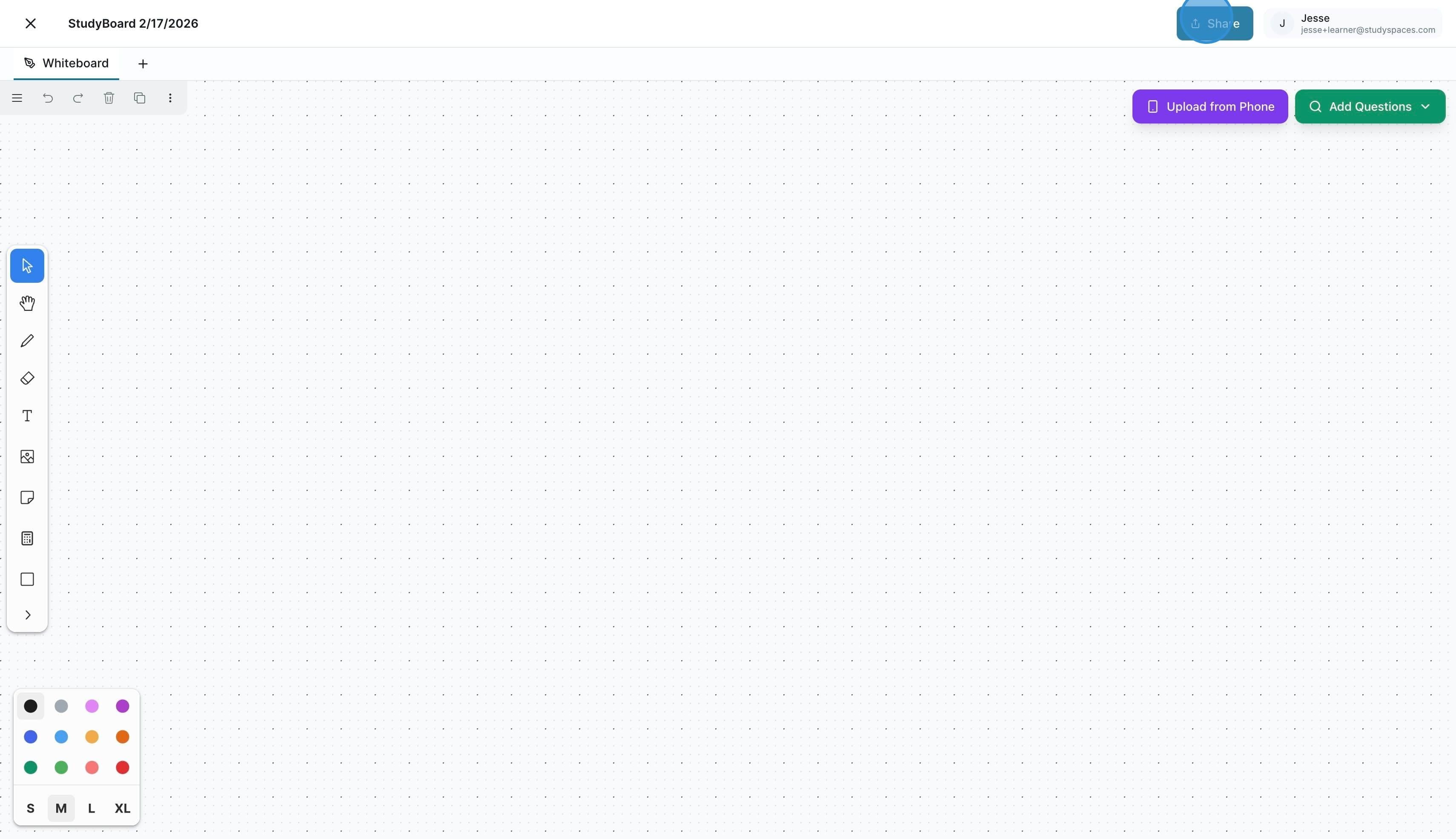
On the Infinite Whiteboard, you can draw, type, add notes, bring images, shapes, and more, as well as zoom in and out.
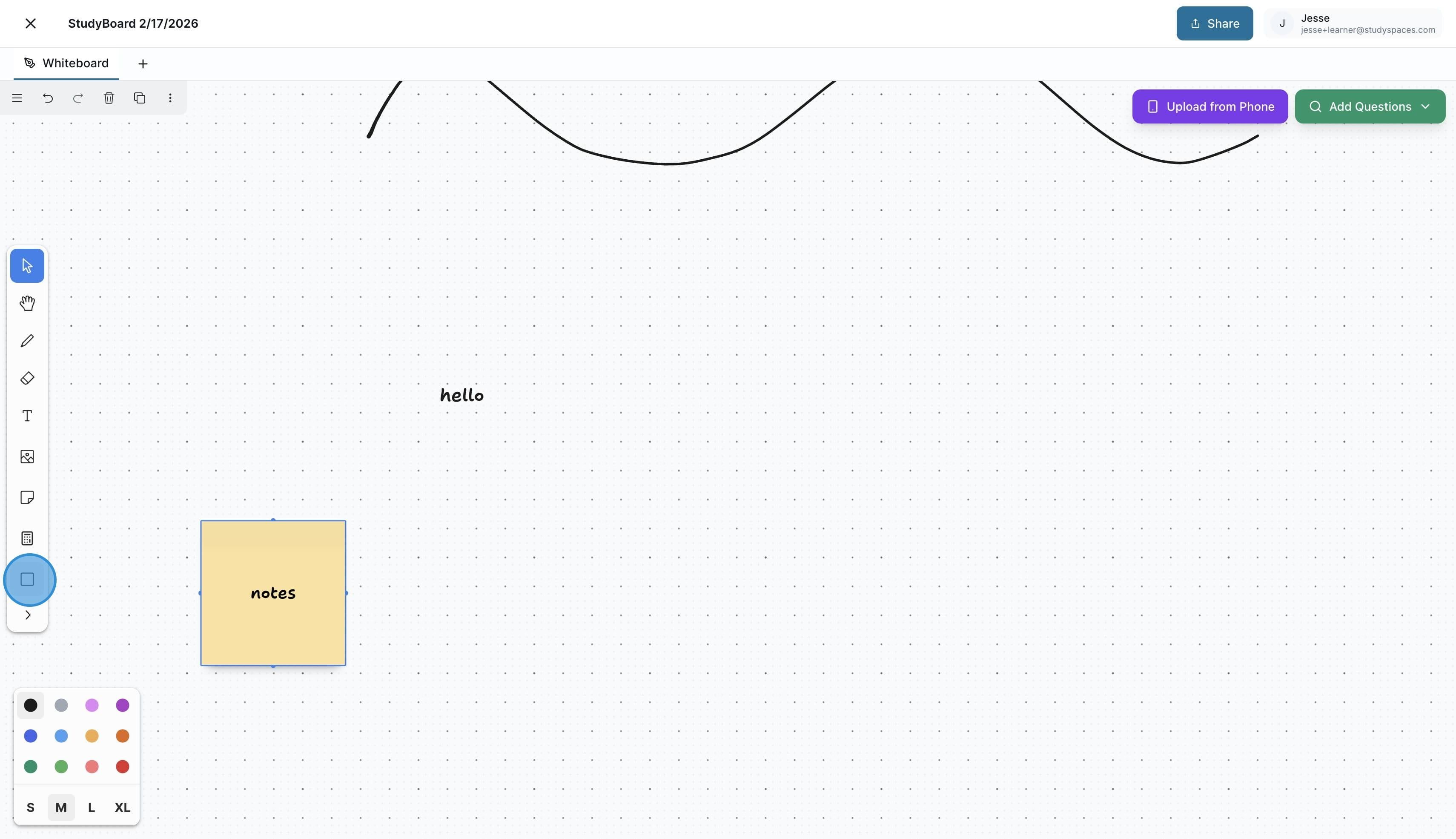
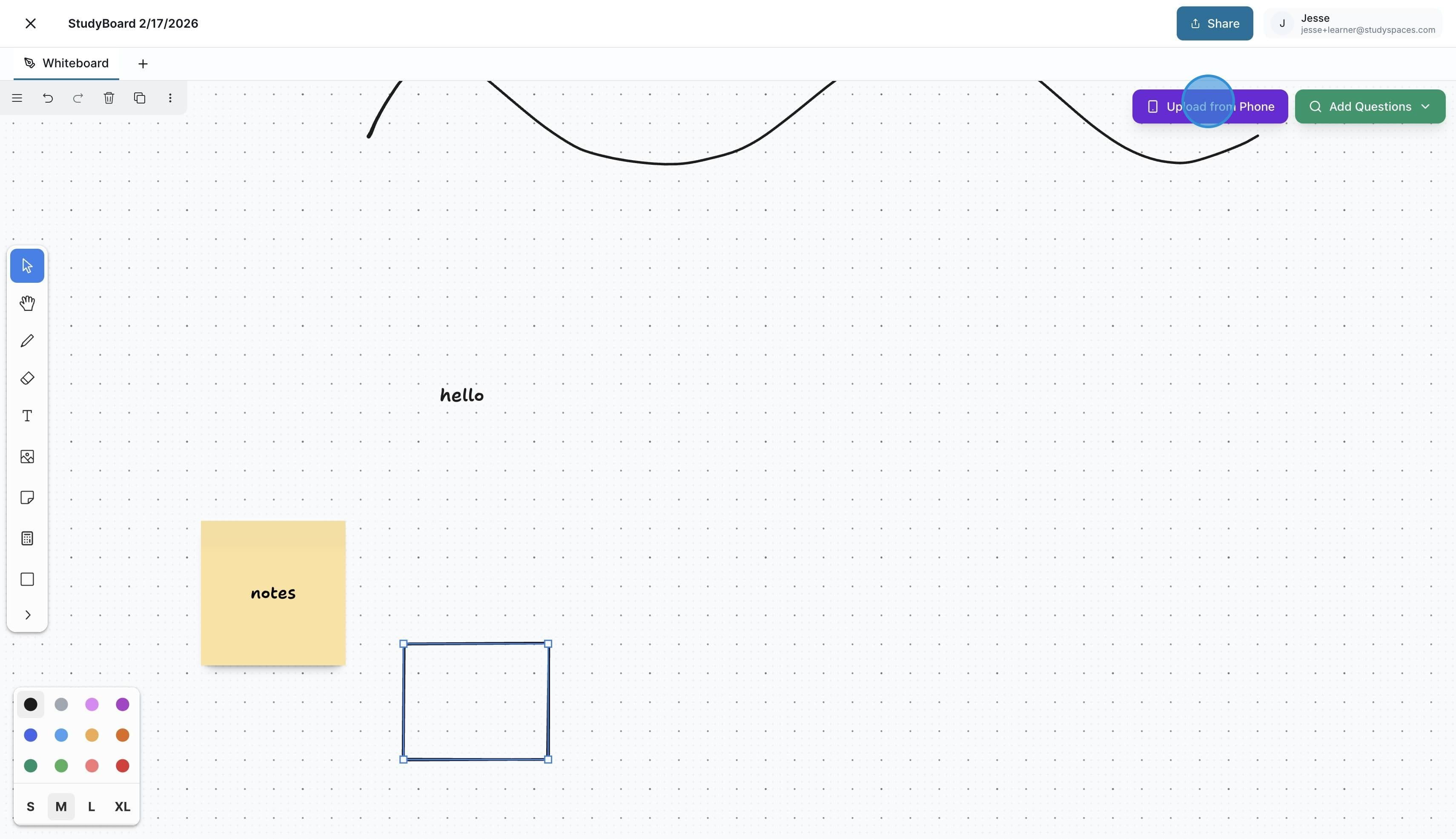
To allow students to upload a picture of their work, click on "Upload from Phone"
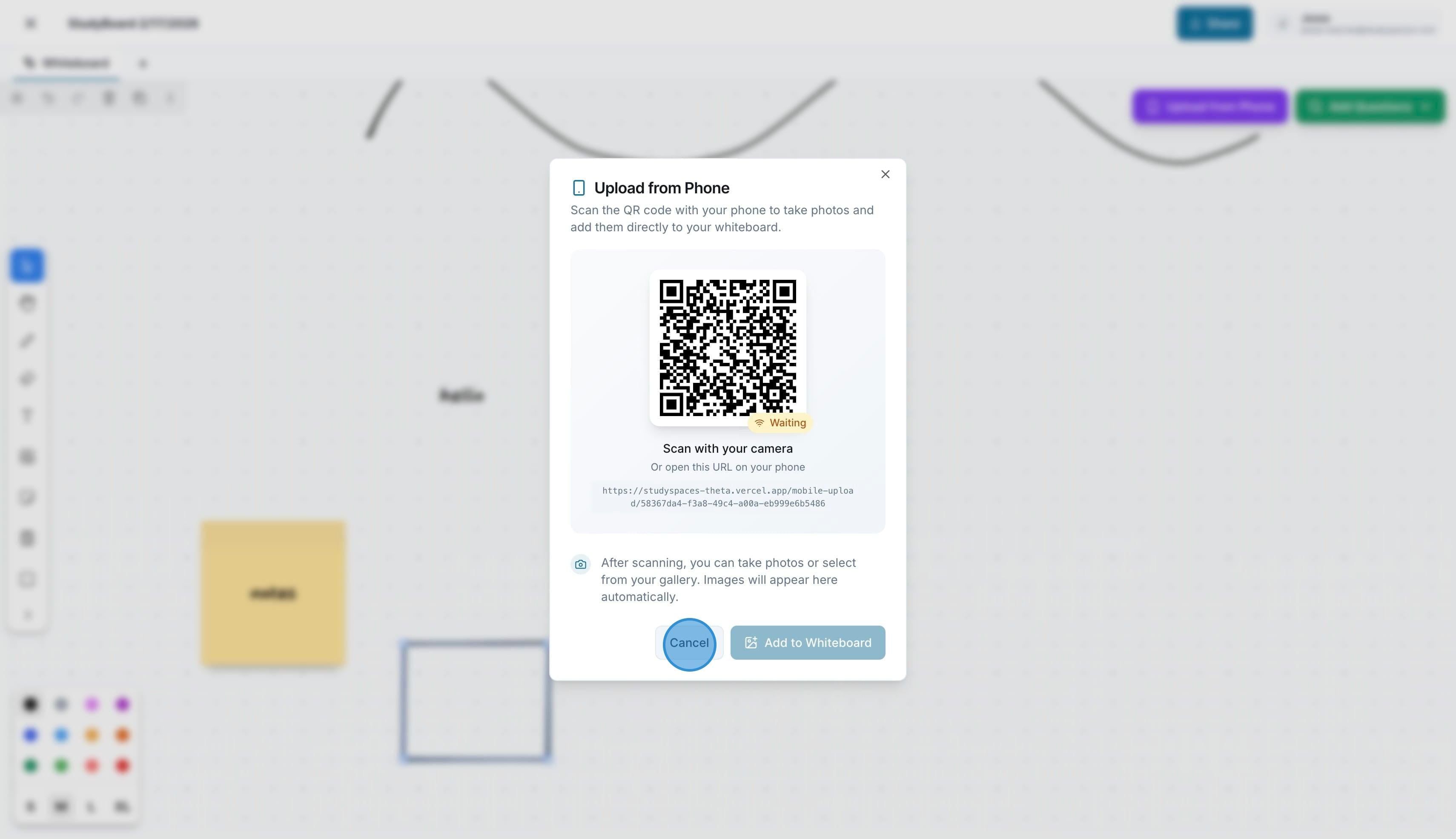
This will show a QR code on the screen, which the student can scan and choose to take a picture of the work in front of them to upload it to the whiteboard.
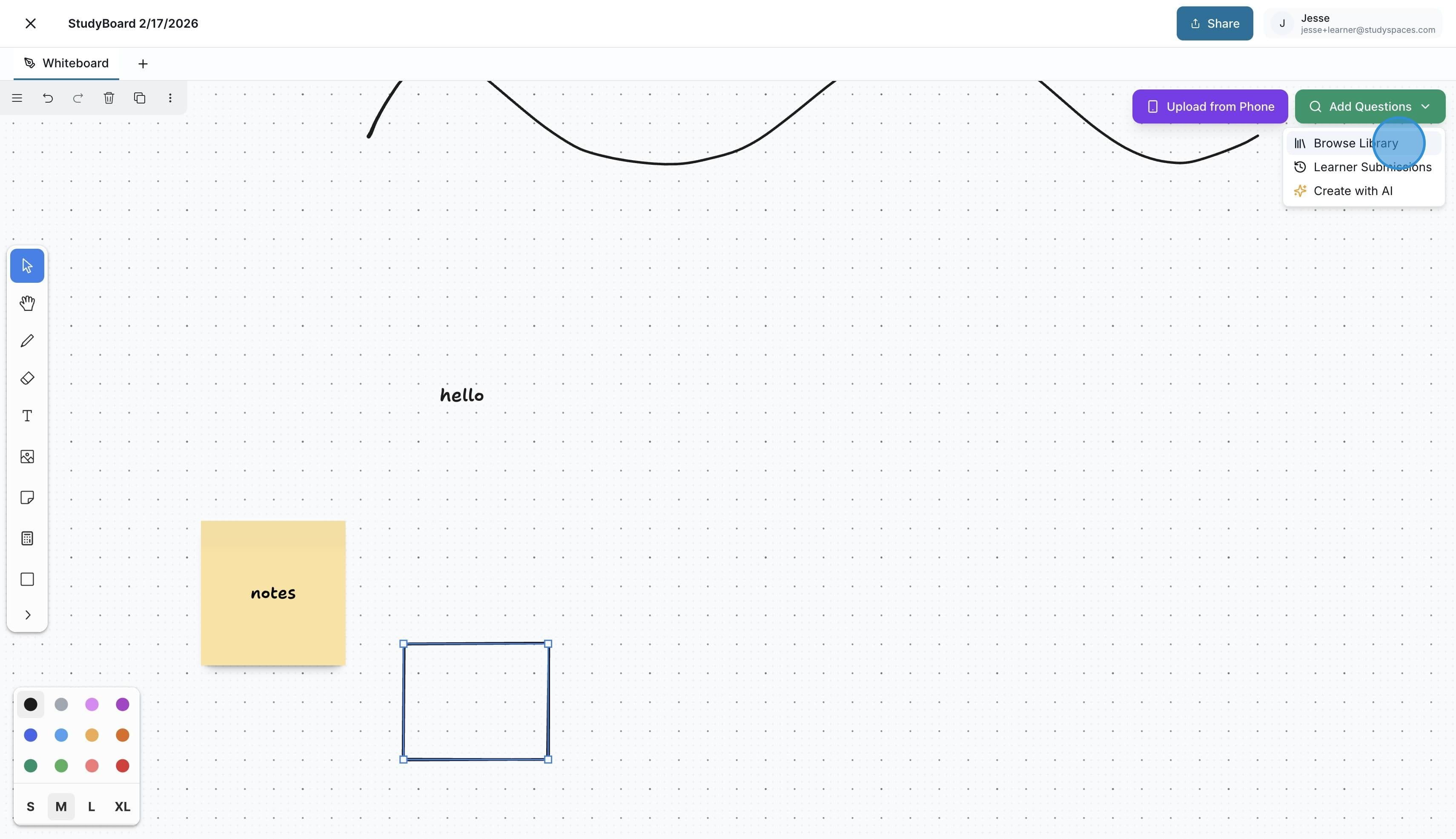
StudyBoards also allows you to browse your library or student submissions and pull questions from there for review by clicking on “Add Questions”
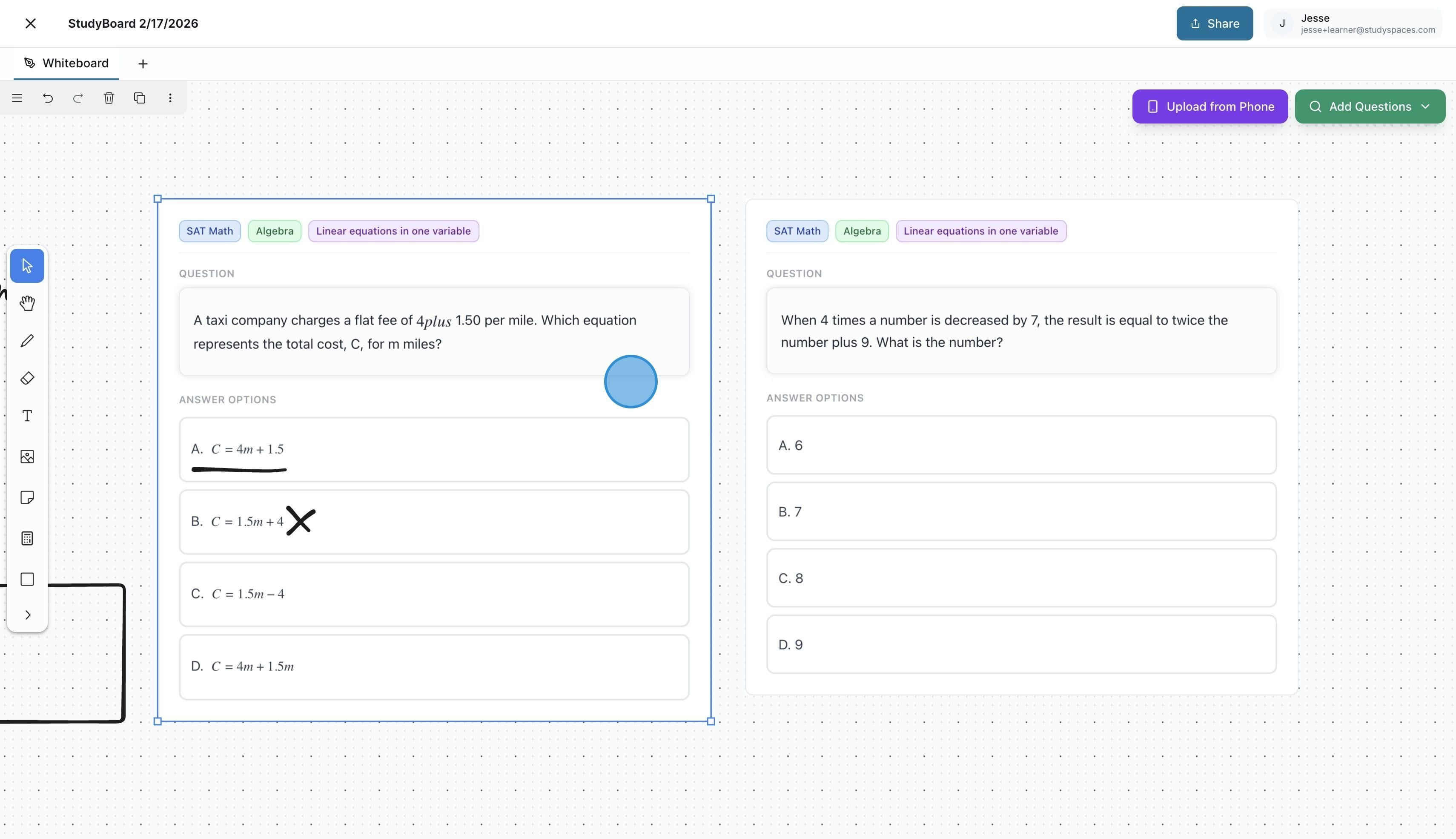
You and your student can annotate freely over the questions.
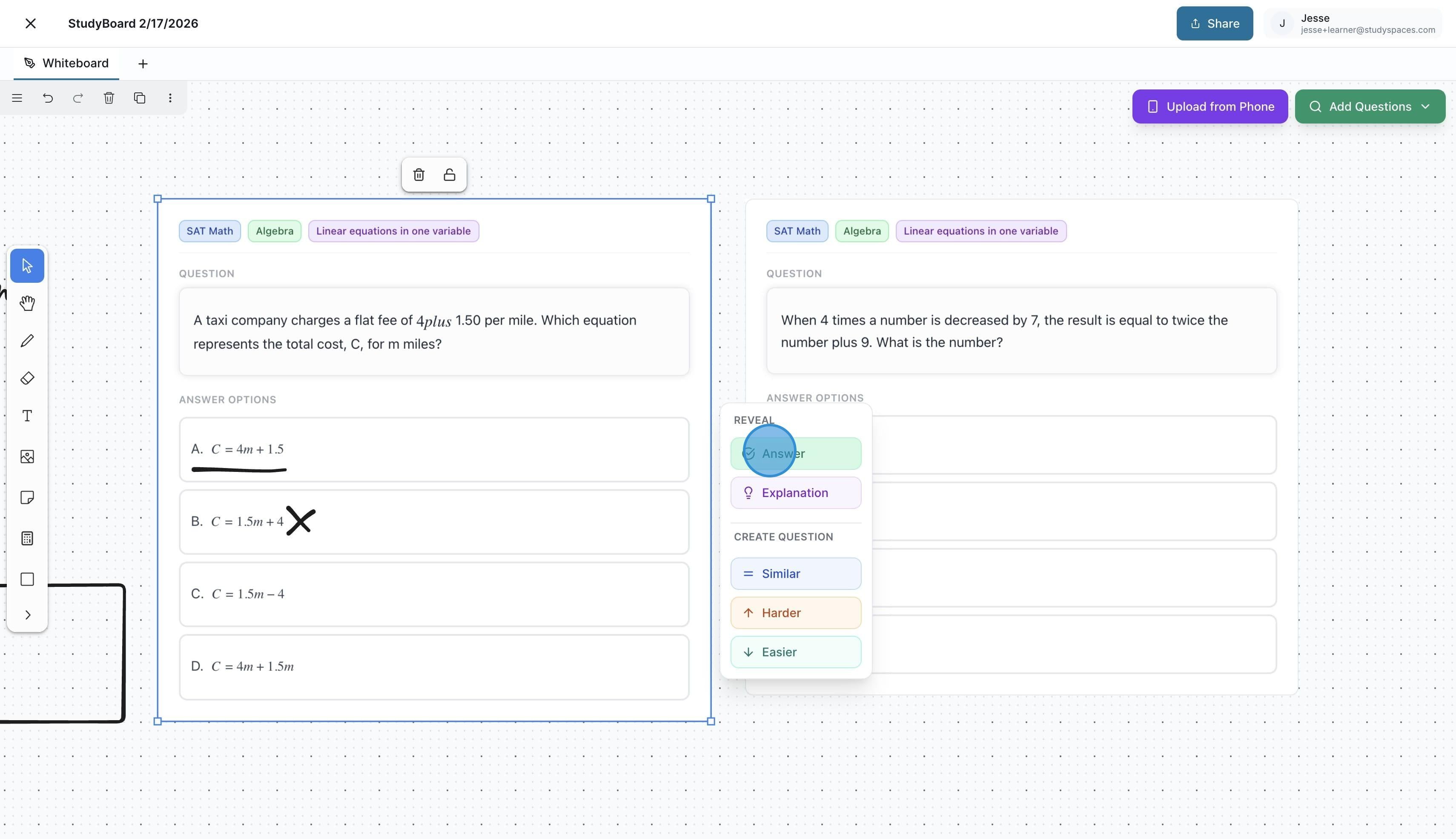
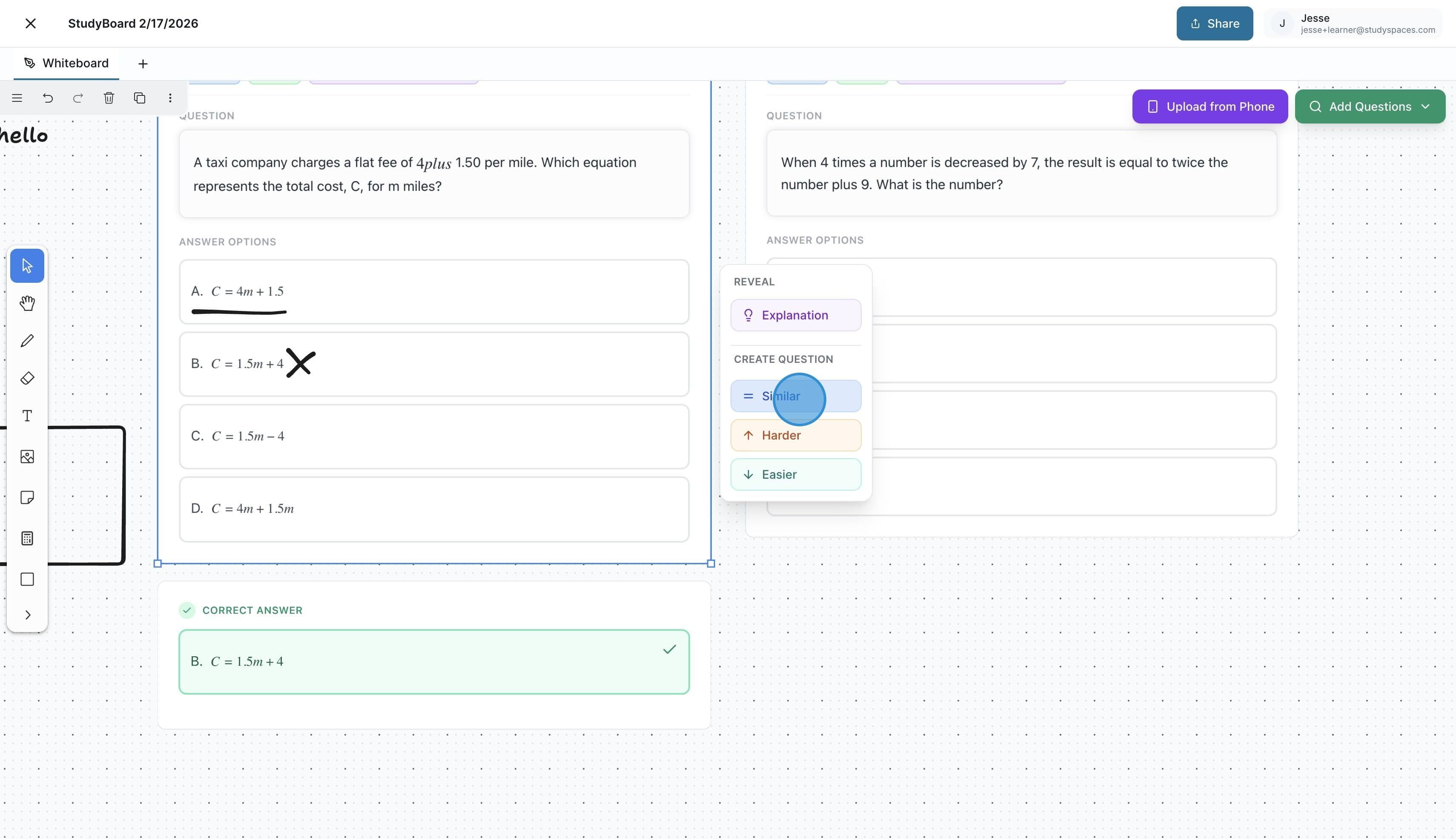
To reveal the answer, explanation, and more about the question, simply click on the question and choose from the options what you would like to reveal.
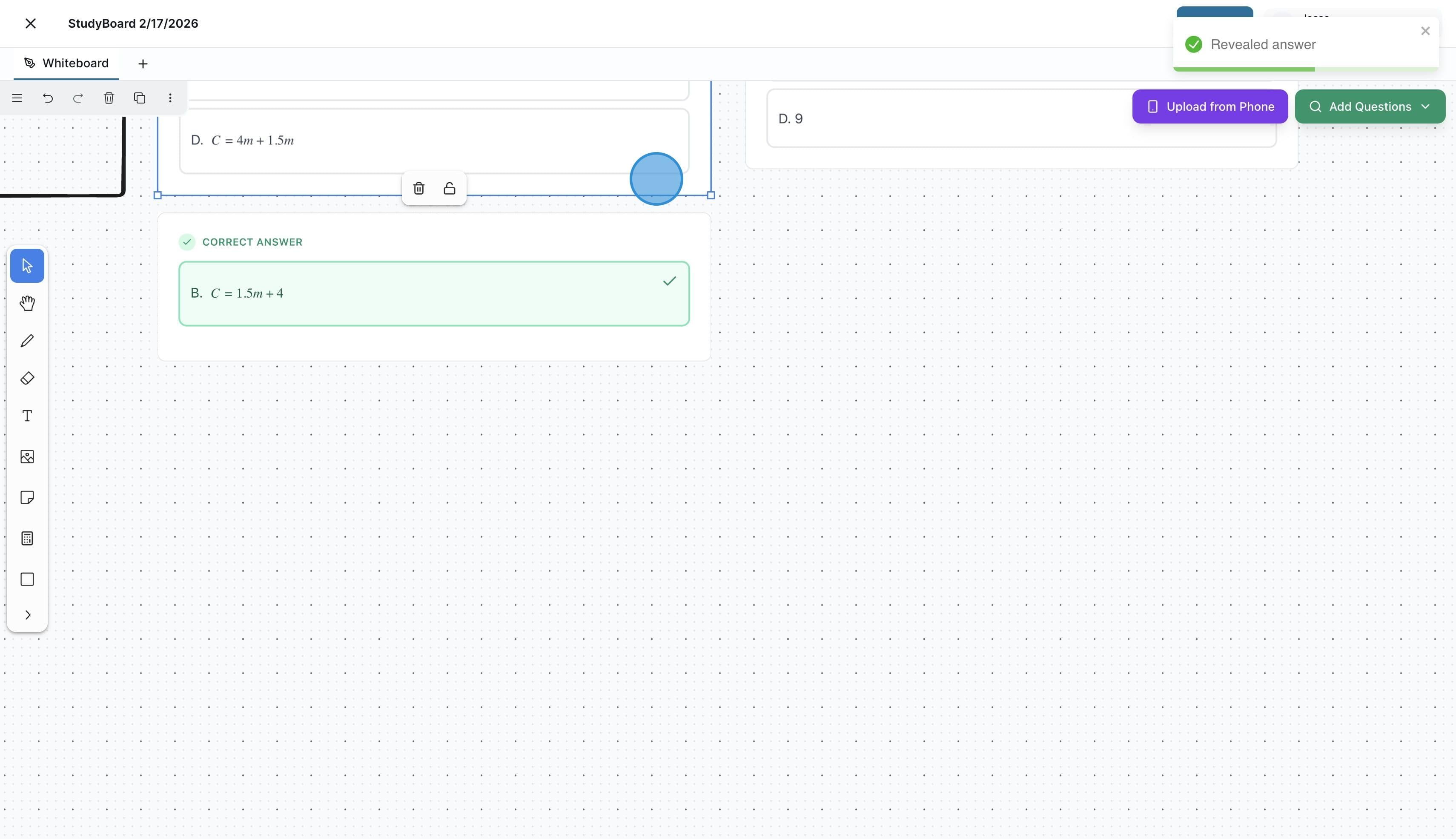
The selected option will show below the question.
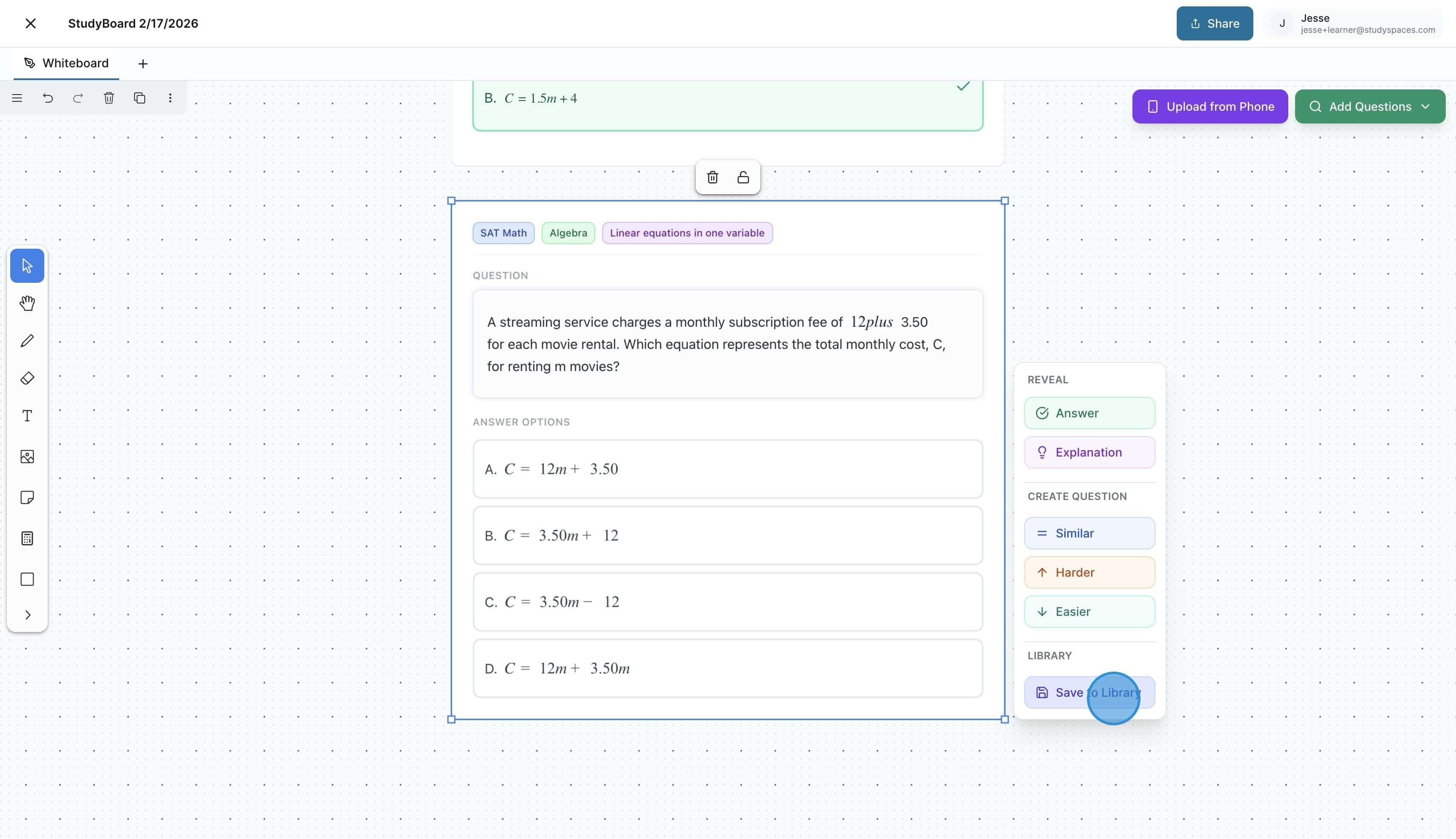
You can also generate a new question based on the existing one with varying levels of difficulty for extra practice.
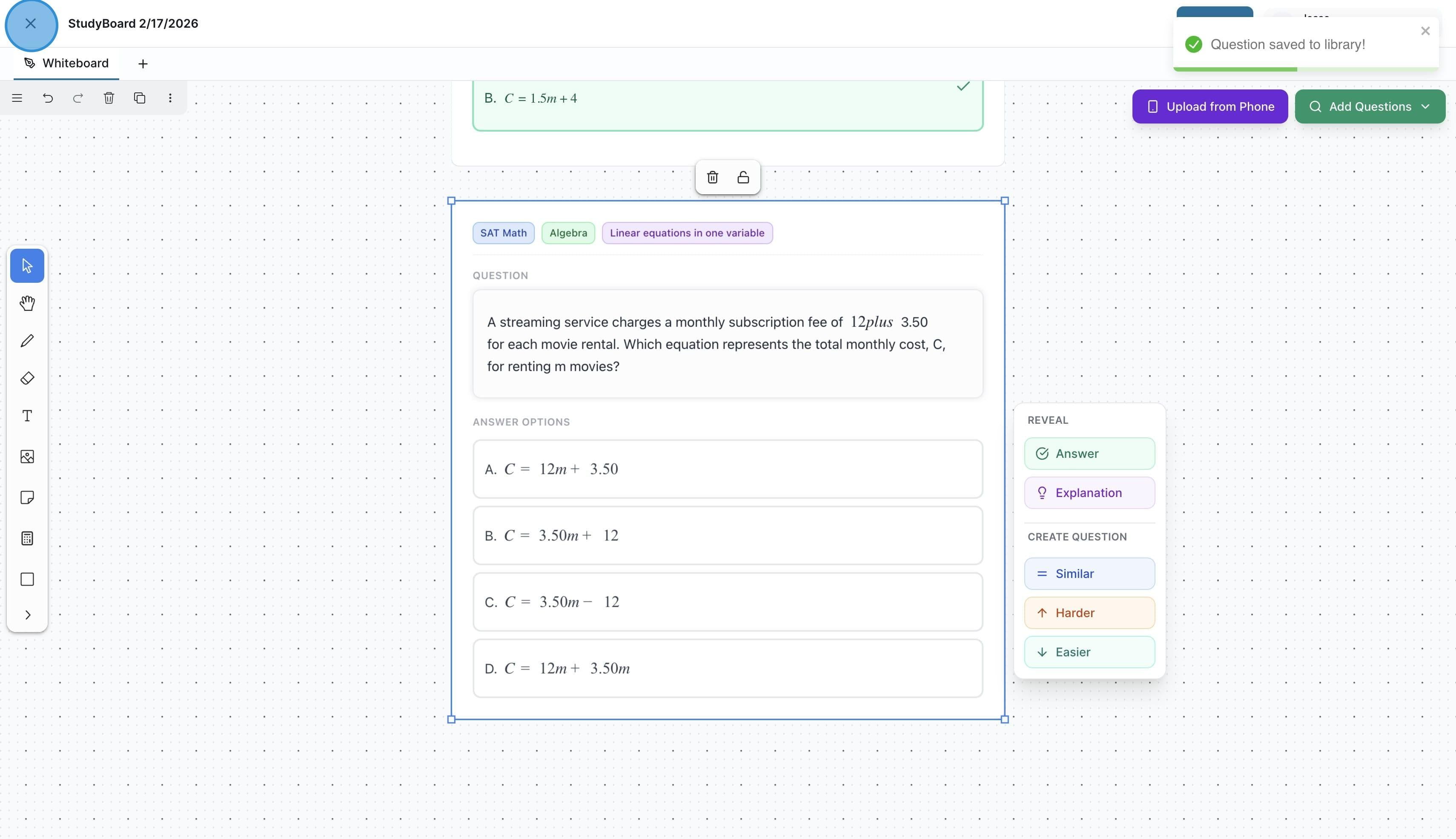
If you would like to save the new question to your Questions Database, click on "Save to Library"
You can leave a StudyBoard and return to it anytime.
You also have the option to make the StudyBoard “Visible to the student” so they can find it and interact with it independently as well.
Was this helpful?
Still need help? Ask the team