How to Log Student Notes in StudySpaces: Create Session Notes and Share with Parents
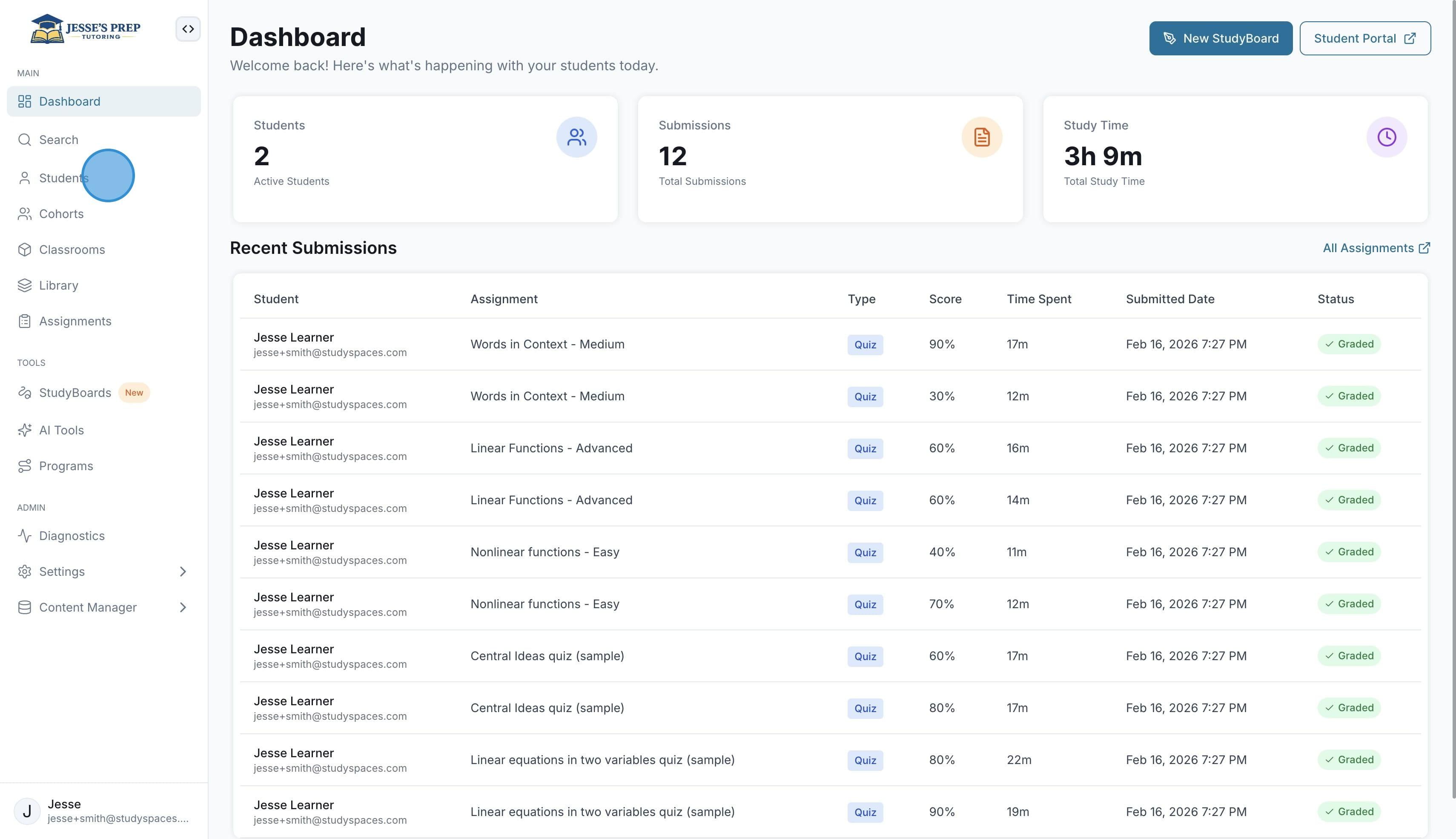
Start by going to the “Students” menu on the sidebar
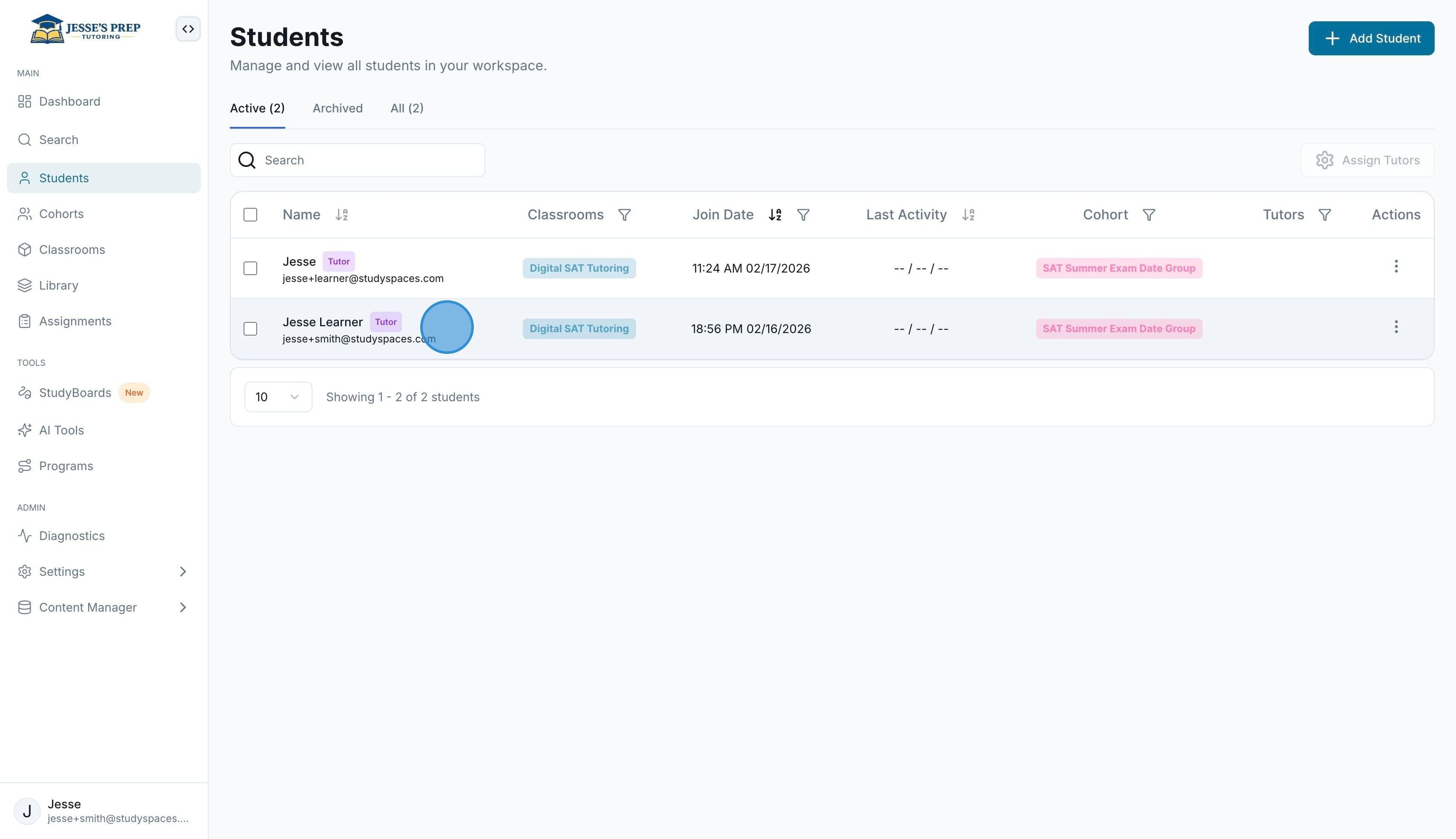
Click on a student
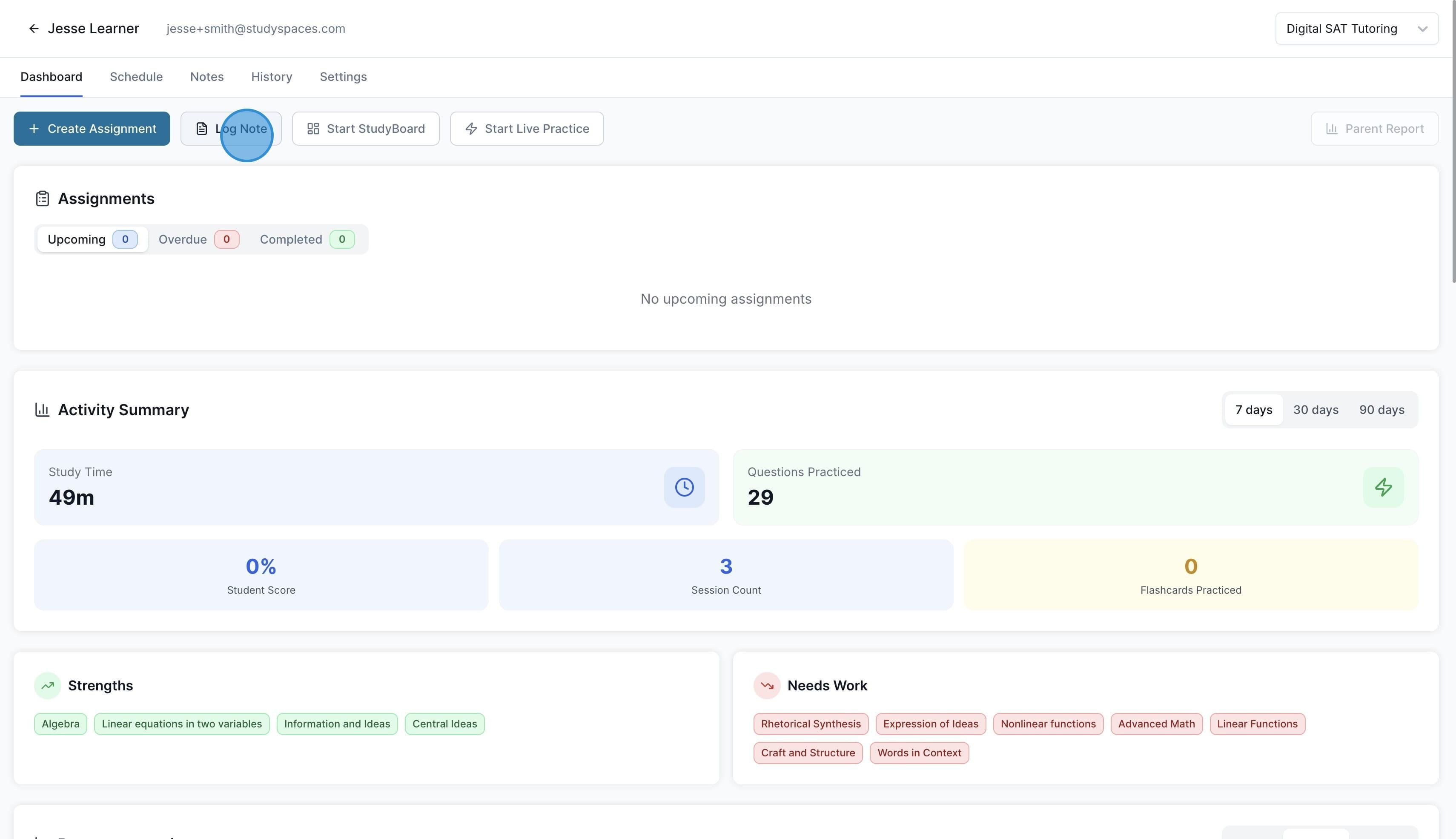
Click on “Log Note” to add a note
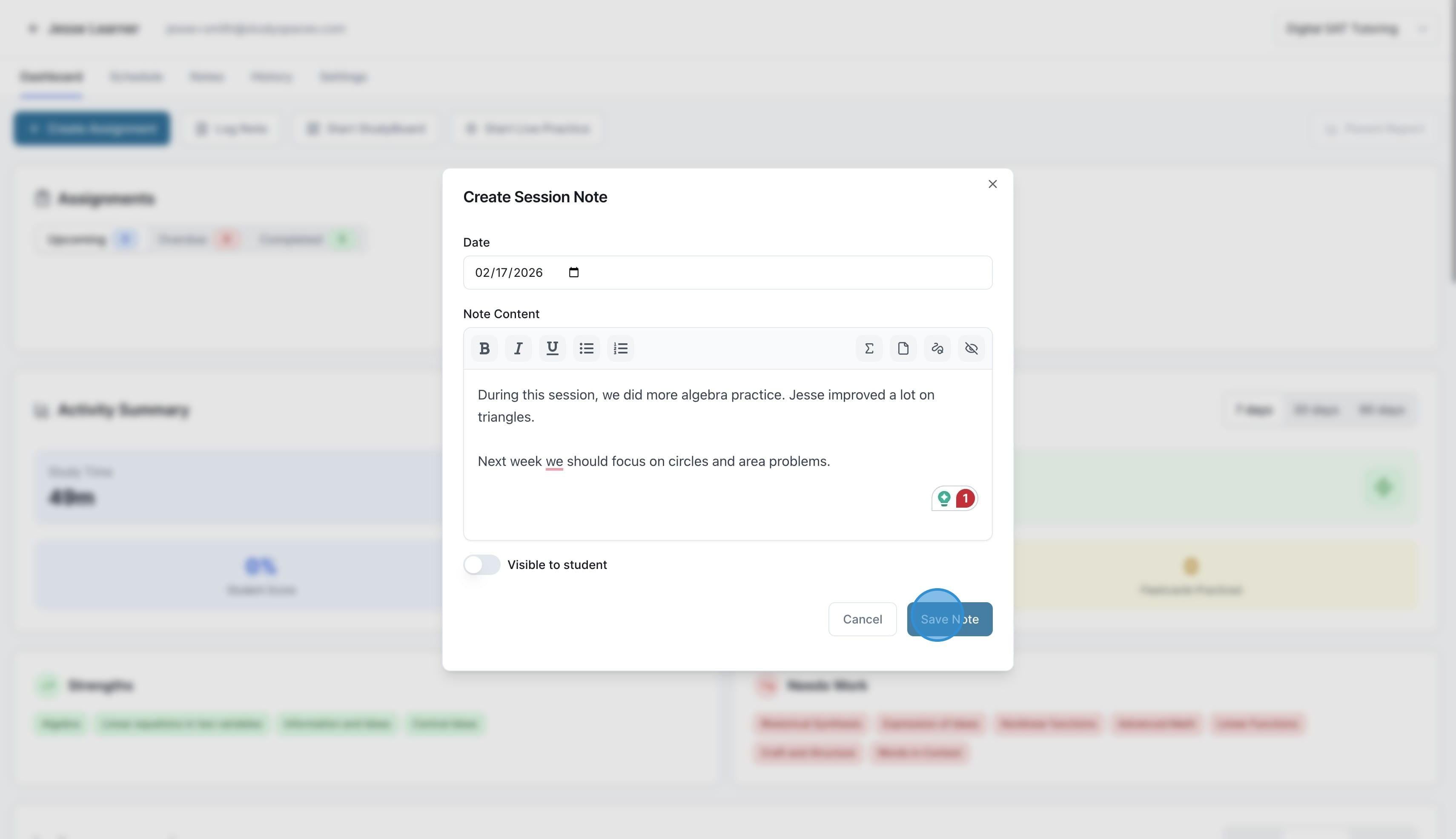
For each note, you can add a date, and under the note content, you can input anything from text to images, etc.
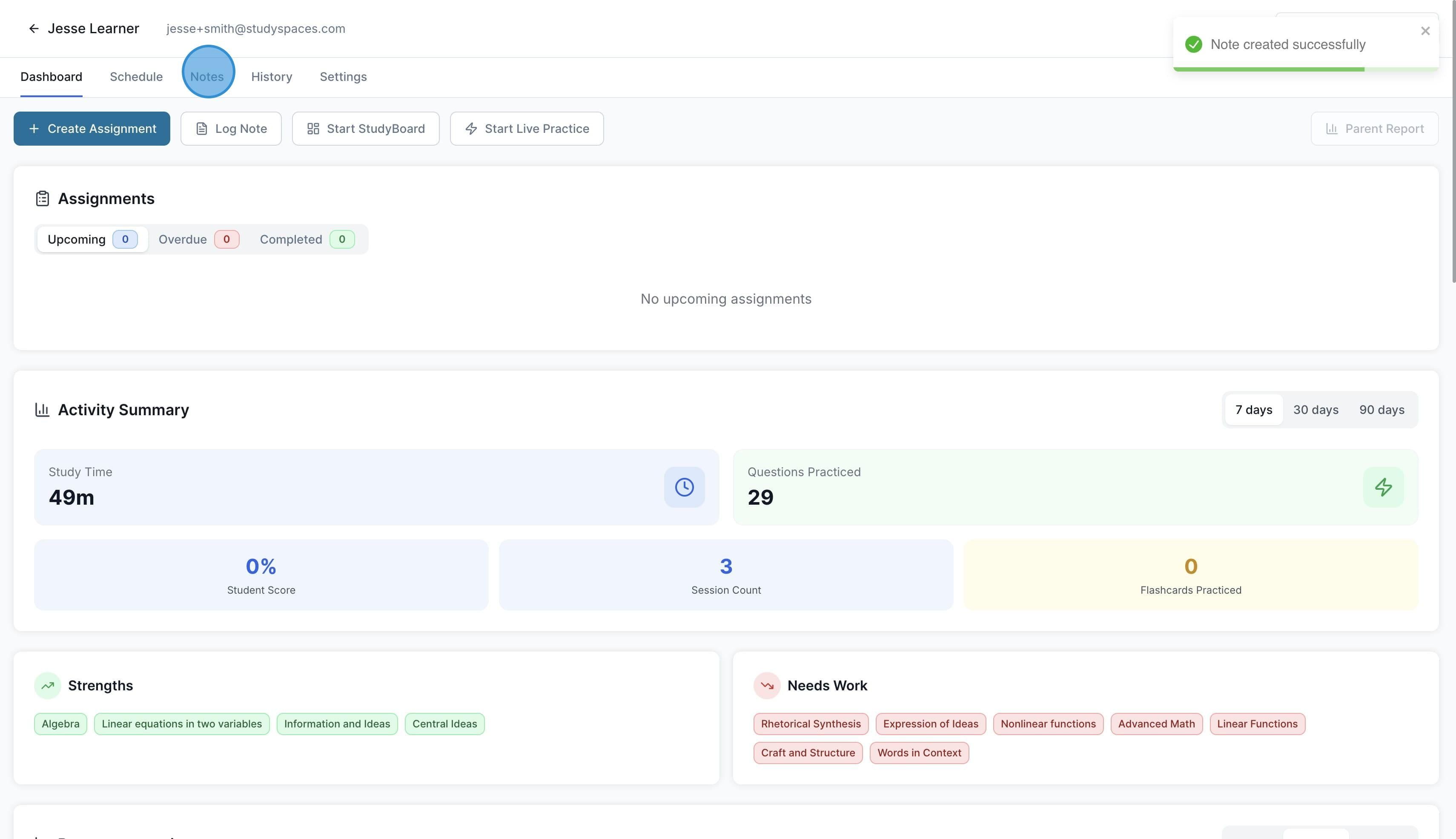
To see all notes logged for this student, click on the "Notes" tab.
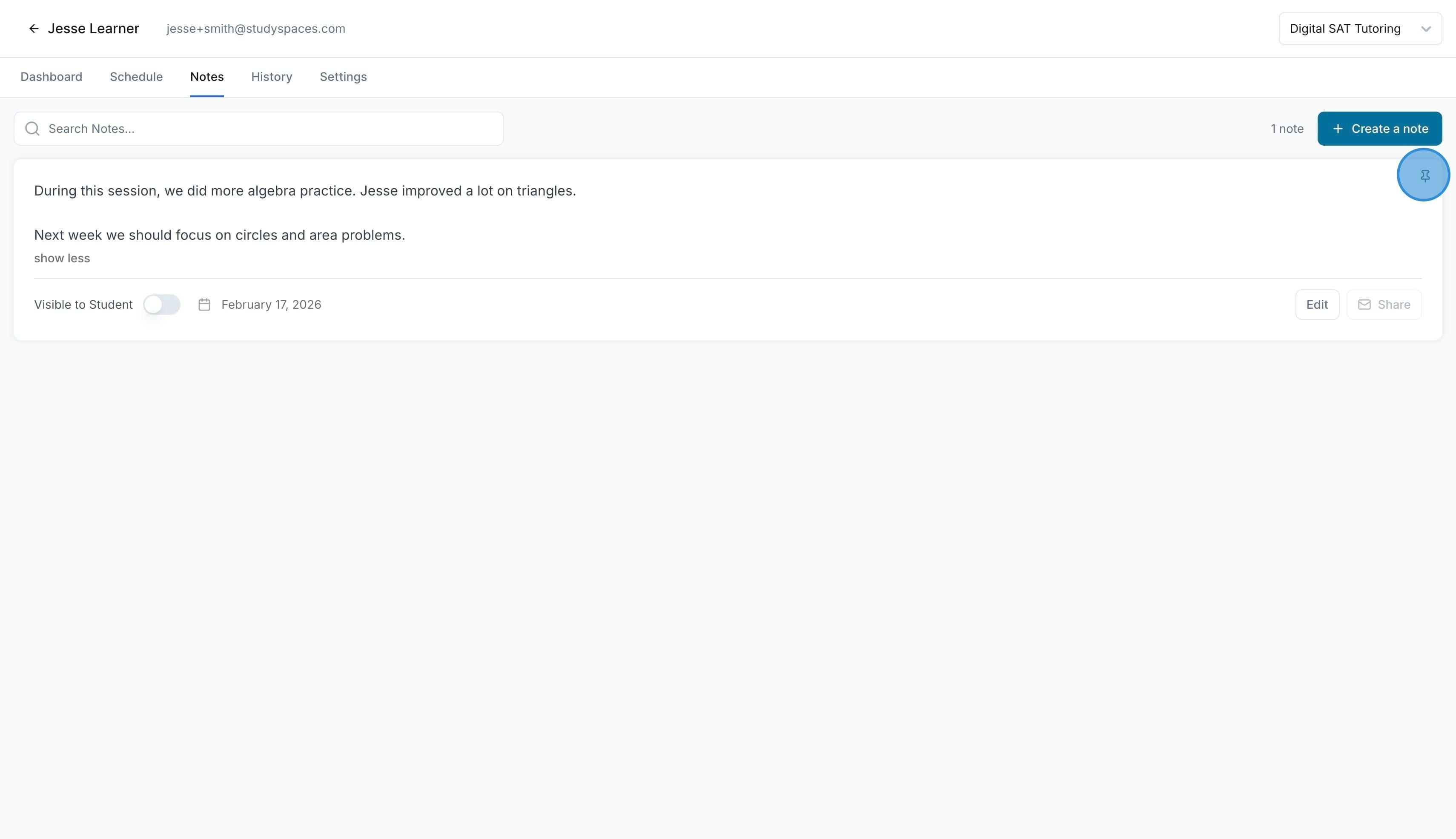
You can edit notes, “Pin” them, make them “Visible to the student” and even “Share” them with the parent attached to the student via email.
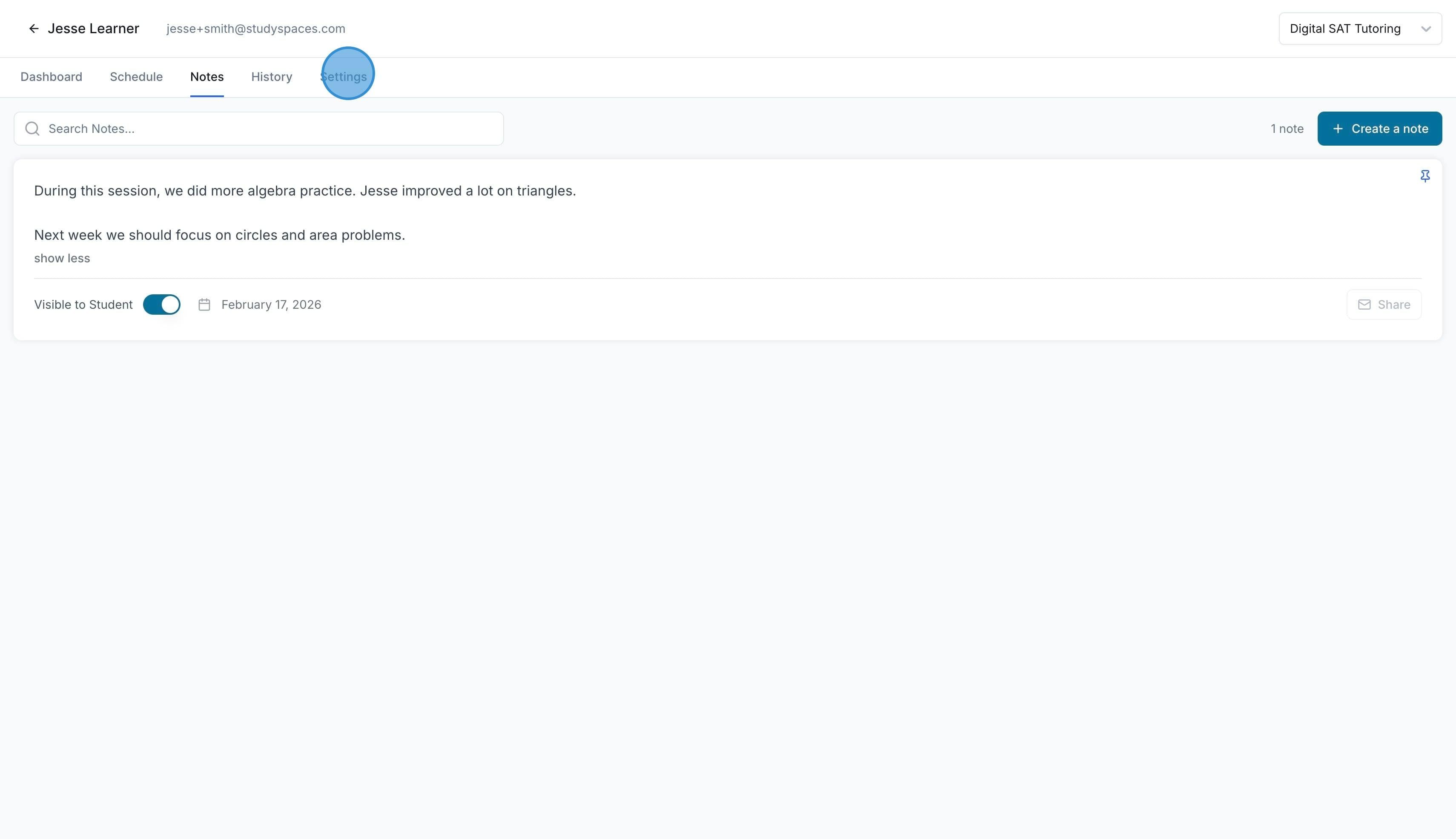
To add a parent email to the student, click on "Settings"
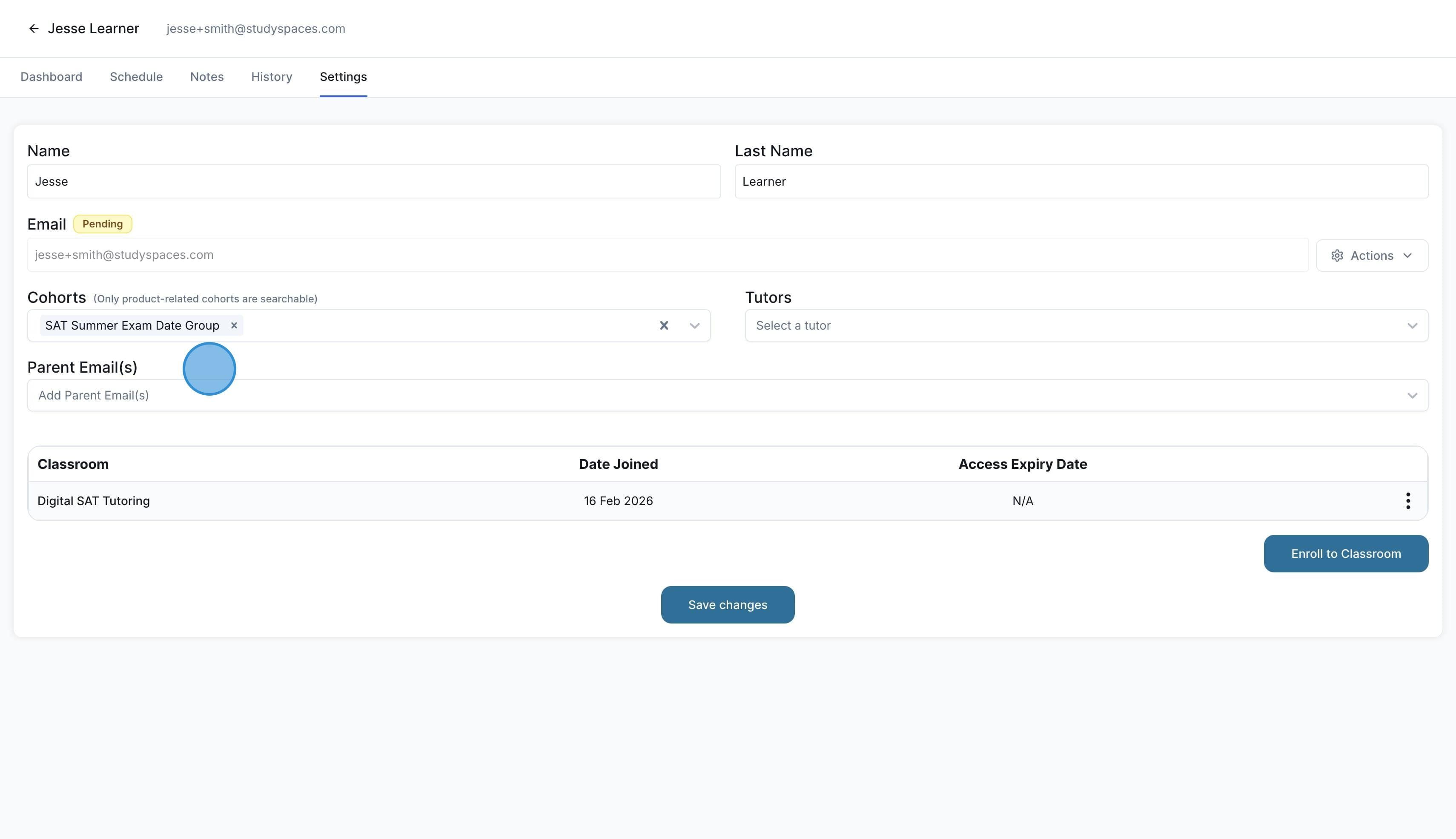
Click on "Parent Email(s)" to add the emails and save changes when done.
Was this helpful?
Still need help? Ask the team