How to Create a Classroom in StudySpaces: Step-by-Step Setup Guide
Starting from your Dashboard, click on “Classrooms”
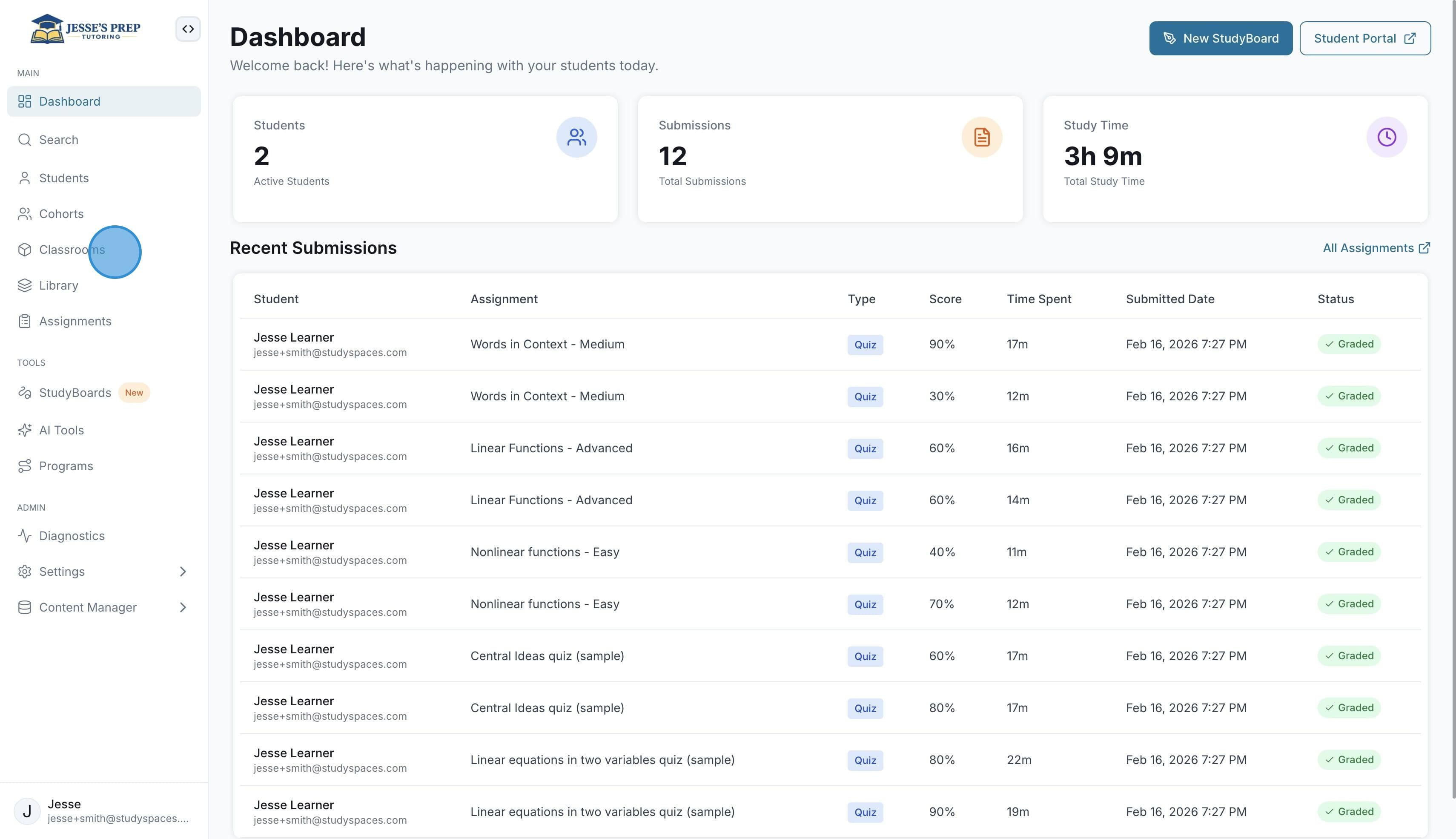
Here is where all your classrooms live. Click on "New Classroom" to create a new one.
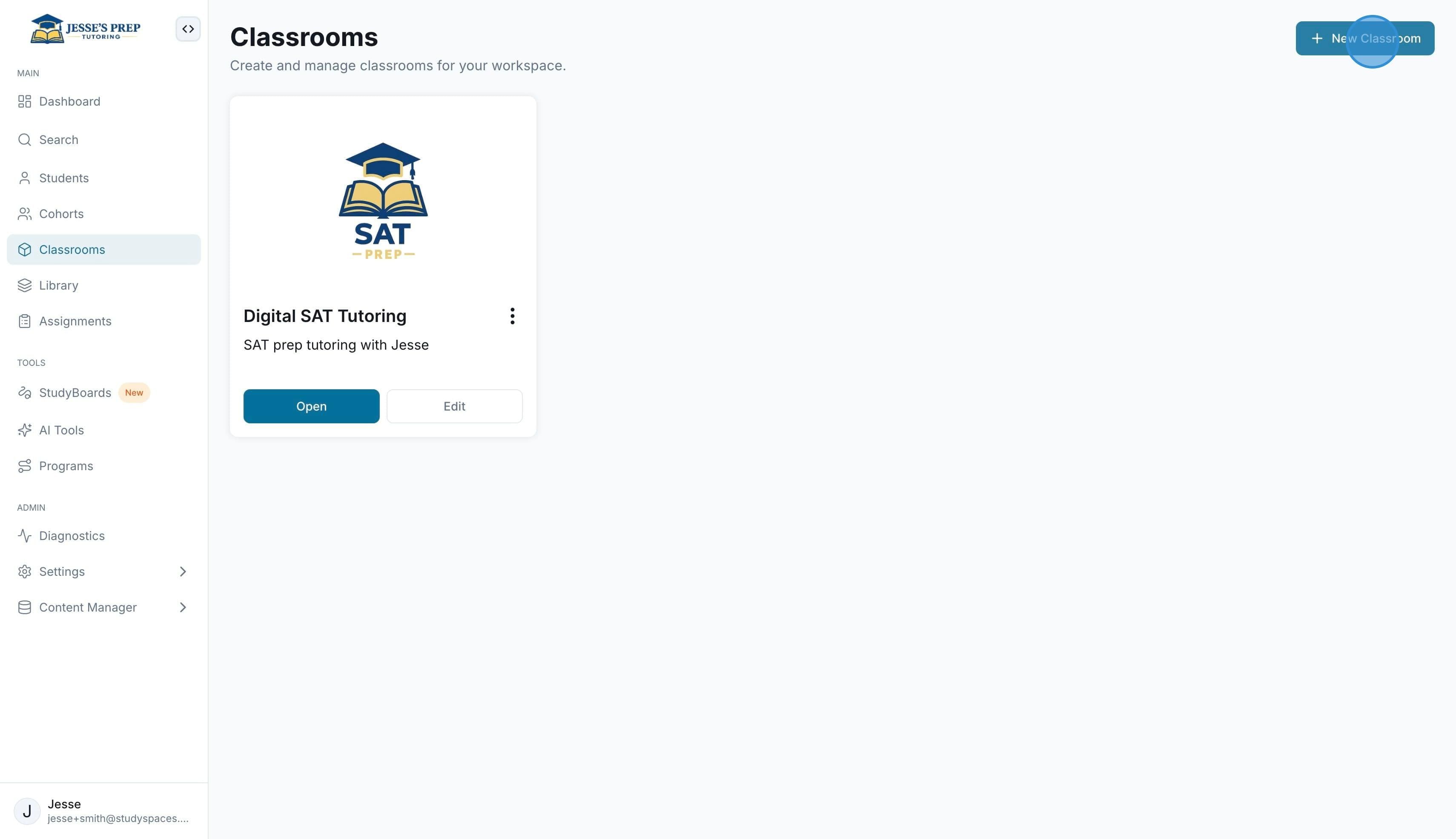
You can give it a name, description, and logo as well.
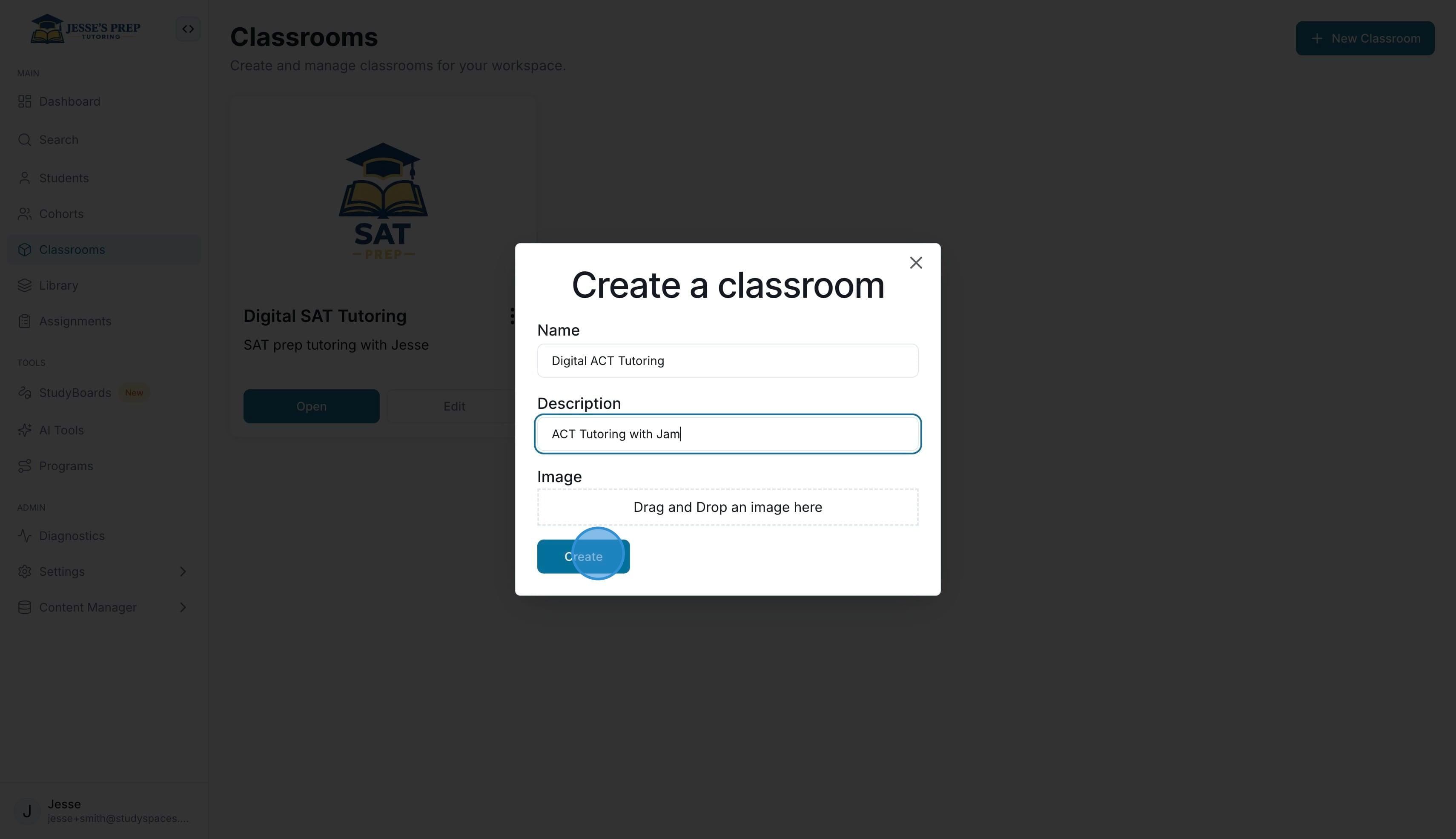
Congratulations! You created your first classroom on StudySpaces! Let’s open it and go over its configs.
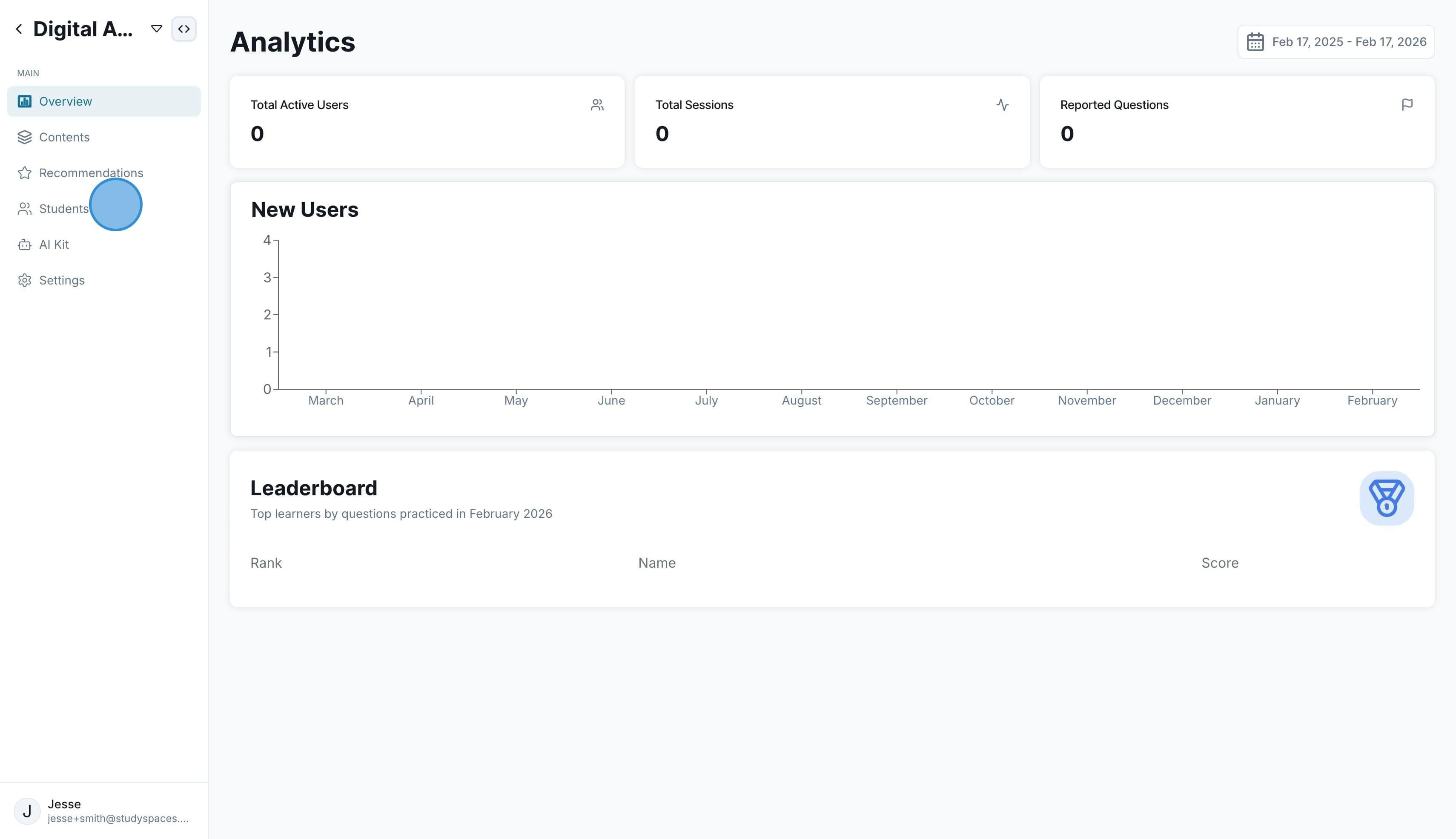
Once you are inside a classroom, you will see overall analytics on the Dashboard such as Total Active Students, Total Practice Sessions, Leaderboard, and more. To add, manage students inside a classroom, click on the “Students” menu on the sidebar
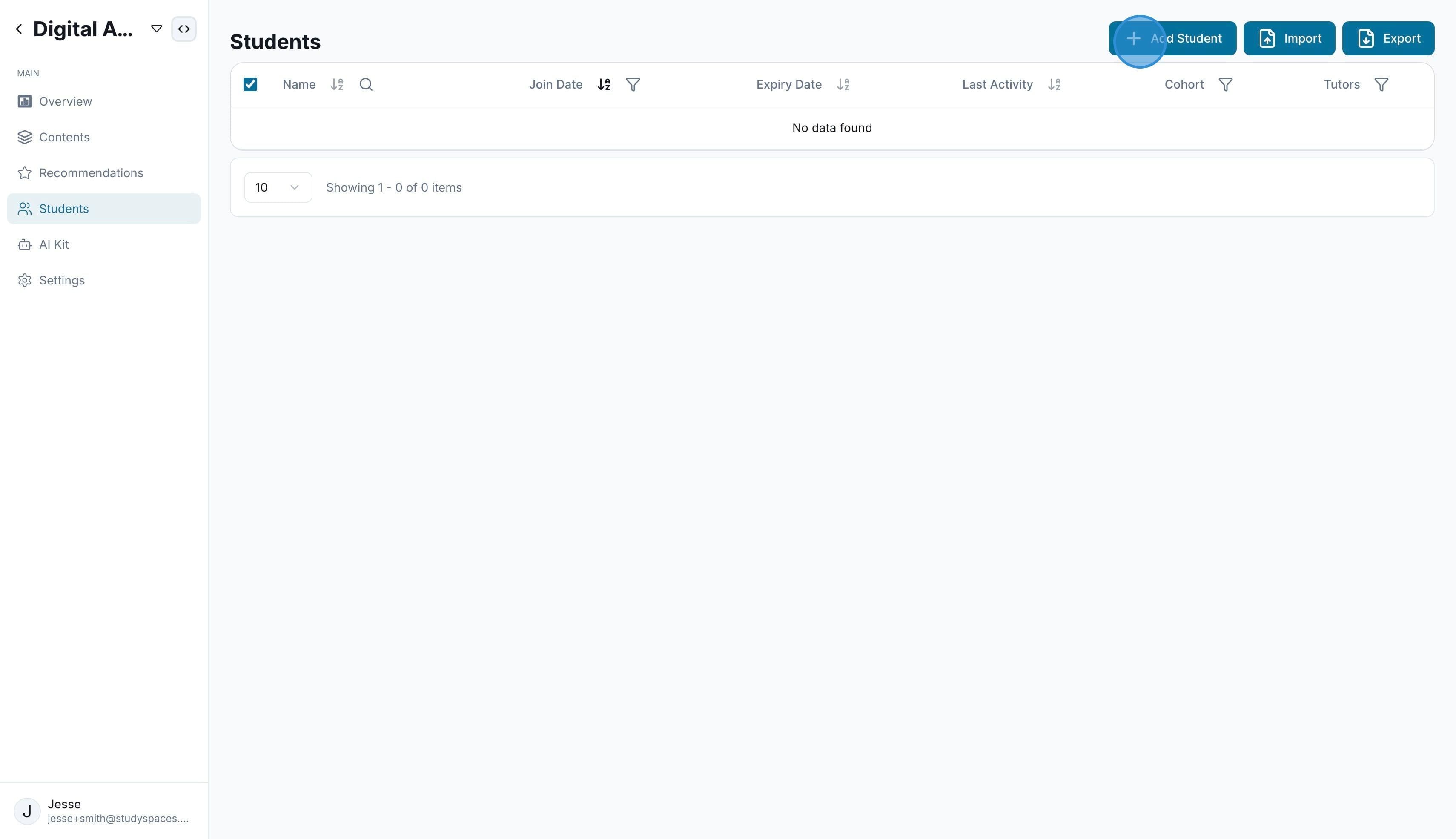
Here, you can “Add a Student” at a time or invite many students at once using “Import”
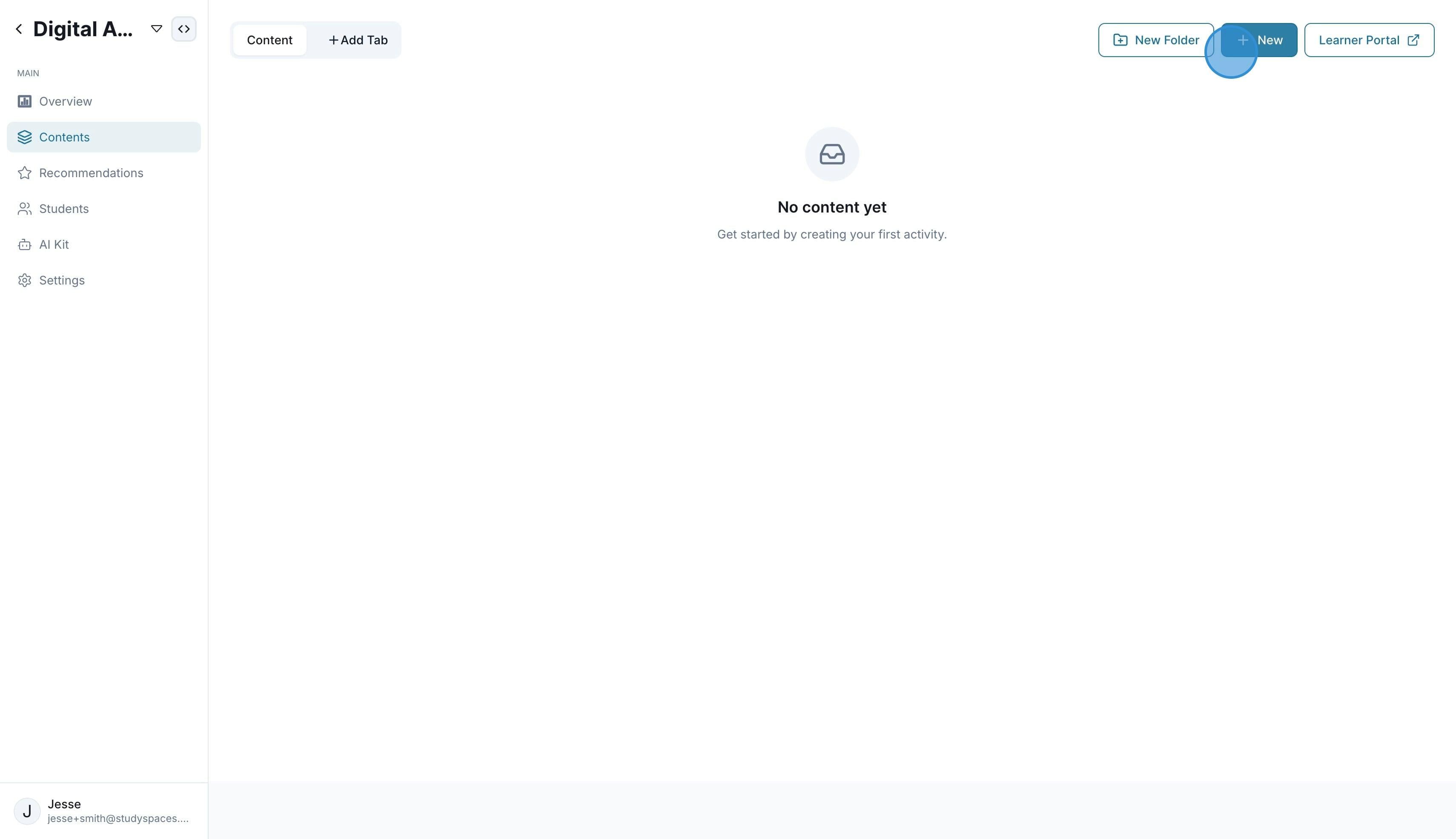
The “Contents” tab allows you to add materials for students to access on their own, from quizzes to mock exams, files, and more. You can organize them into folders as well for structured content like chapters or topics.
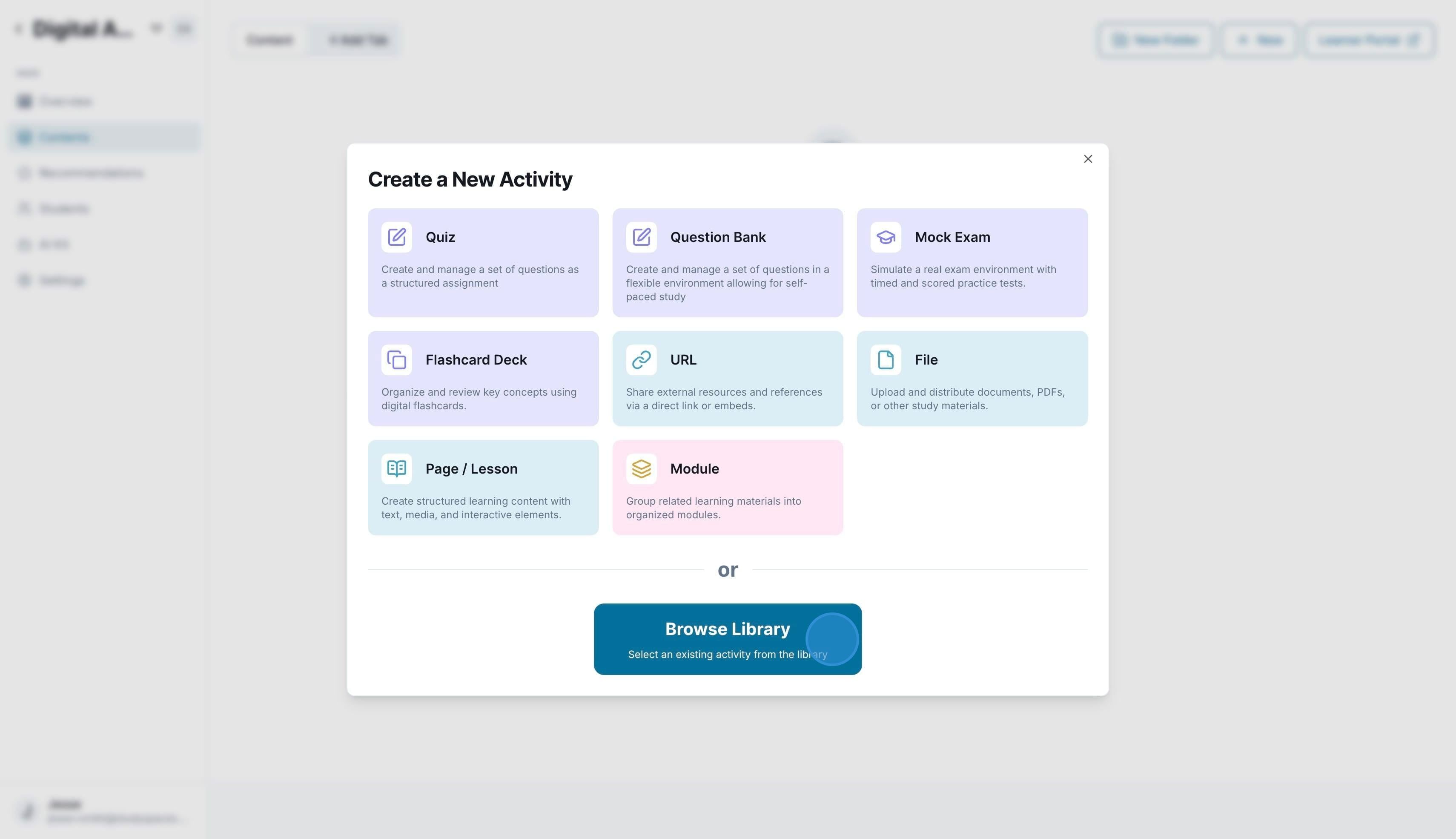
When adding content inside a classroom, you have the option to browse your library or create from scratch.
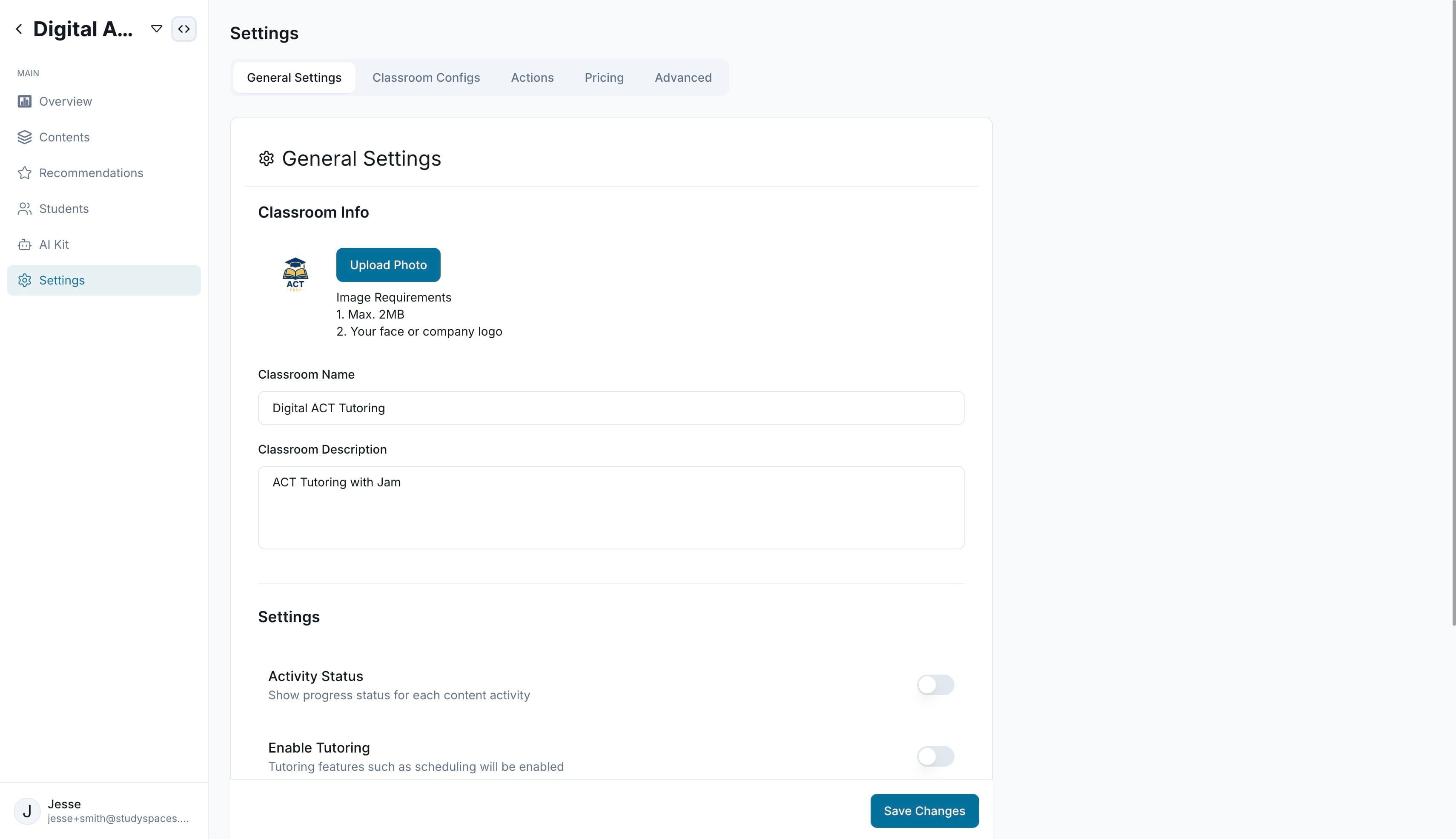
Next is the “Settings” menu.
Starting with the General Settings tab, here is where you can update classroom info such as name, logo etc as well as set up whether you want to enable:
Activity Status (show progress status for content activity),
Enable Tutoring (enable the ability to schedule assignments to students in the classroom)
Classroom Layout (decide if student portal will have a topbar with tabs or a sidebar, etc
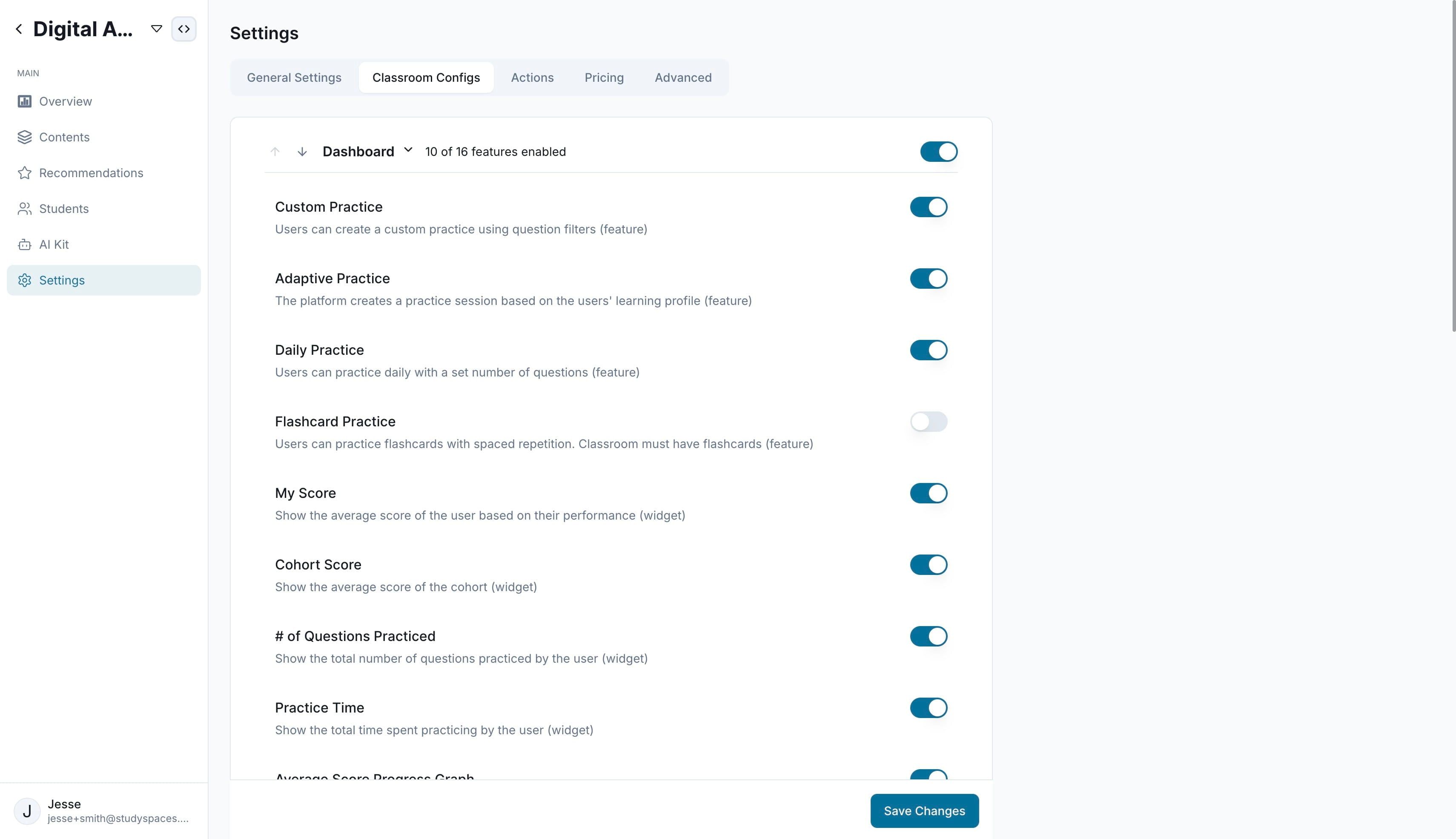
Next is the “Classroom Configs” tab.
Here you can decide what the student portal looks like, from choosing the right widgets on the dashboard, to enabling/ disabling/ reordering menus, and more.
Try it out and see how it impacts the student portal experience.
Was this helpful?
Still need help? Ask the team