How to Create & Assign Assignments in StudySpaces: Complete Assignment Workflow
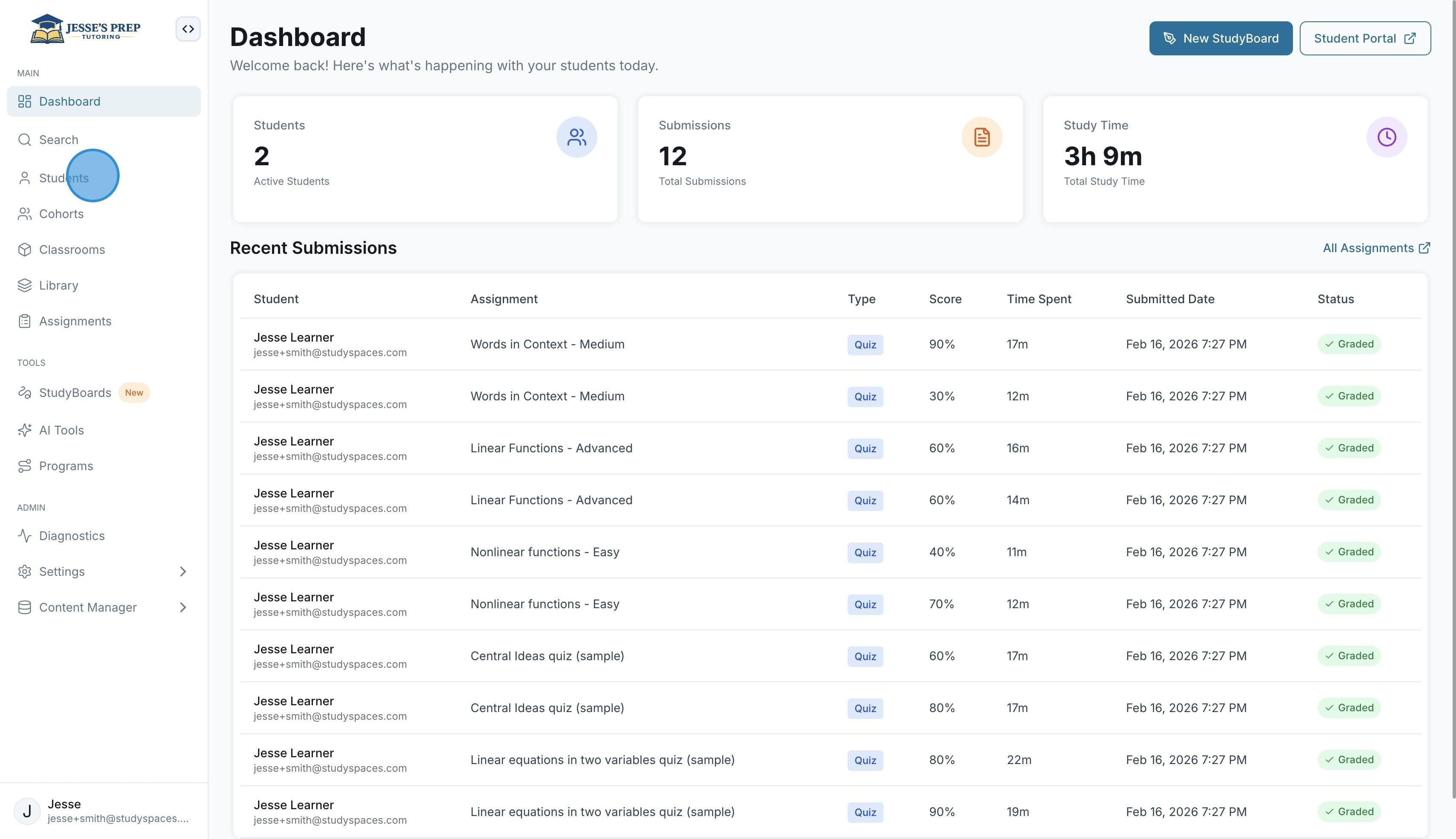
Start by clicking on "Students” in the sidebar
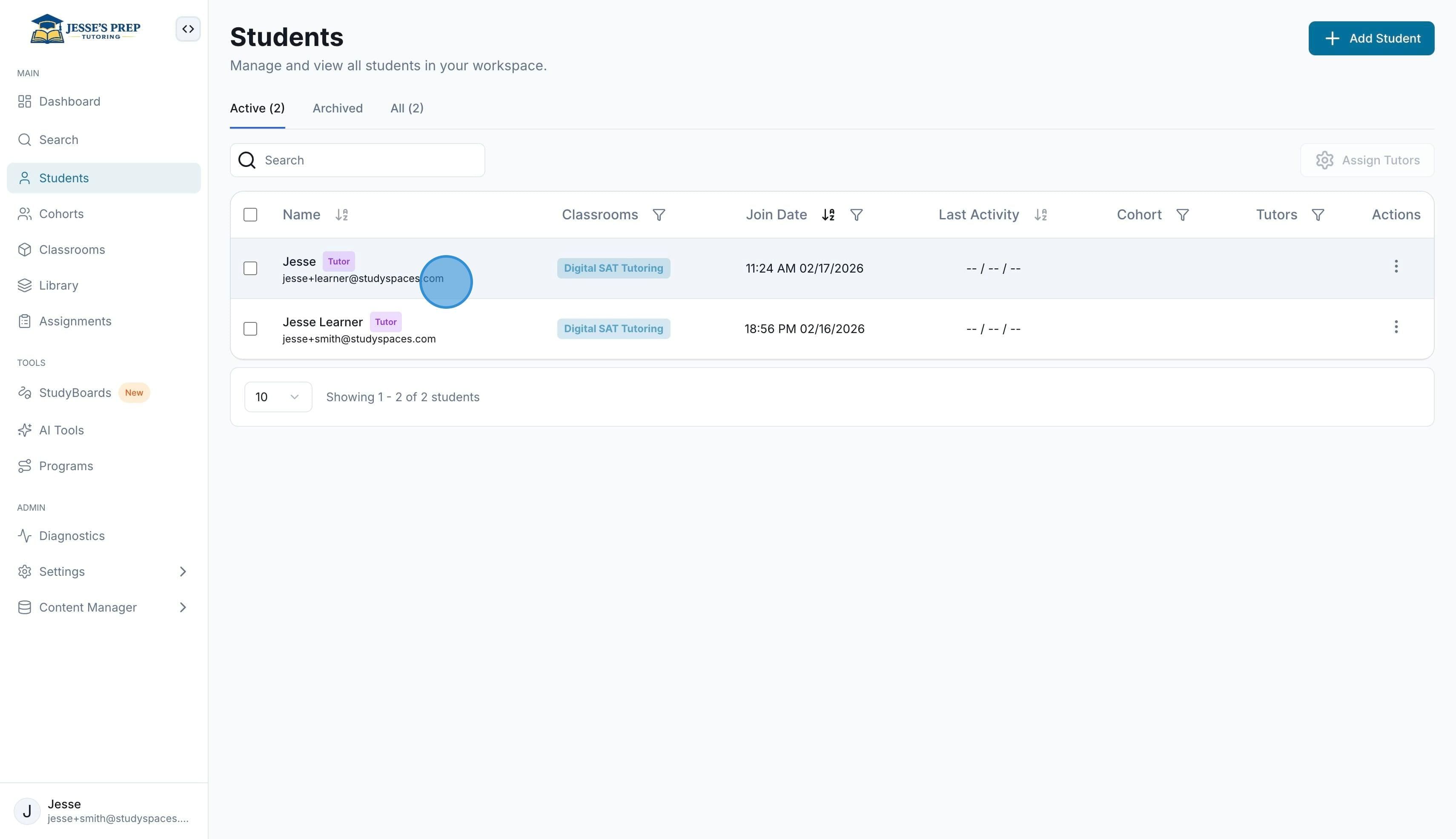
Select a student you would want to create and assign an assignment for.
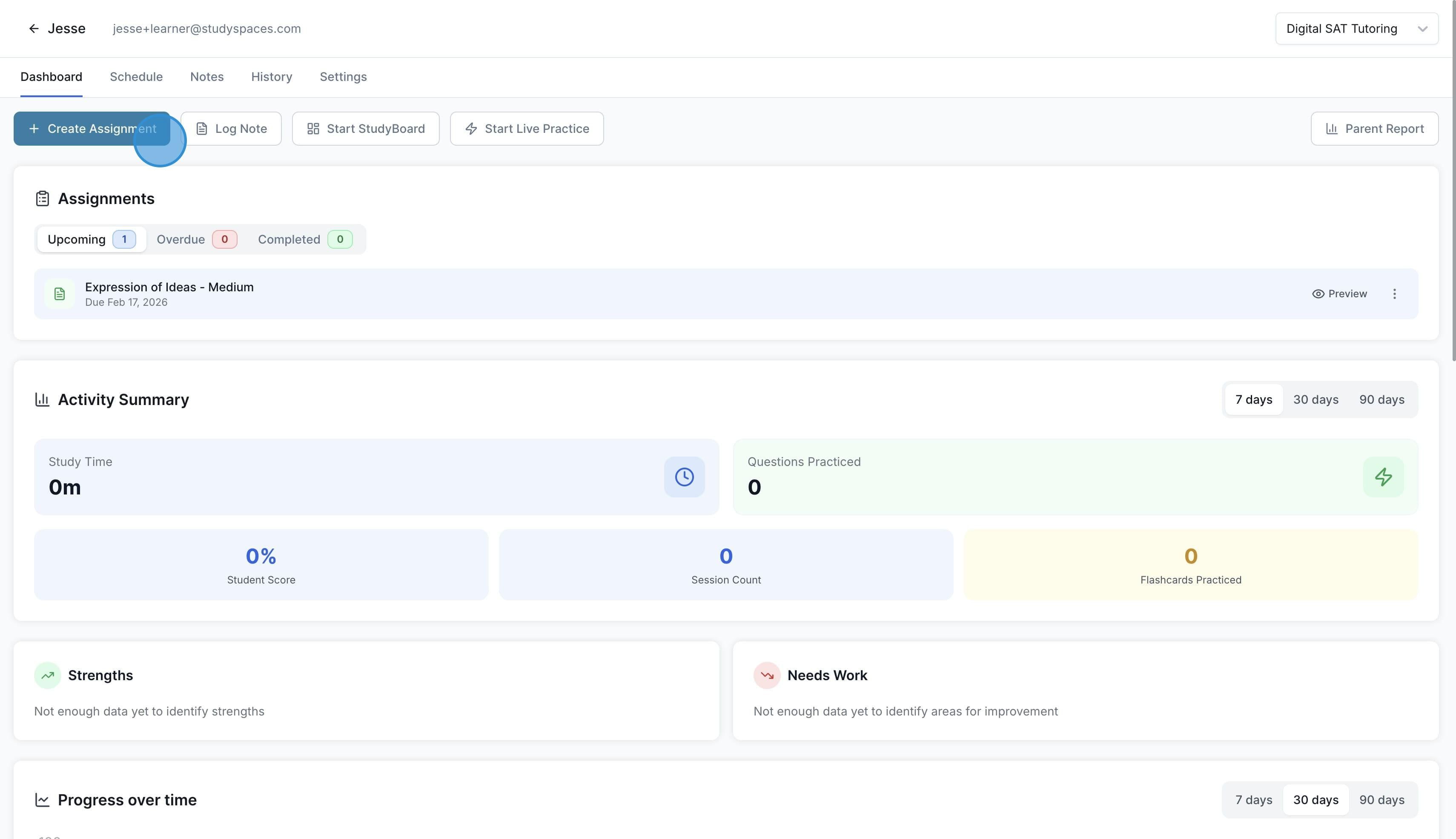
On the student Dashboard, click “Create Assignment”
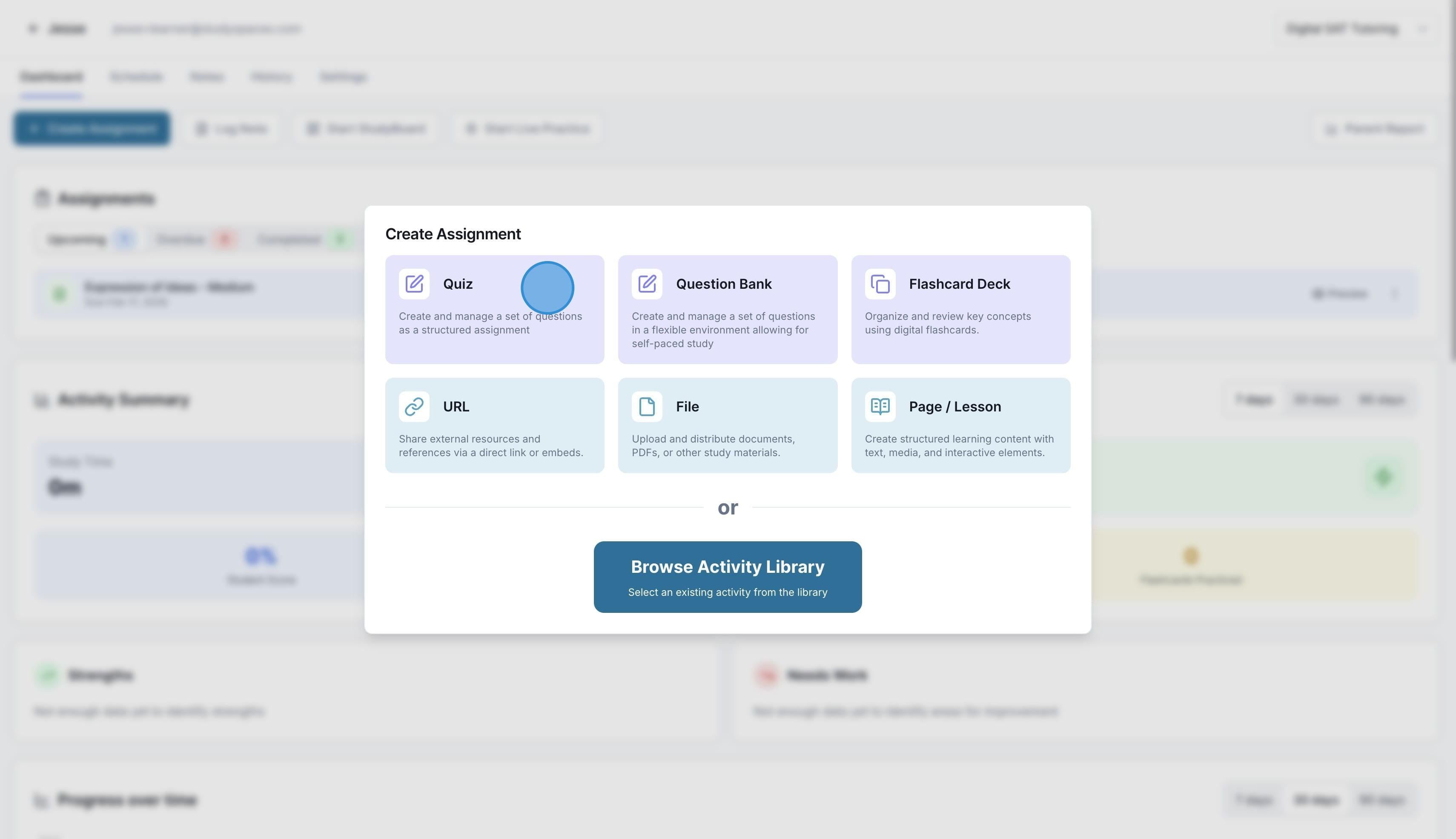
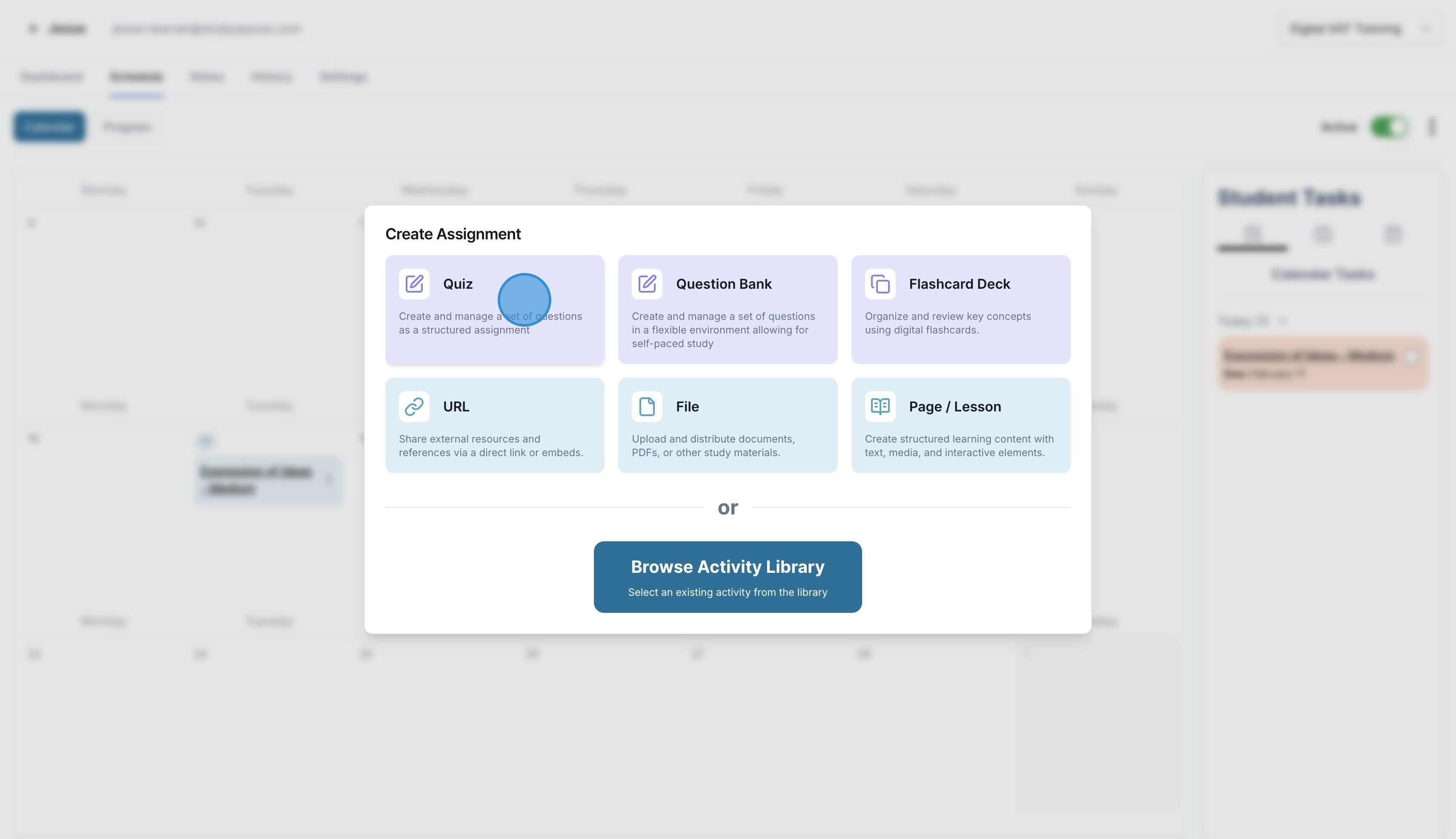
You can choose from a range of assignment types such as quizzes, question banks, URLs, files etc. You can also browse your Library and choose an existing quiz and more to assign.
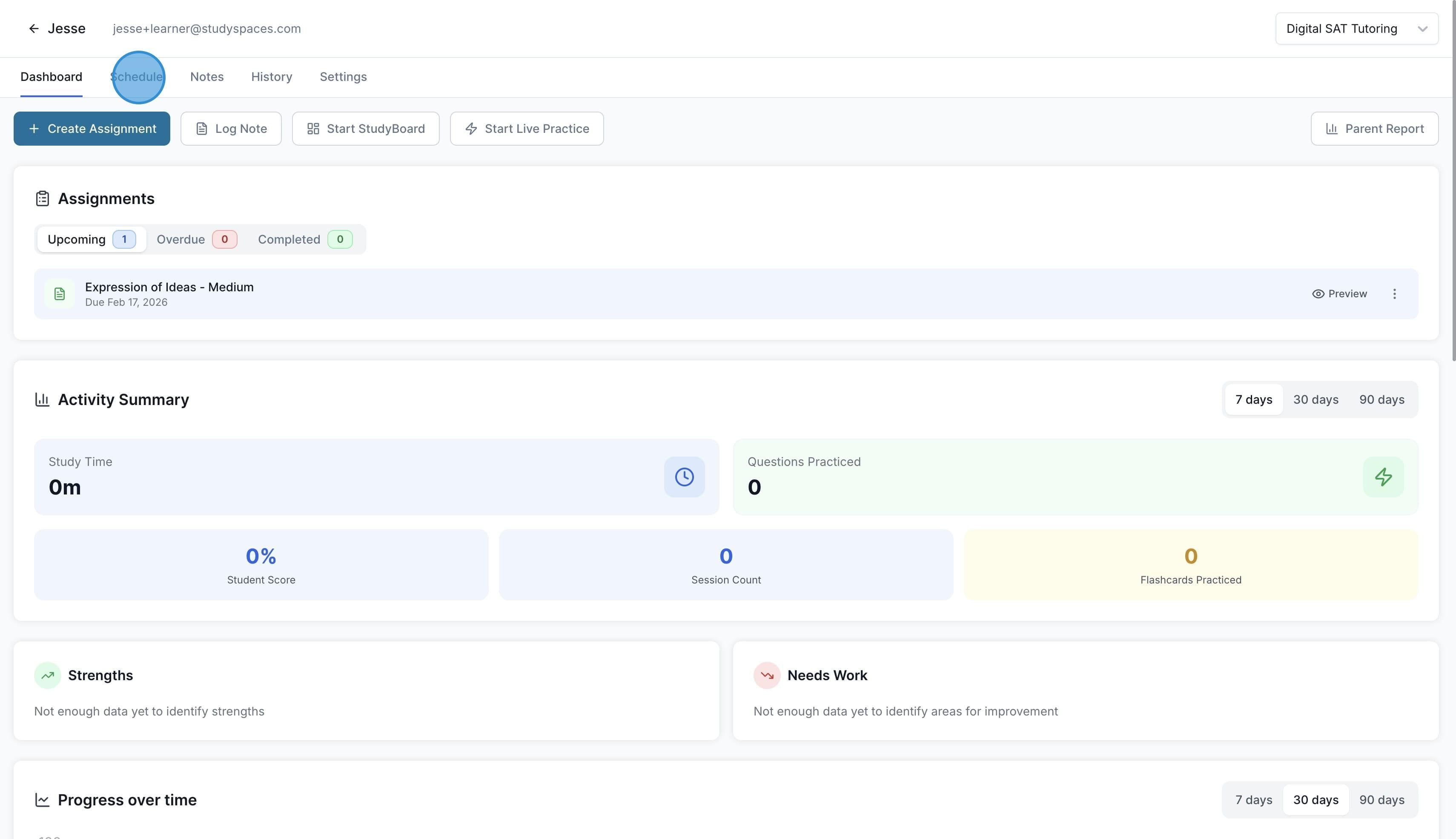
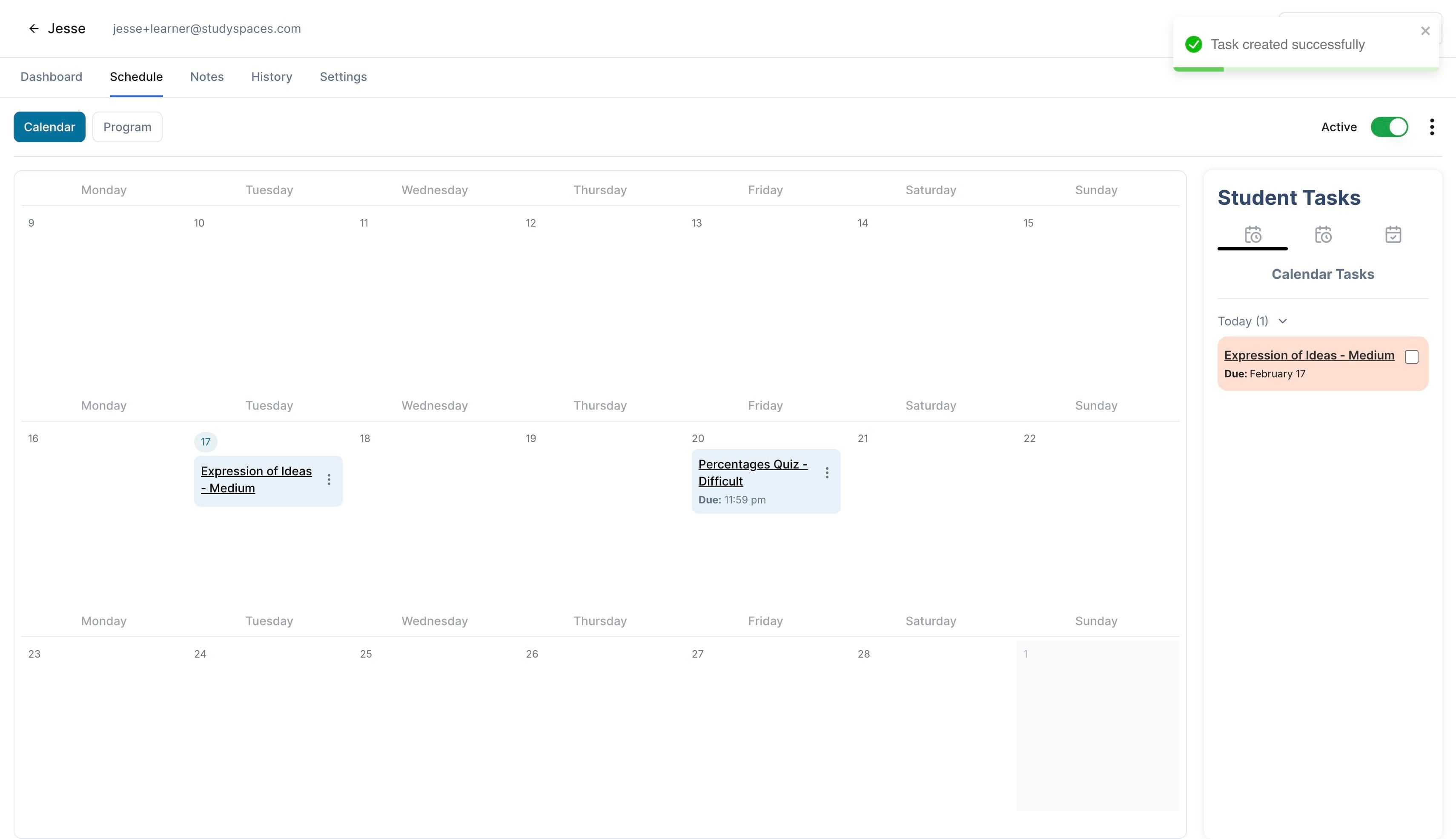
You can see all existing assignments for that student under the “Schedule” tab
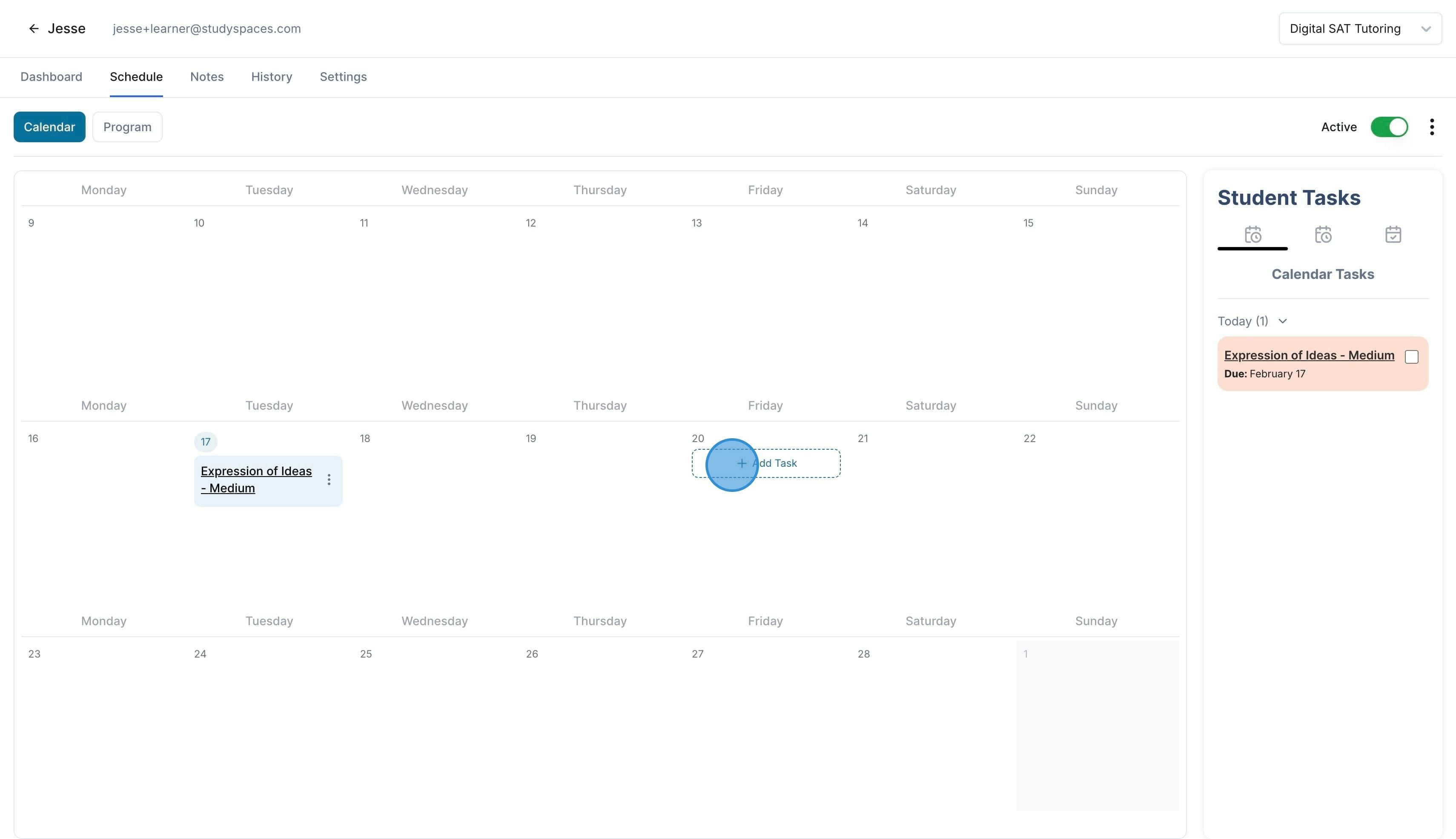
You can add new assignments or modify existing ones. To add a new assignment, simply click “Add Task” on any date on the calendar.
You can choose an existing activity from your library to assign or create a new one from scratch. In this example, we will choose a quiz
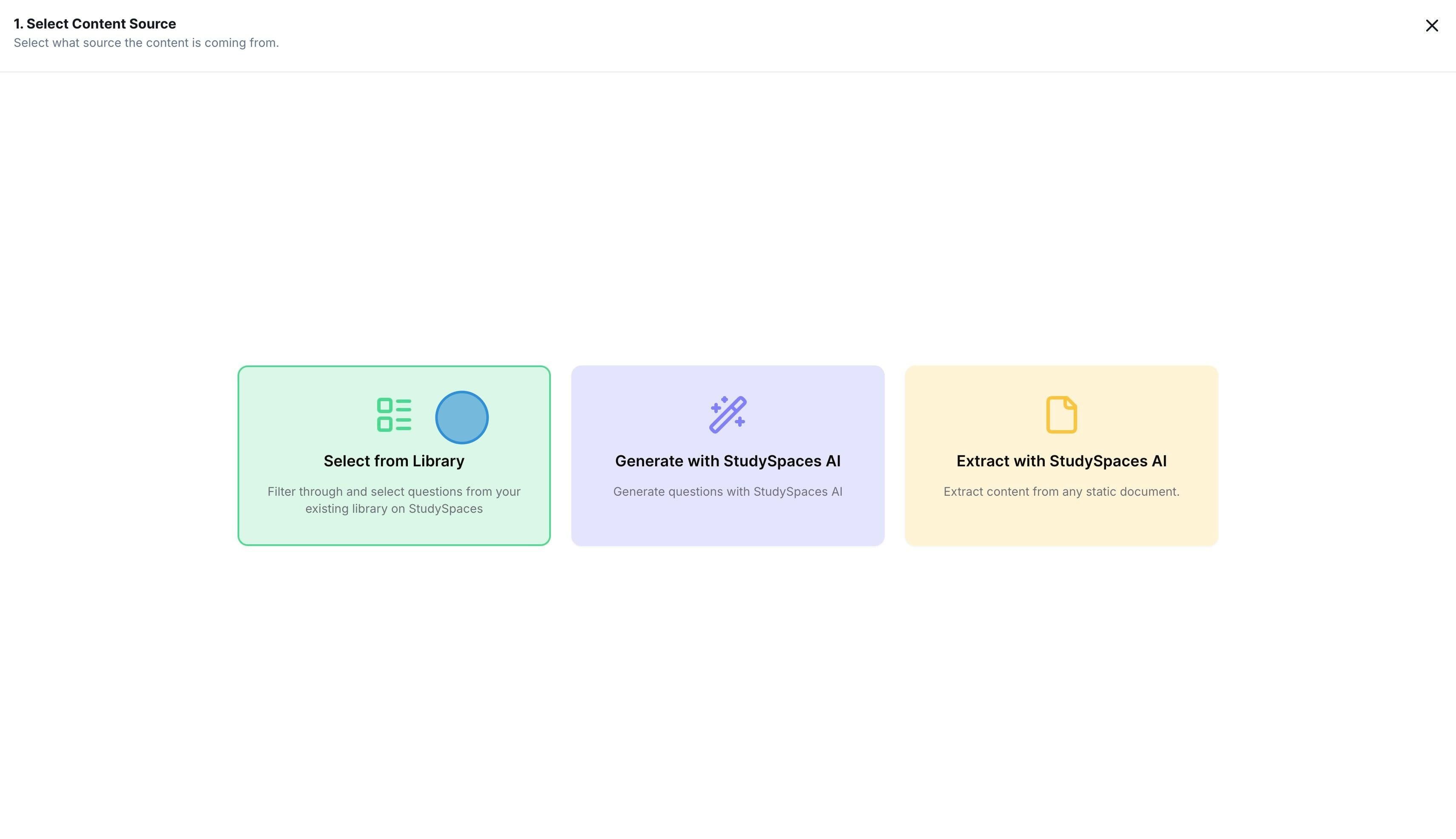
You can choose to extract content from an existing worksheet (such as pdf etc), select questions from your content manager, or generate new questions with StudySpaces AI.
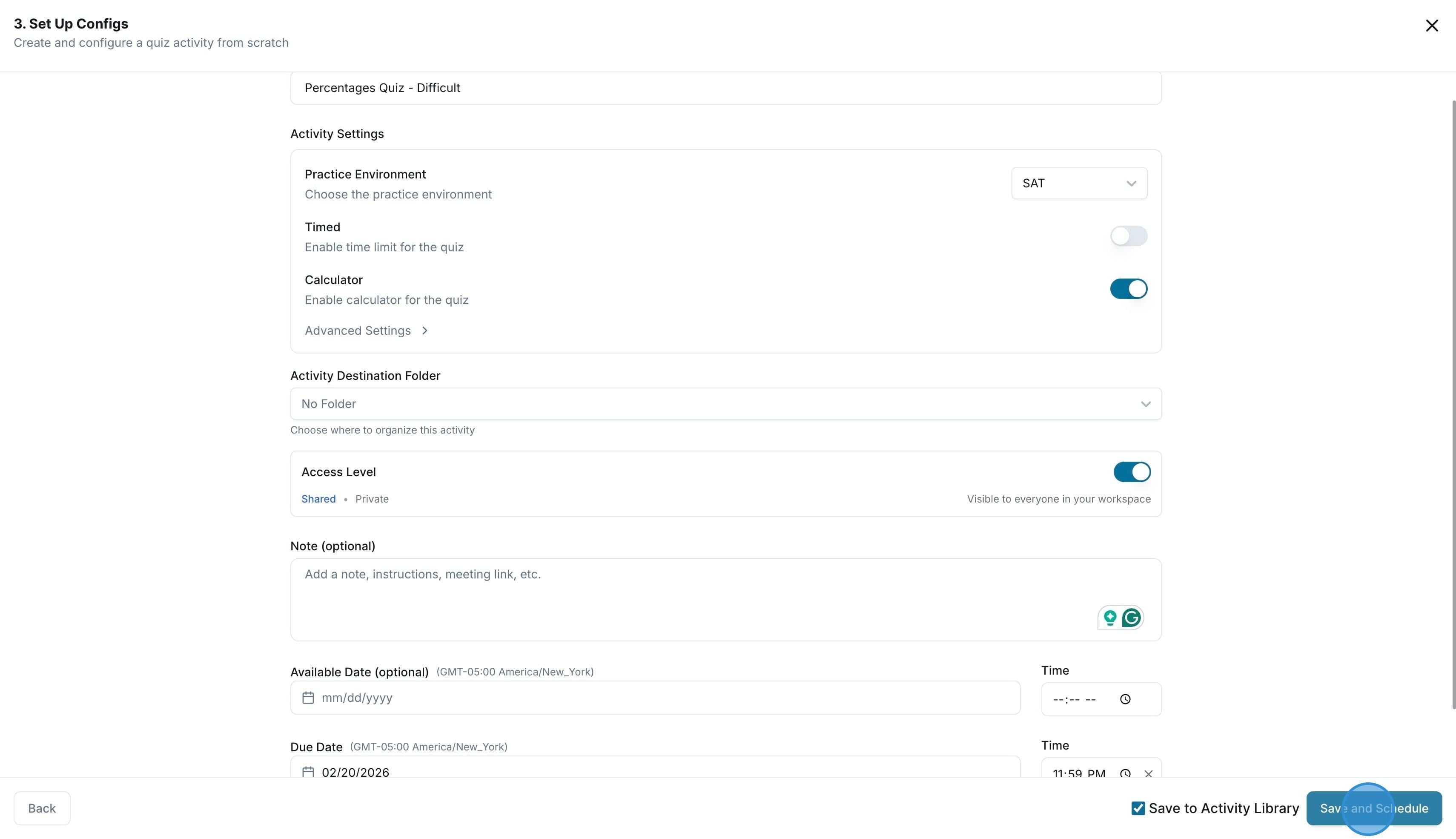
Finally, you can give the assignment a name and decide the configs for the quiz, such as exam environment, calculator, attempt count, and more.
You can also choose to save this quiz to your library so you can assignit again to any student in the future.
You also have the option to notify the student via email that they have a new assignment, as well as be notified when the student submits the assignment.
Once you are ready, click “Save and Schedule”.
Done! The assignment has been created, and you can modify it by clicking on it if you need to.
Was this helpful?
Still need help? Ask the team