How to Create a Diagnostic Exam and Capture Student Leads with StudySpaces
From your Dashboard, click "Diagnostics" in the left navigation menu. This is your hub for building and managing diagnostic assessments for your students.
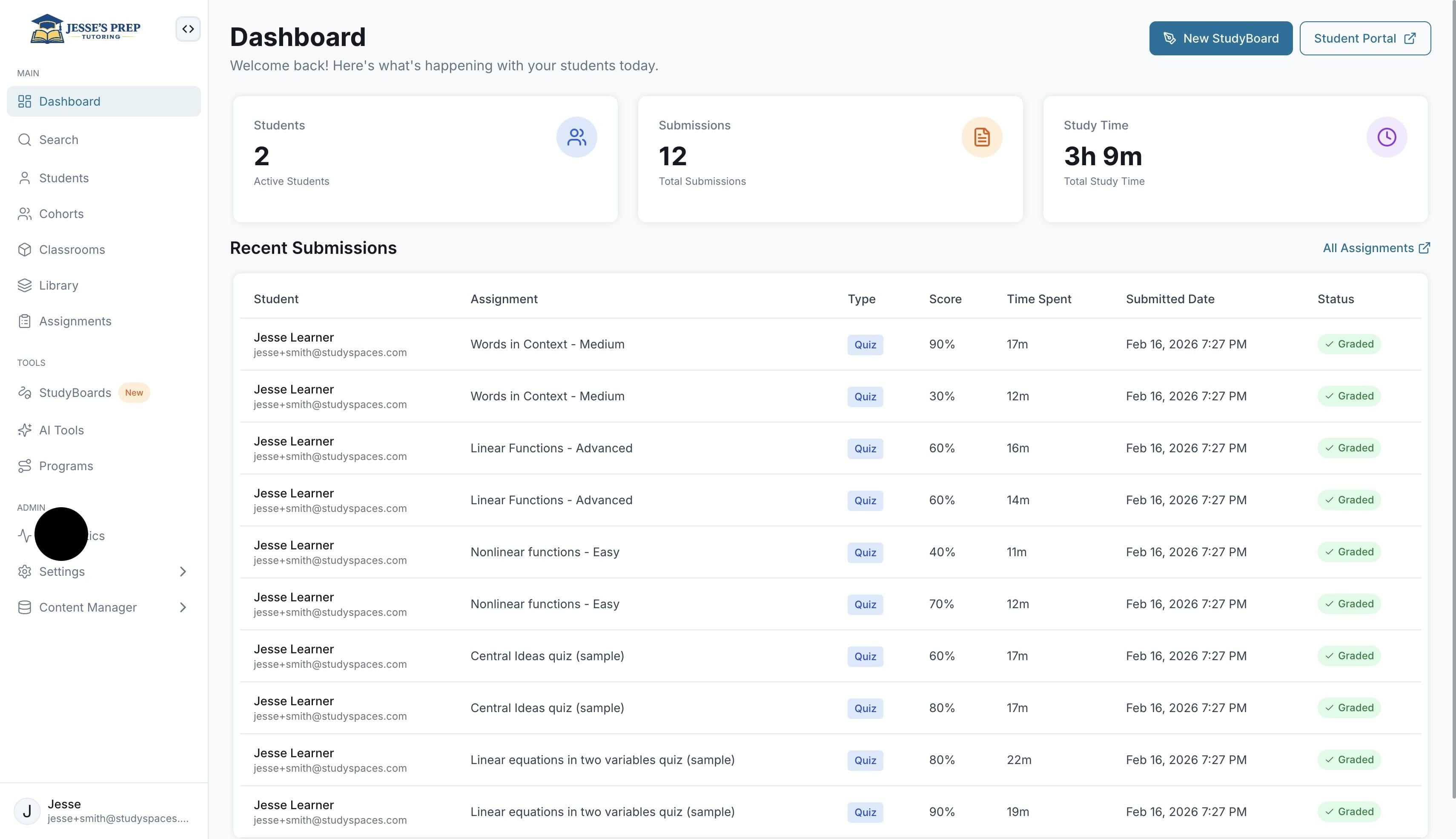
From your Dashboard, click "Diagnostics" in the left navigation menu. This is your hub for building and managing diagnostic assessments for your students.
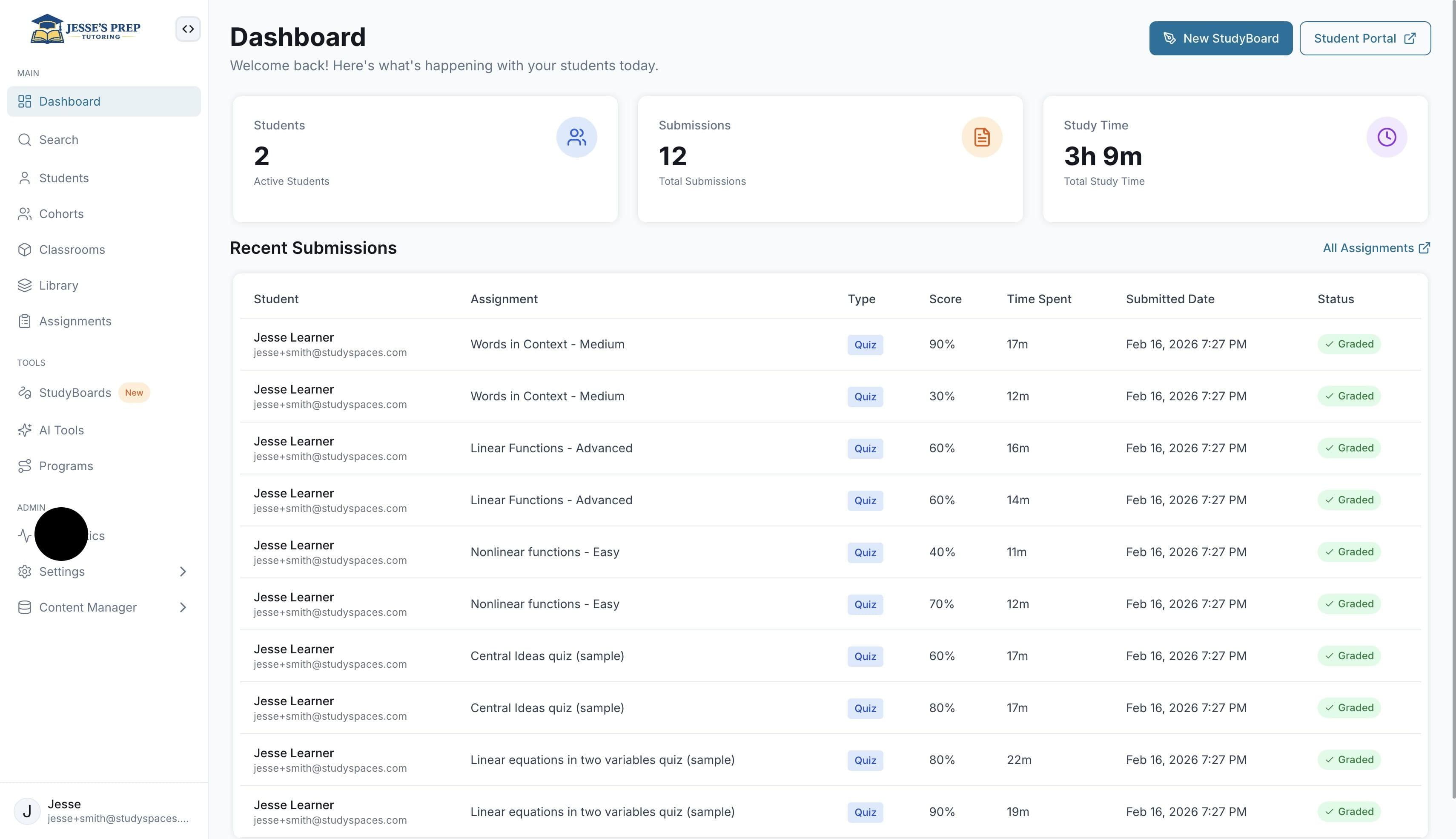
Click "Create Diagnostic Exam" to start building your first diagnostic assessment and begin tracking student progress.
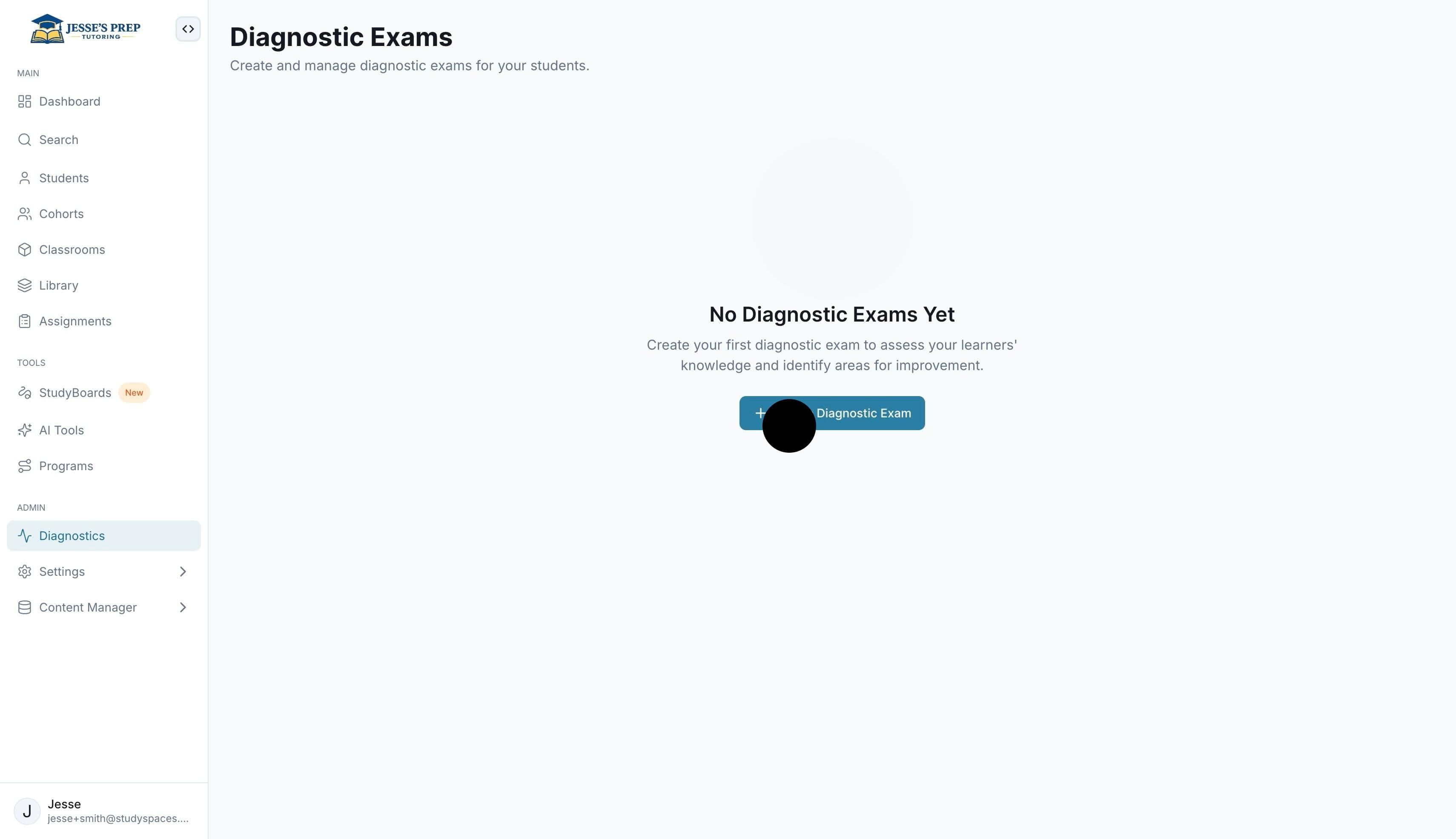
Click "Create" to generate the diagnostic exam and add it to your assessments list.
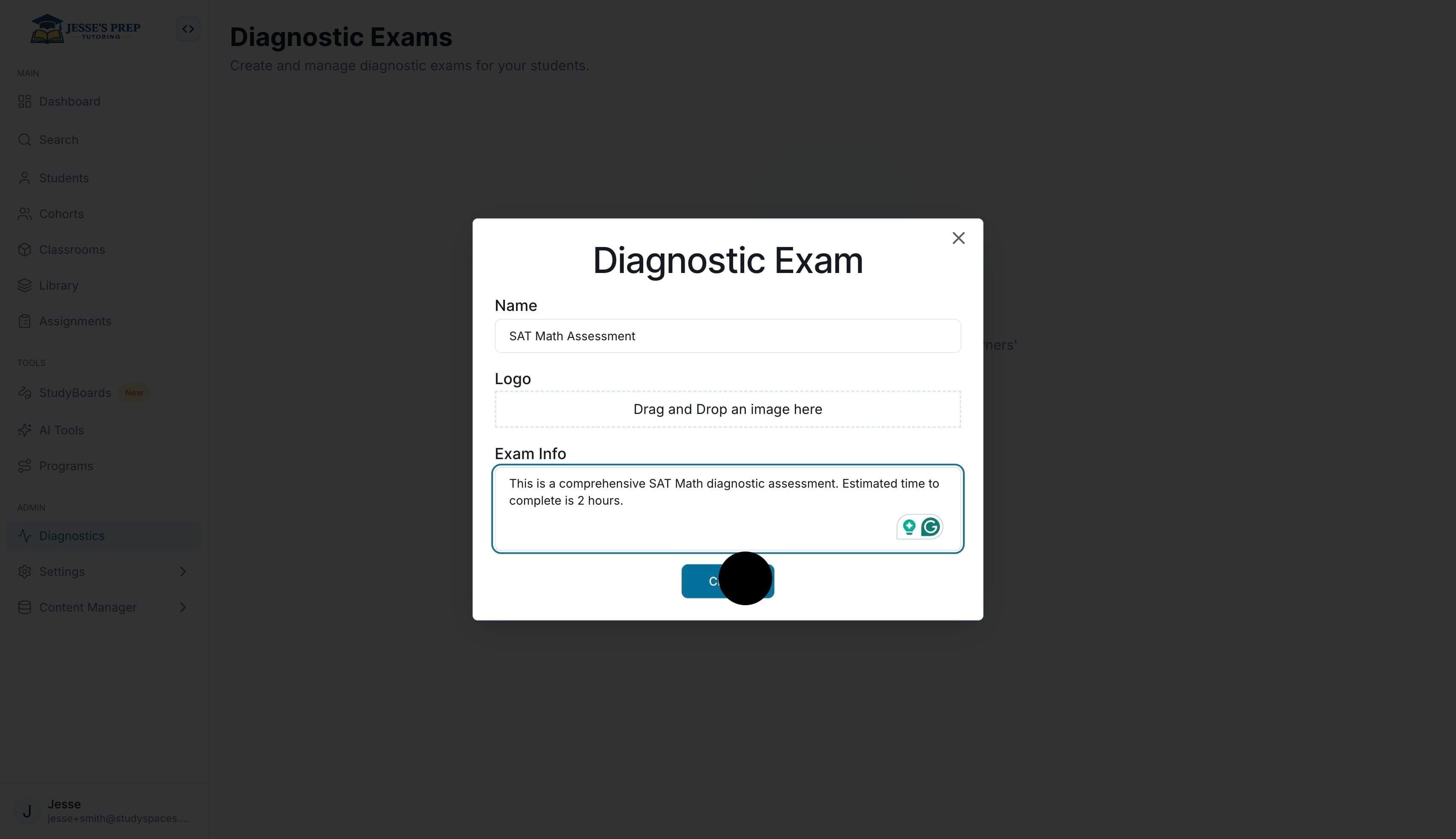
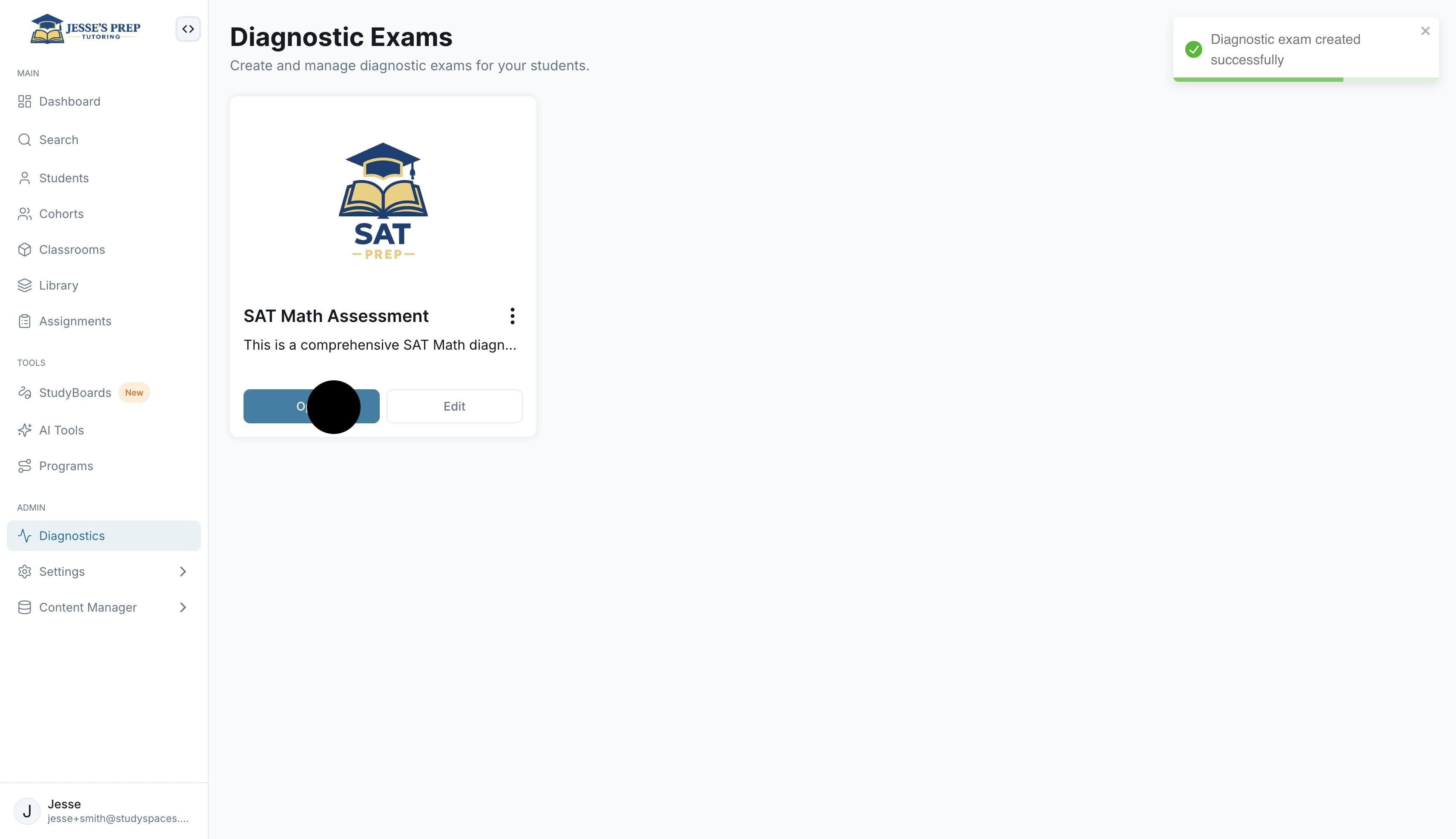
Click "Open" on your newly created exam card to enter the editor and start building out your diagnostic assessment.
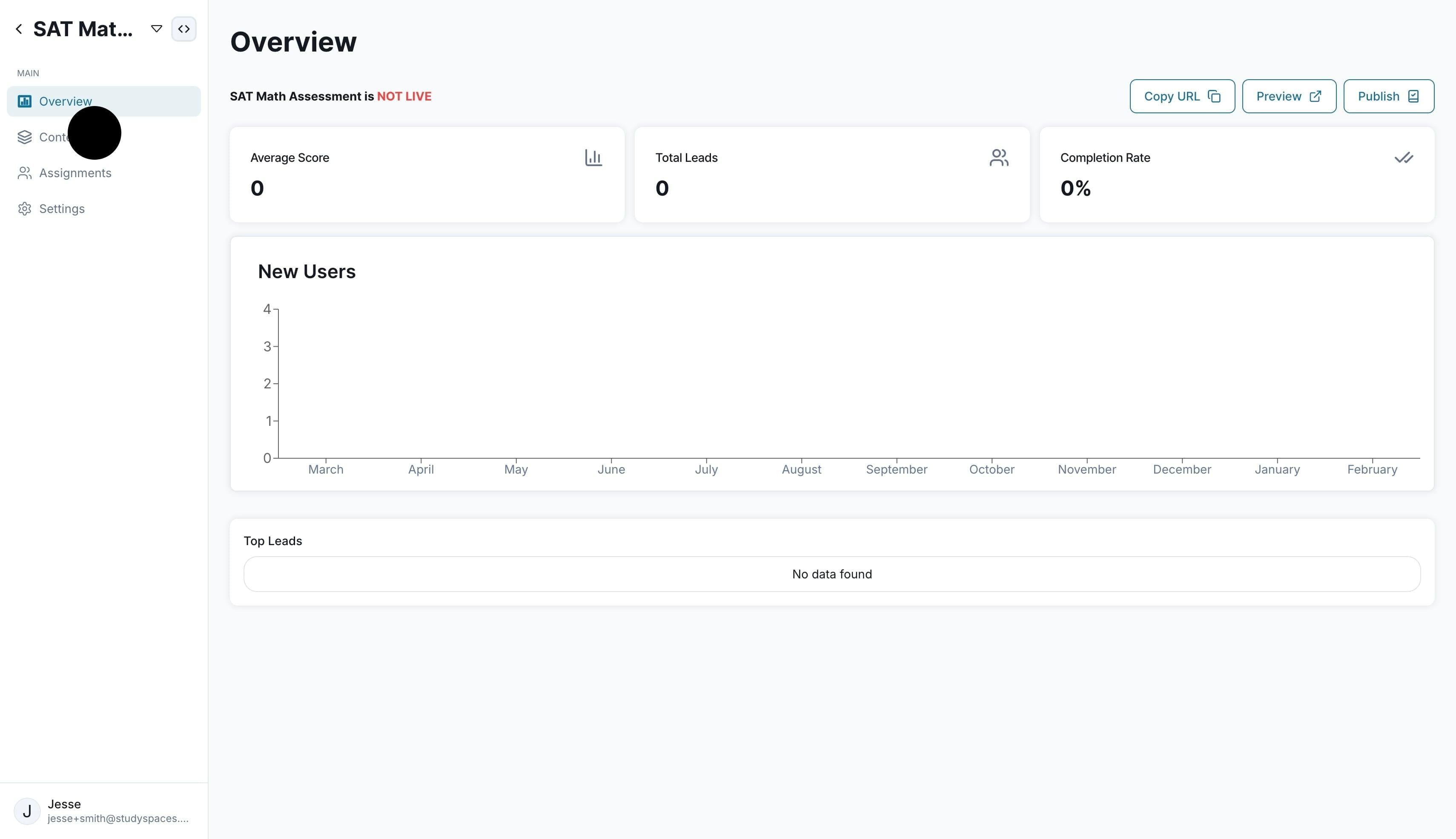
Go to the "Contents" tab in the left navigation to access the Exam Content area and add questions to your diagnostic assessment.
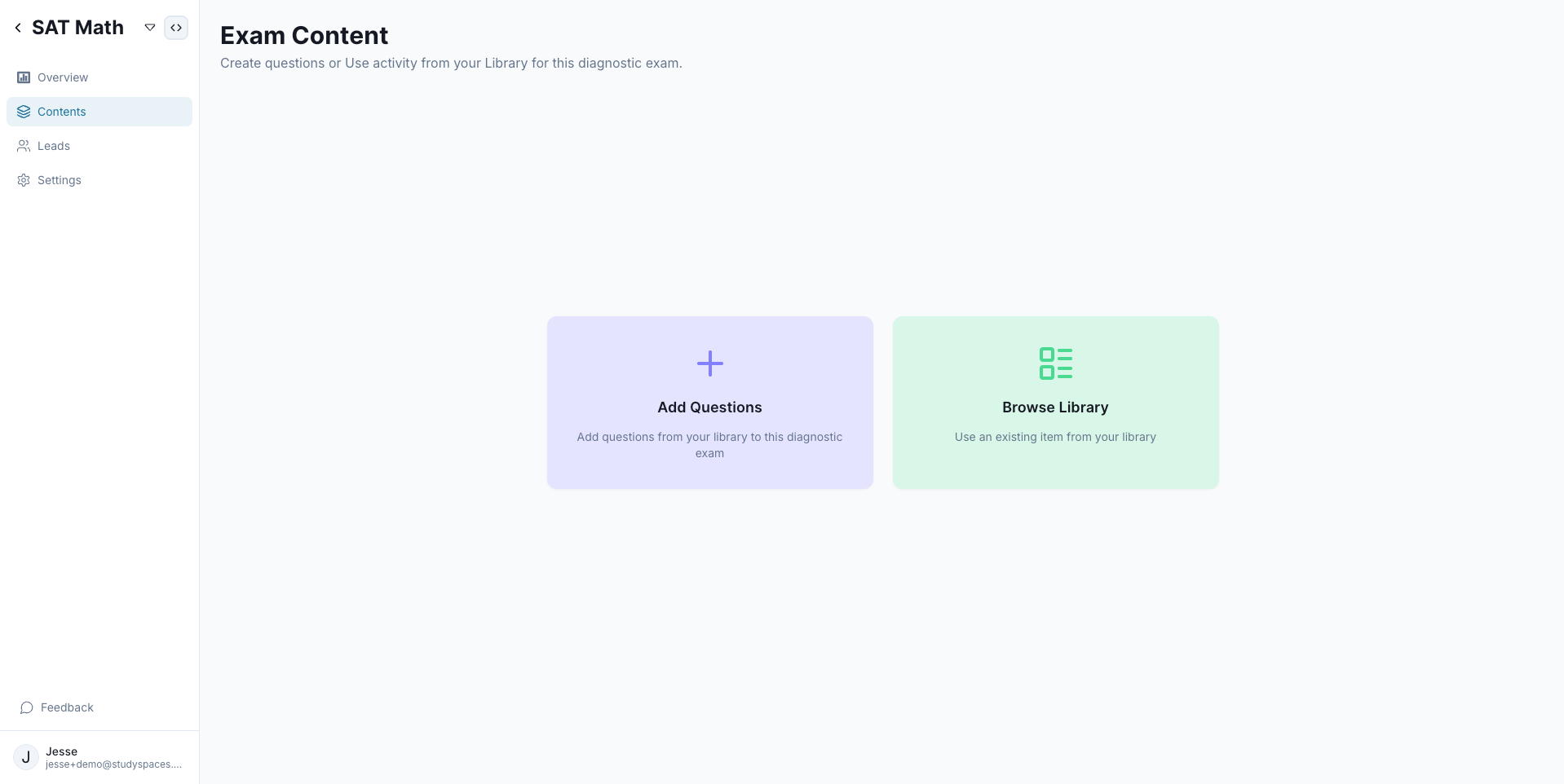
You can use an existing exam from your library. To build one from scratch, select “Add Questions”. Or pick an existing assessment from the library like a Mock Exam
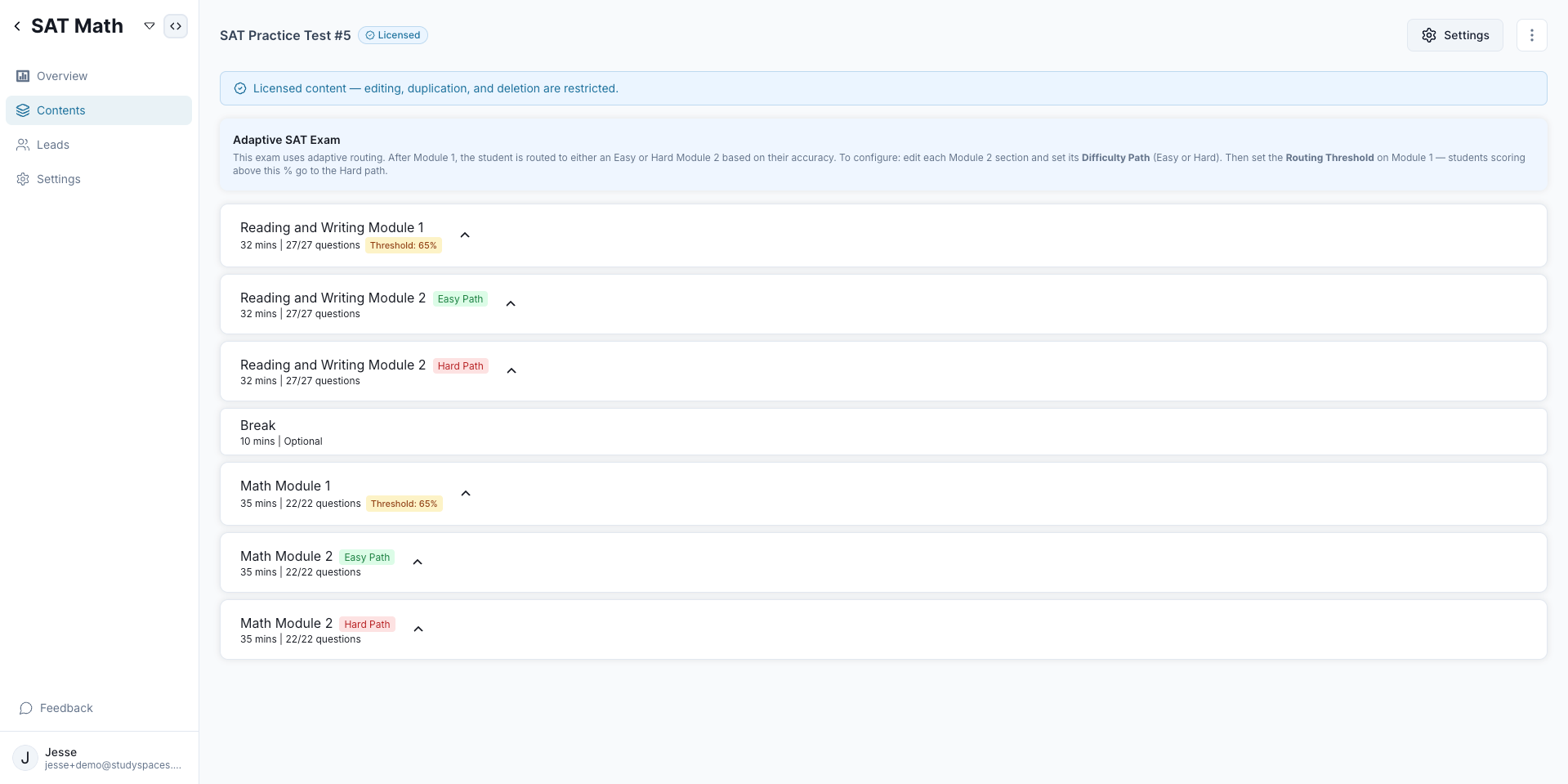
Select the content you want to add to the diagnostic assessment and choose the configs you’d like, such as Show or Hide Results at the end.
Once the content have been added, click on “Settings” on the sidebar to configure the diagnostic experience.
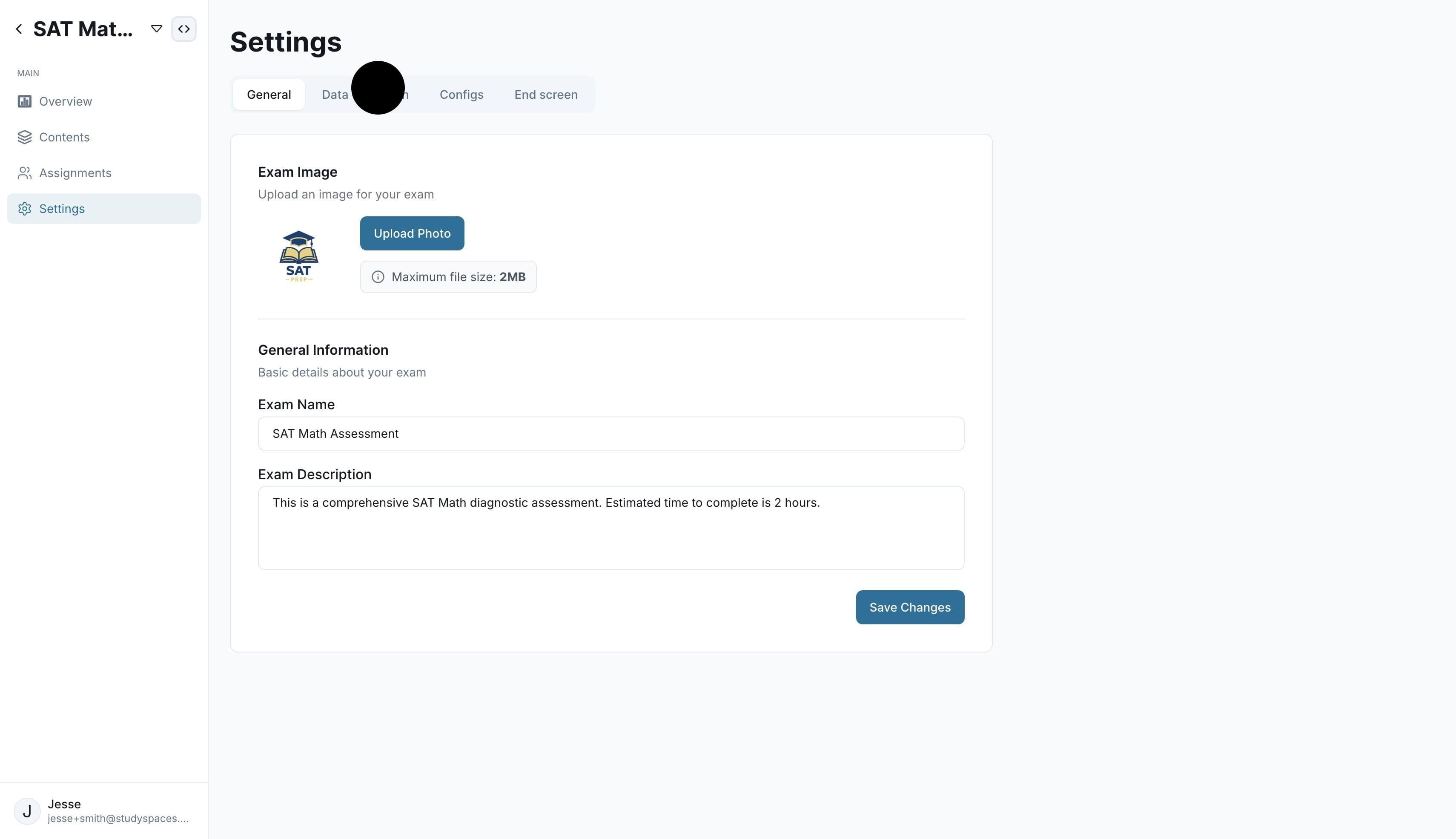
Here you can decide what data fields you want to enable, and you can even create custom fields.
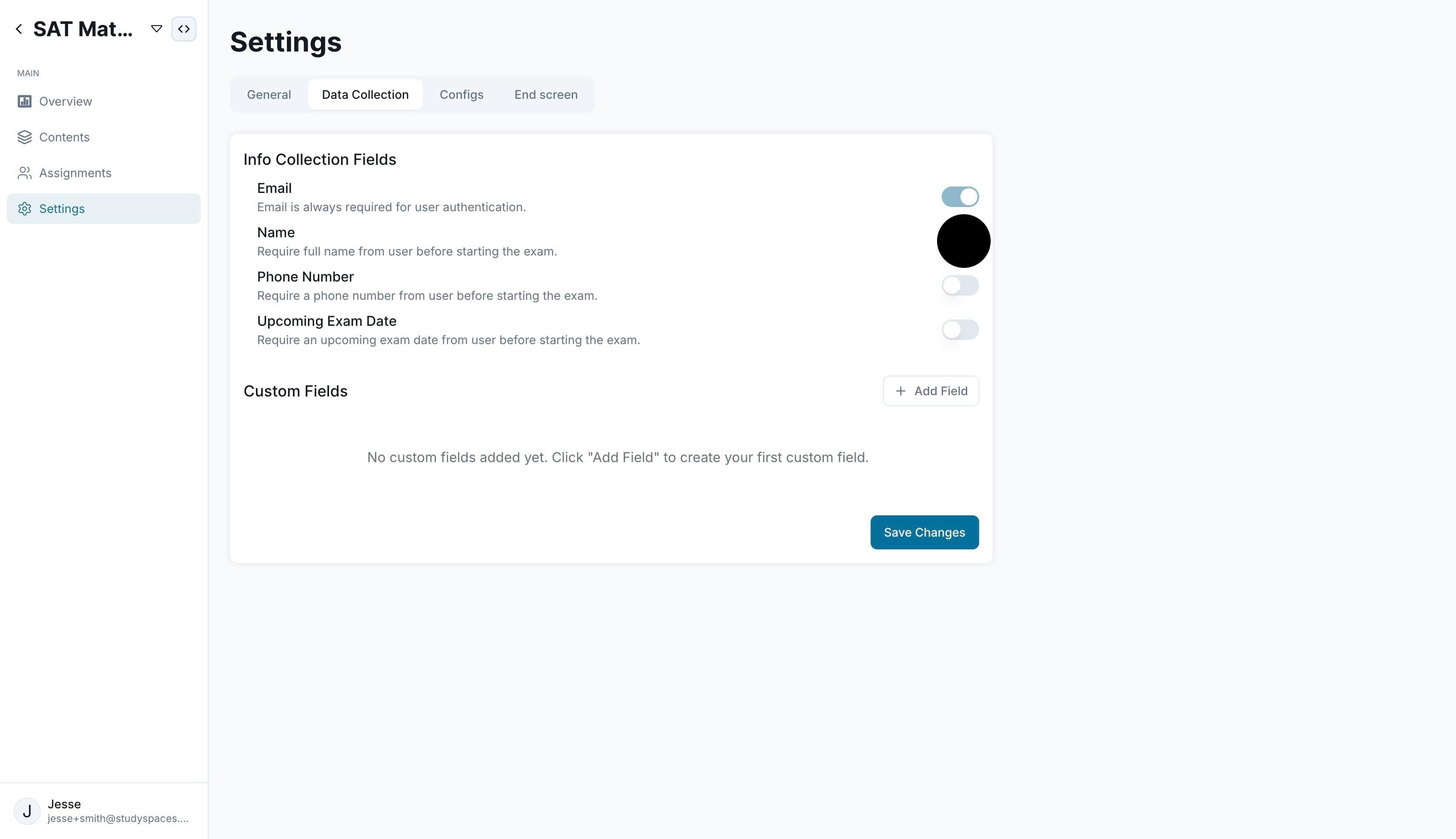
Once you are done, save changes and click on “End Screen”. Here you can create a custom screen with additional information or next steps for the student to follow after they submit the assessment.
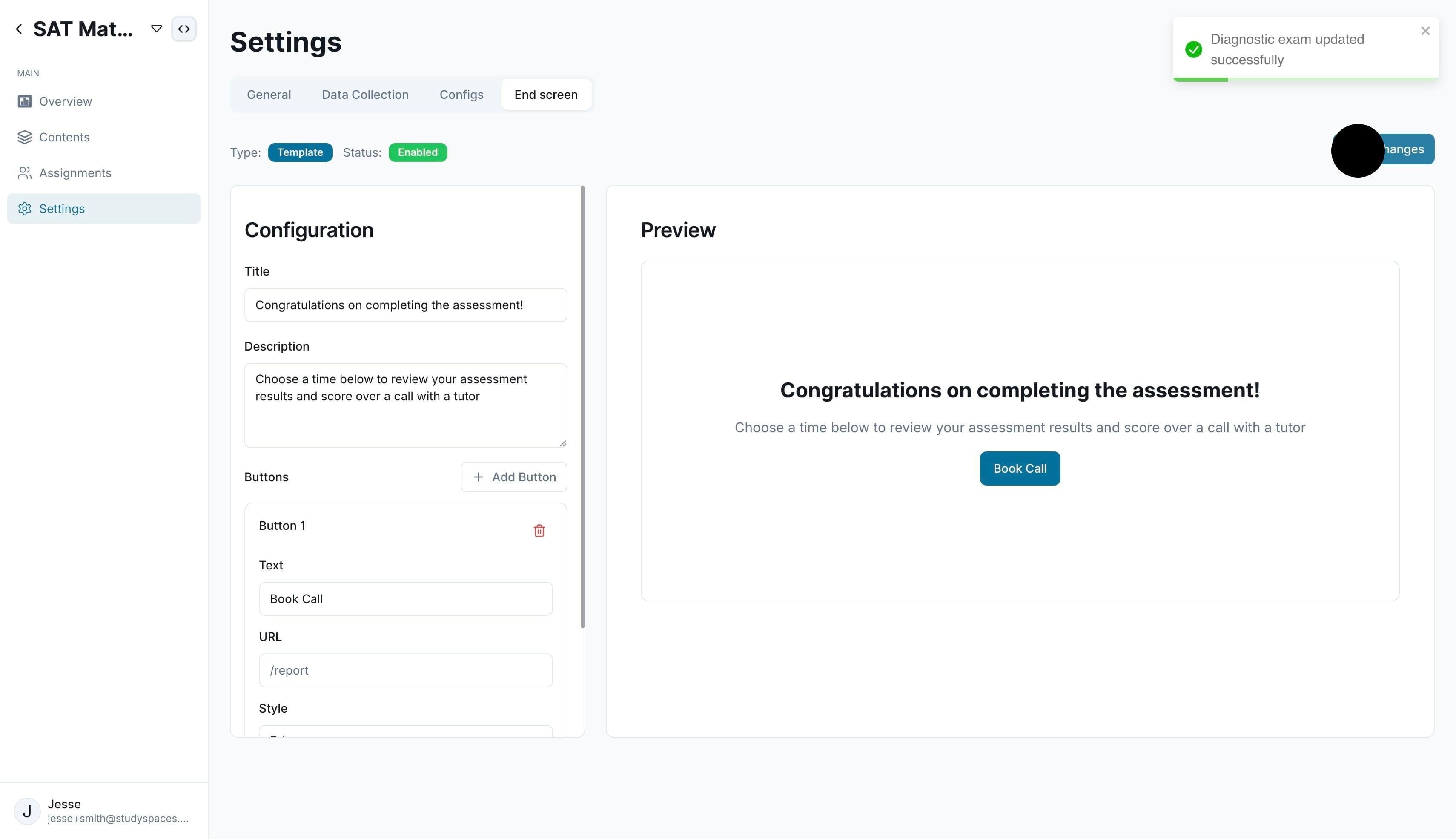
Once you are done, save changes and click on “Overview”
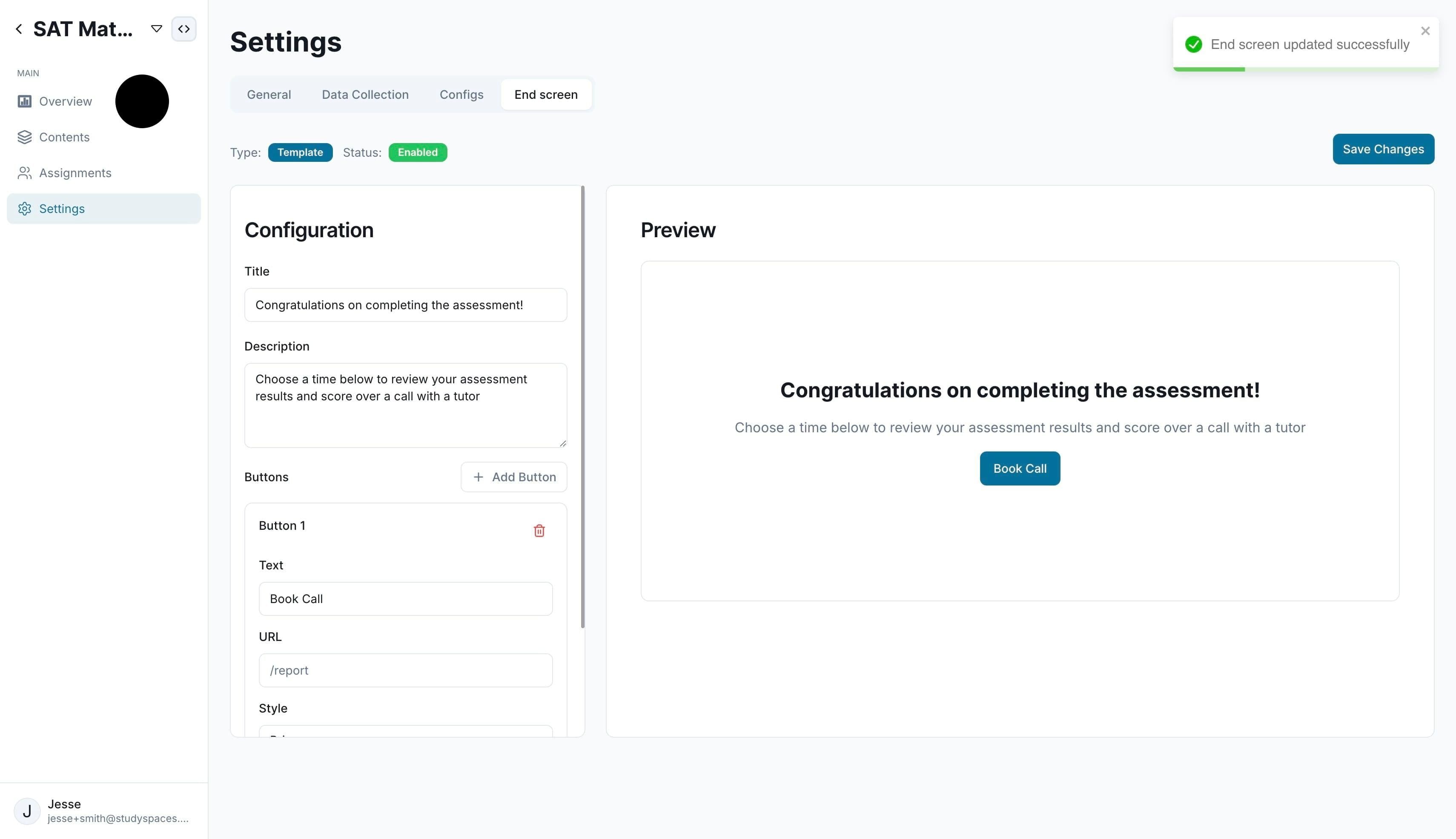
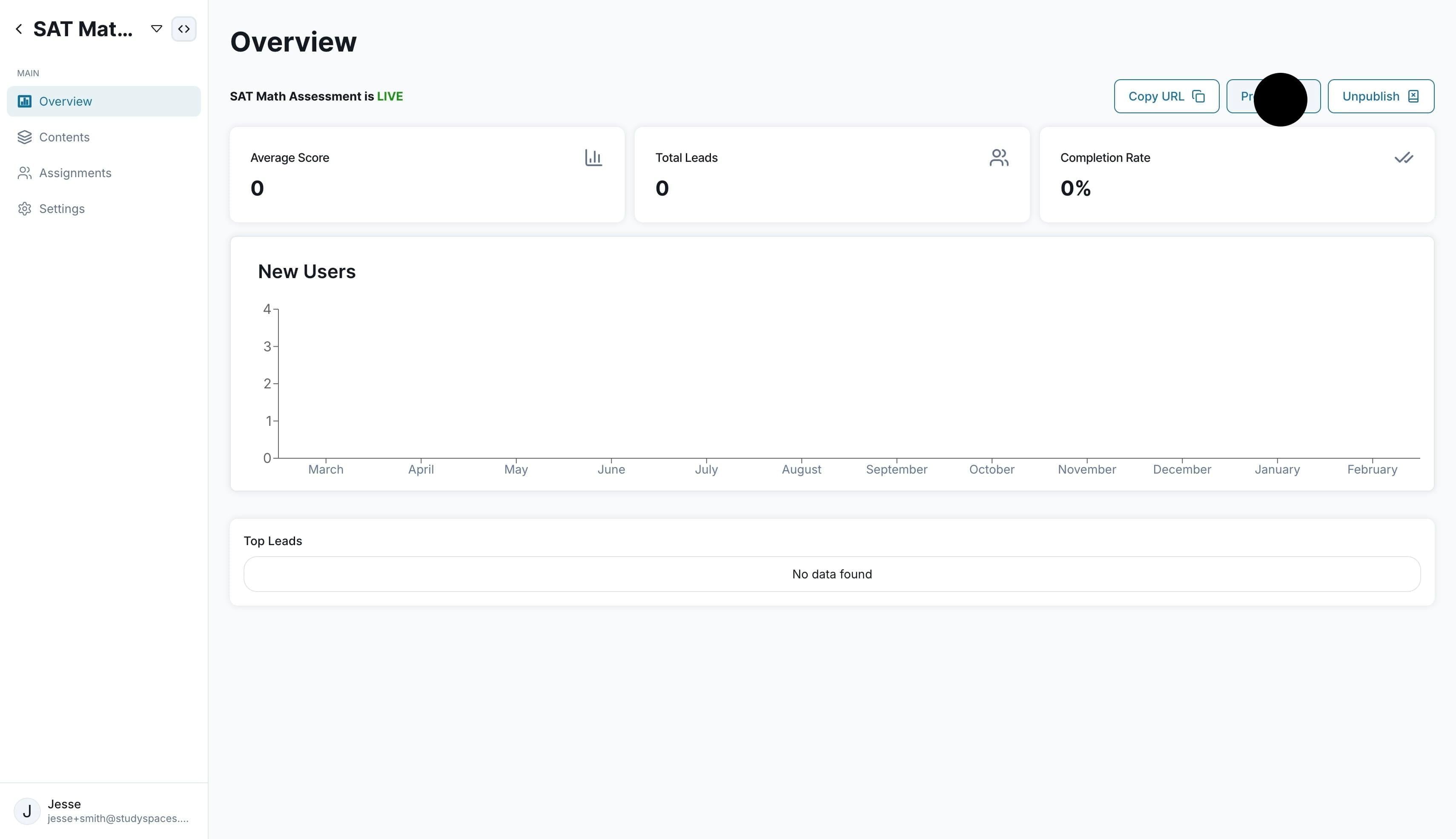
Make sure to “Publish” the diagnostic first, so it is live and ready for preview
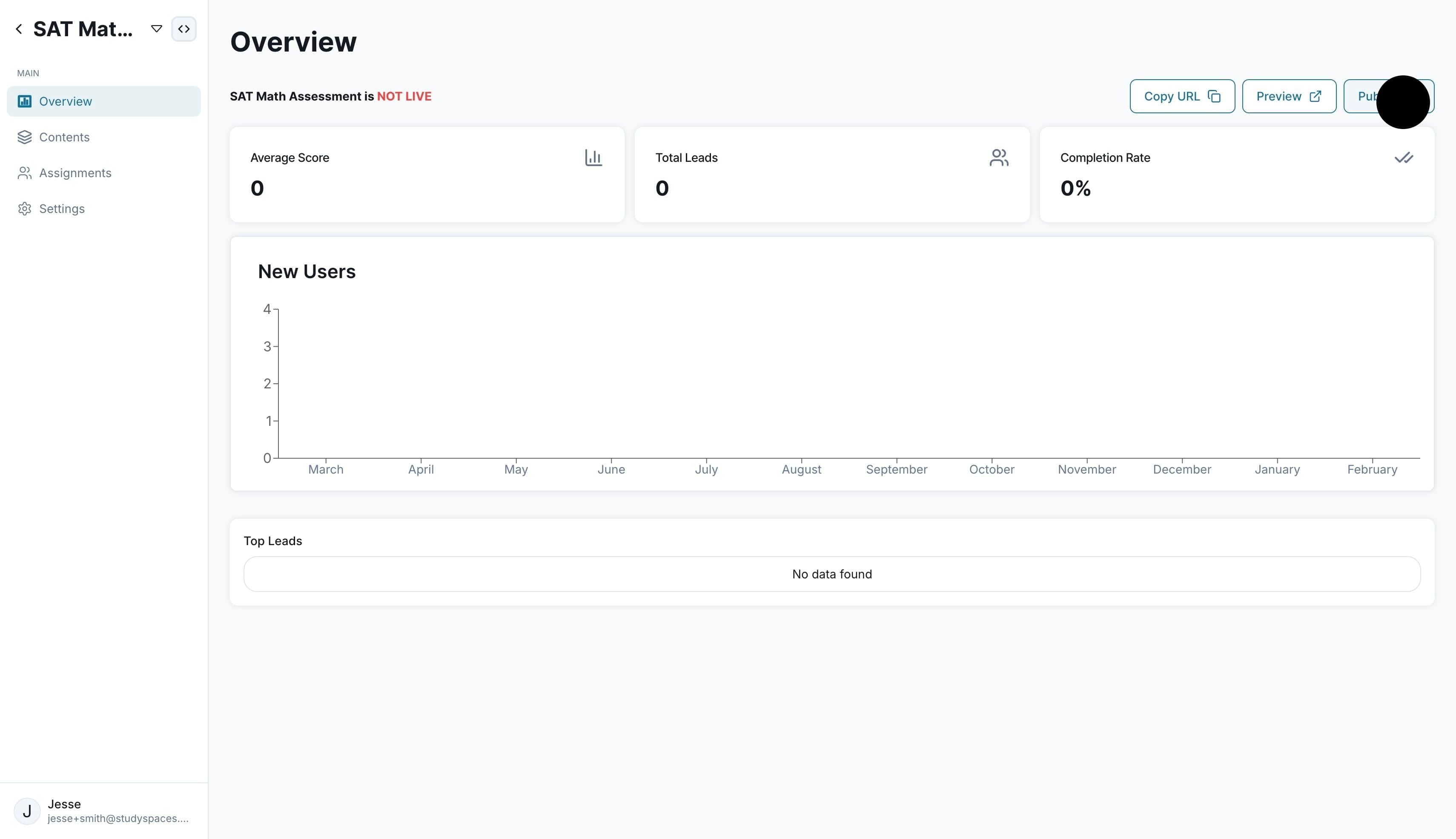
Click on “Preview” to test out the diagnostic experience
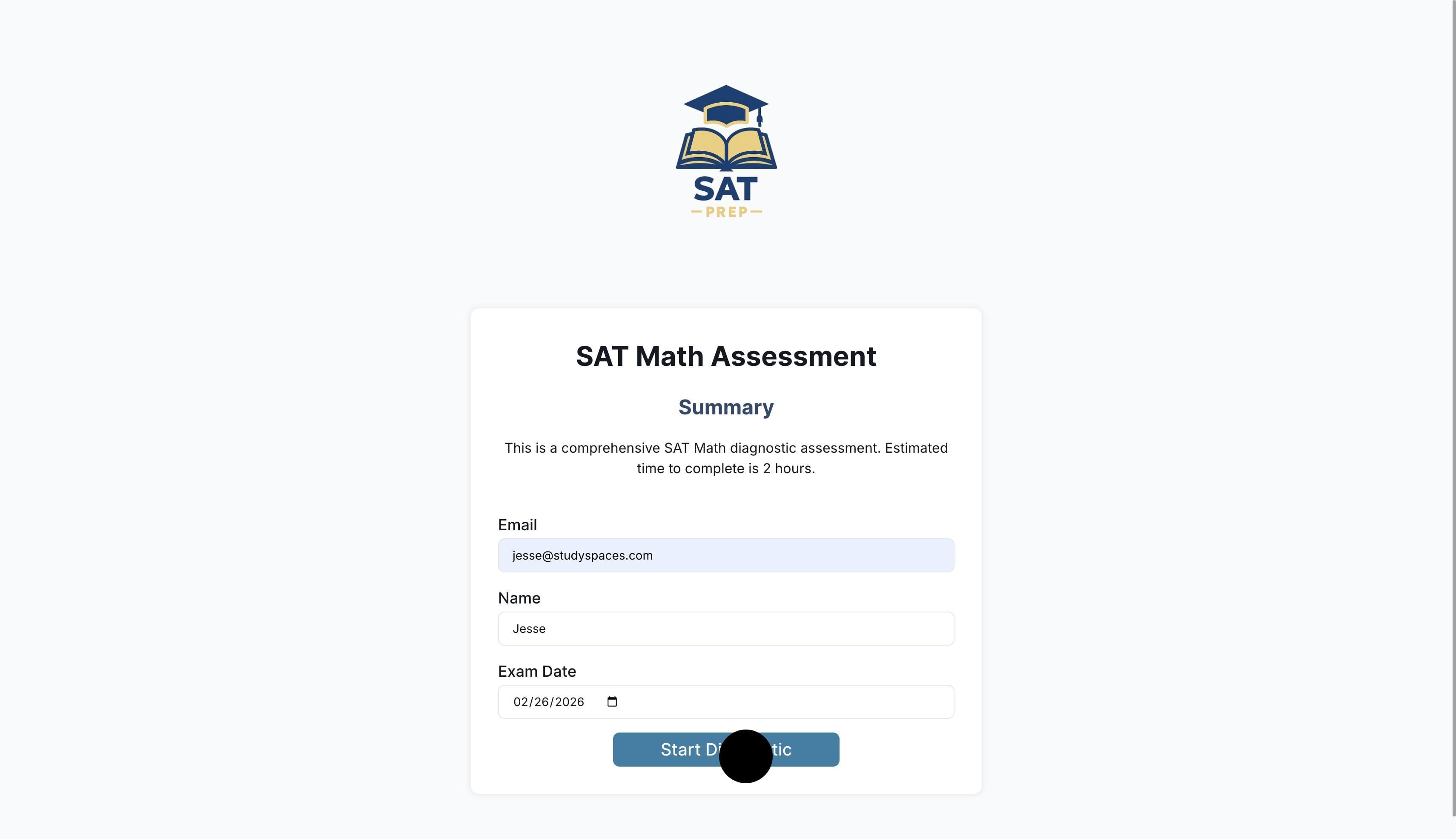
Fill out the input fields and “Start Diagnostic”
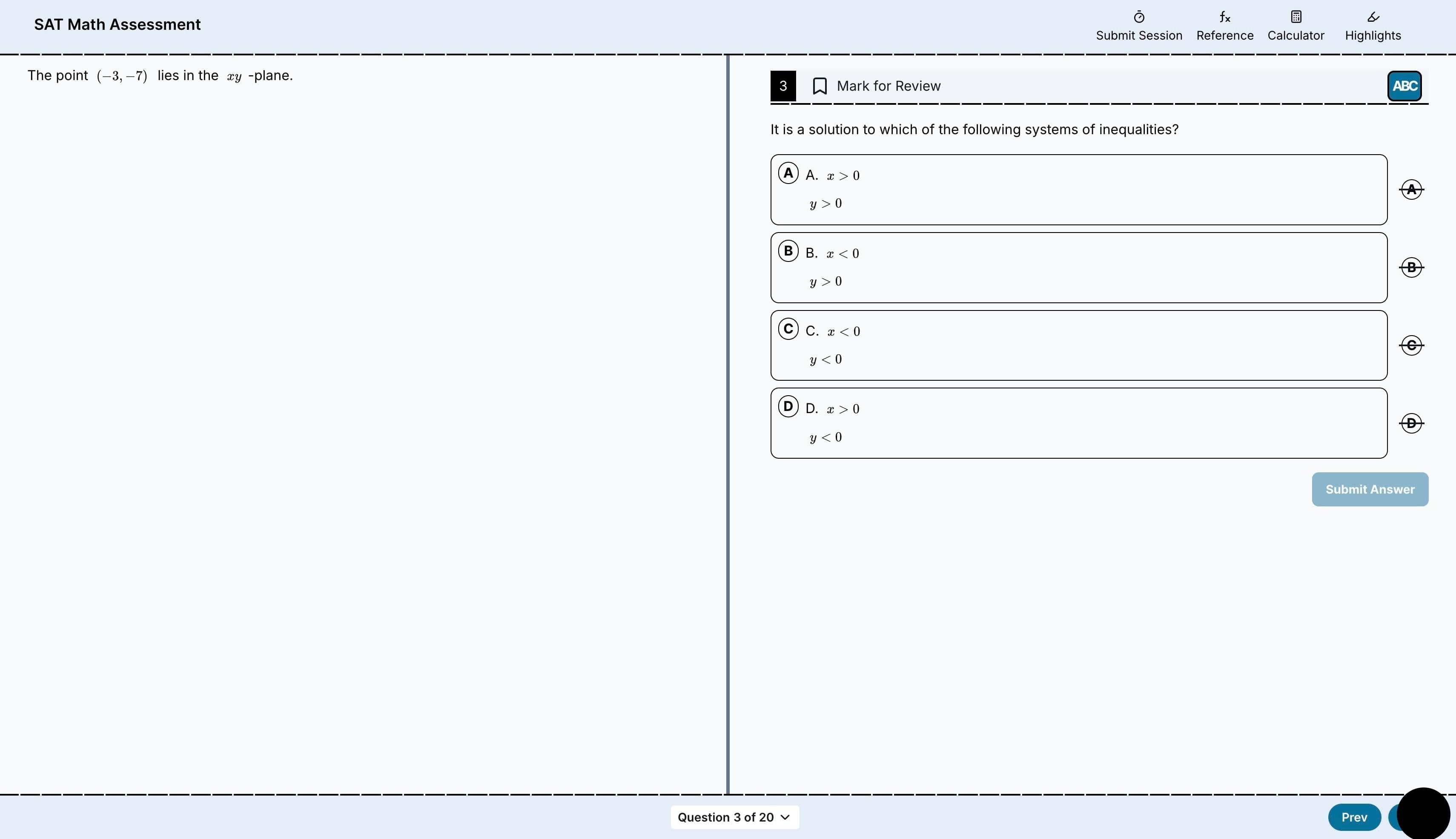
Complete the assessment
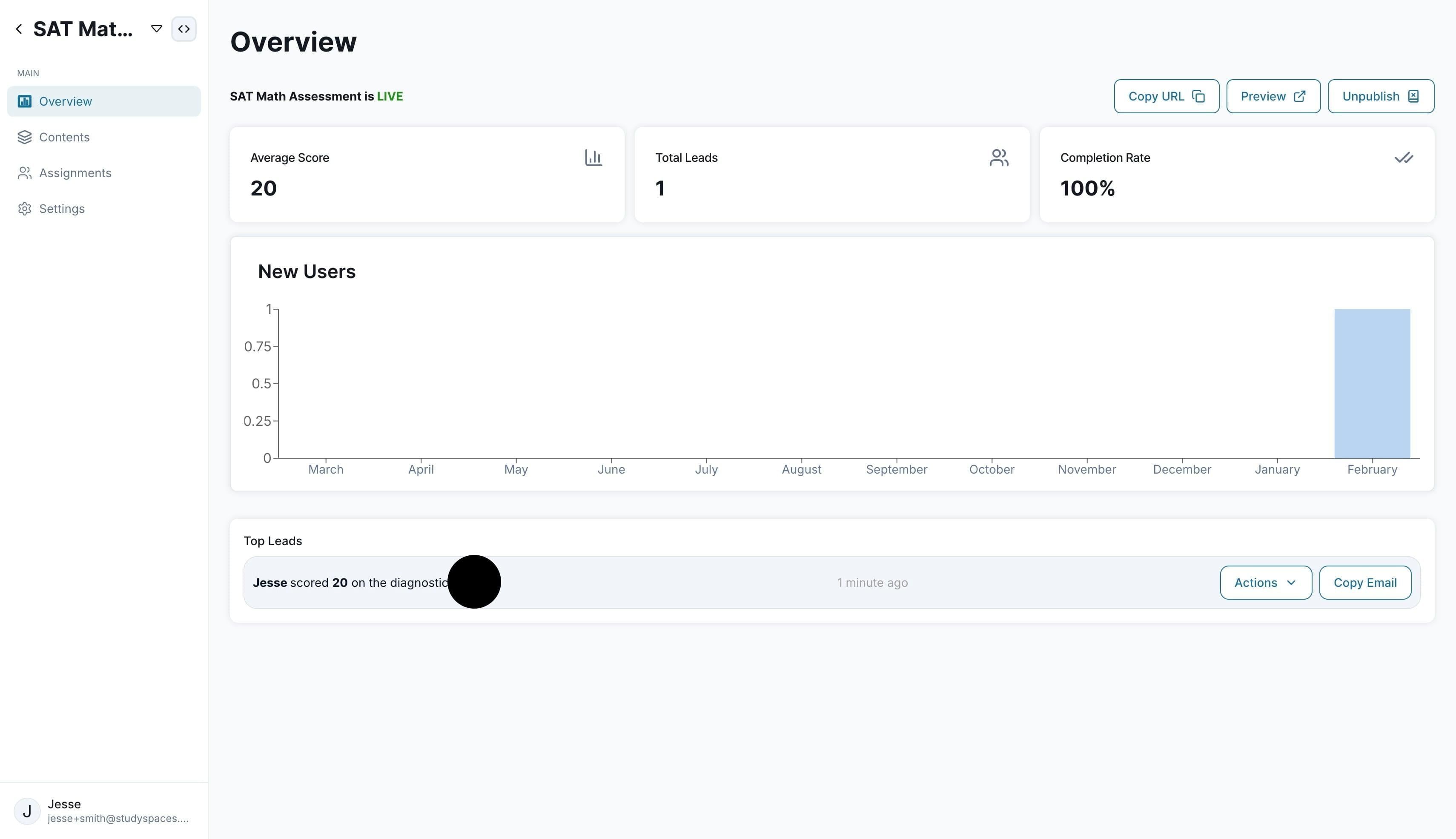
Once submitted, go back to your “Overview” screen to see the lead information. All leads collected can be found on your sidebar menu as well. Click on the lead to reveal Score Review, Question Review, and see the diagnostic results.
Was this helpful?
Still need help? Ask the team