How to Create Assignments from Tag Analytics in StudySpaces
StudySpaces makes it easy to turn a student's performance data into targeted practice. If you notice a student is struggling with a specific topic — like Linear Functions — you can create a focused assignment directly from their tag analytics in just a few clicks.
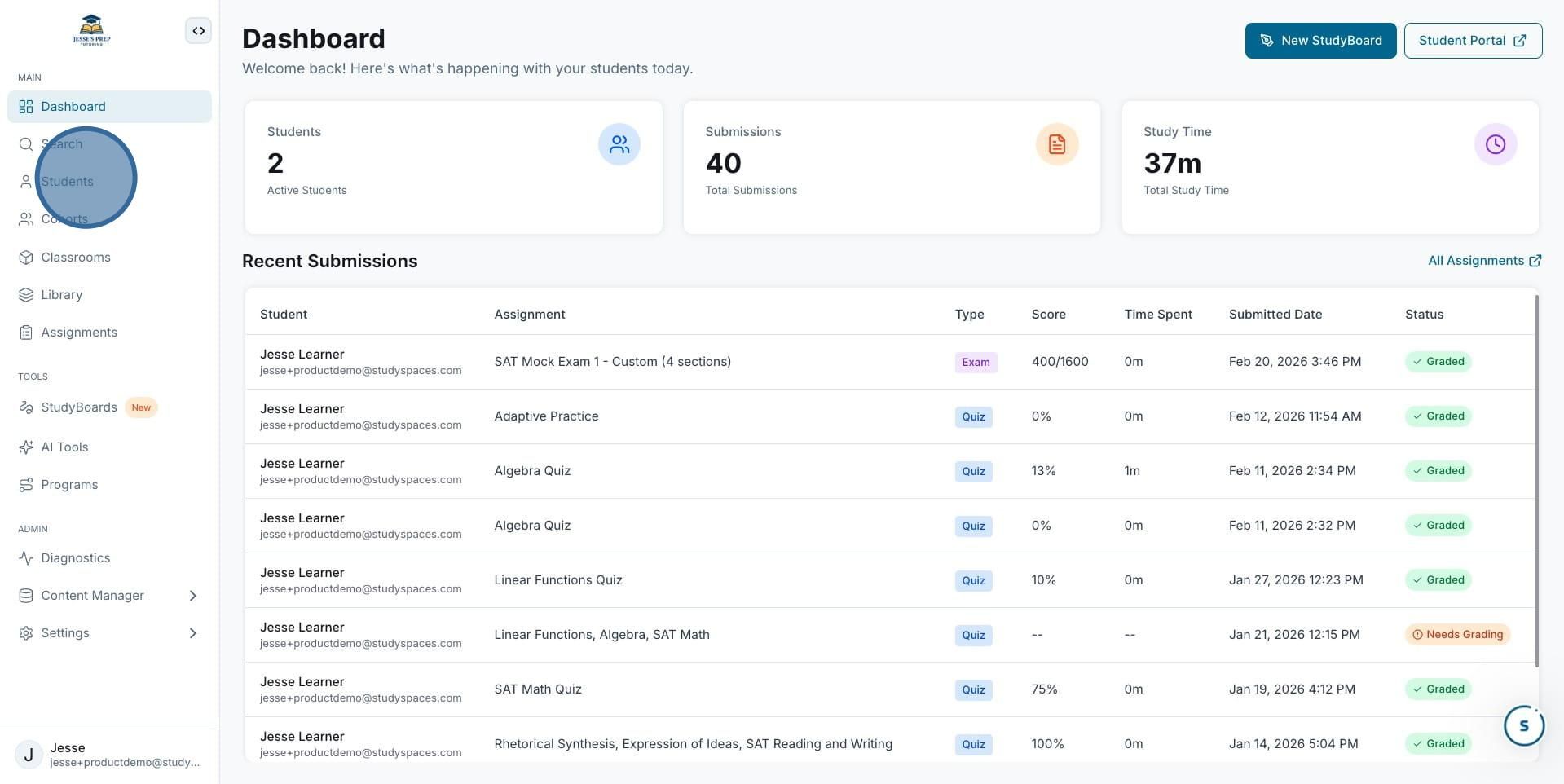
1. Open the Students section In the left-hand navigation menu, click Students. This will take you to a list of all active students in your workspace, where you can view their activity, assignments, and analytics.
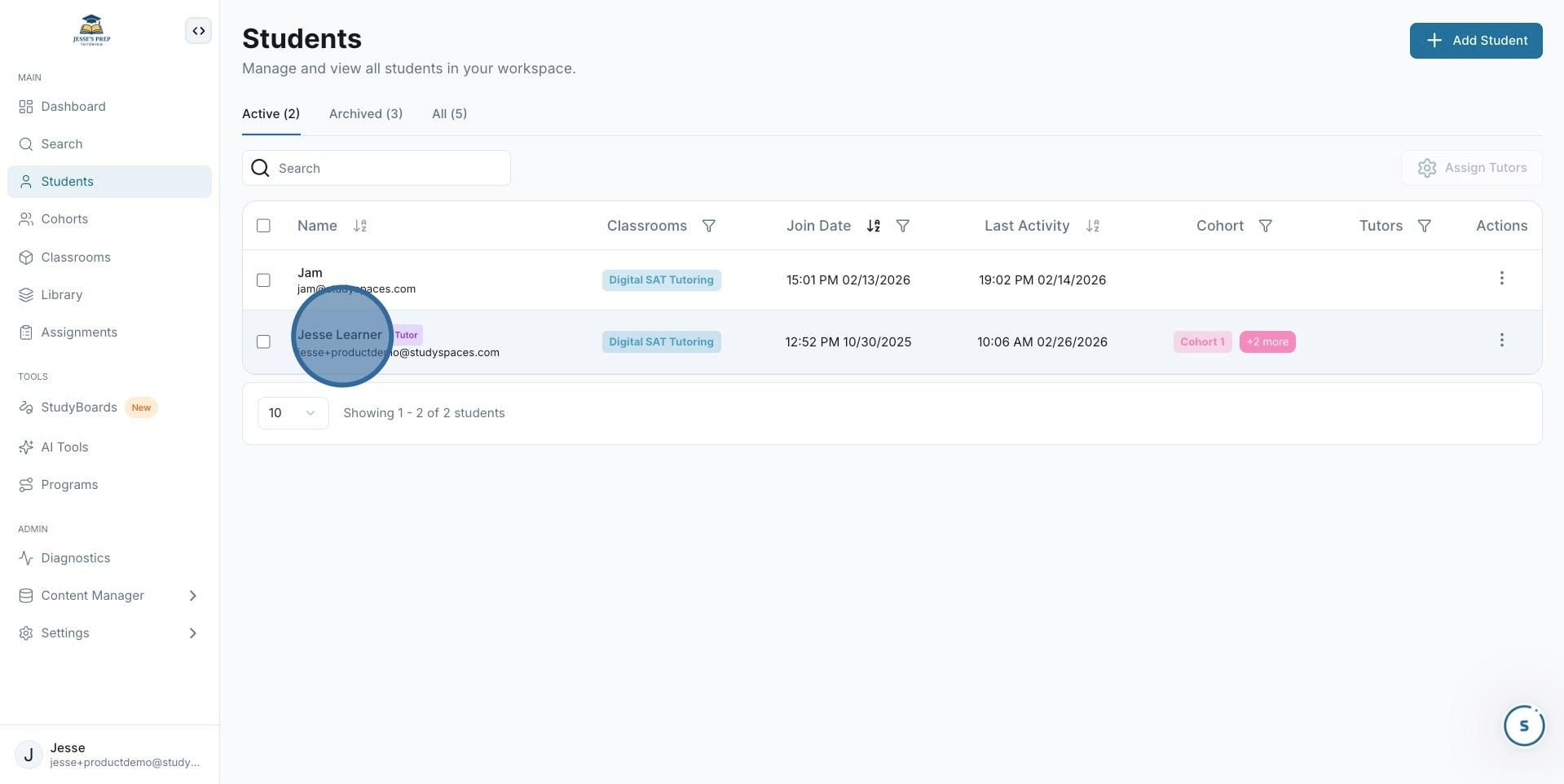
2. Select a student Click on the student you want to create an assignment for. In this example, we'll select Jesse. This opens their individual student profile.
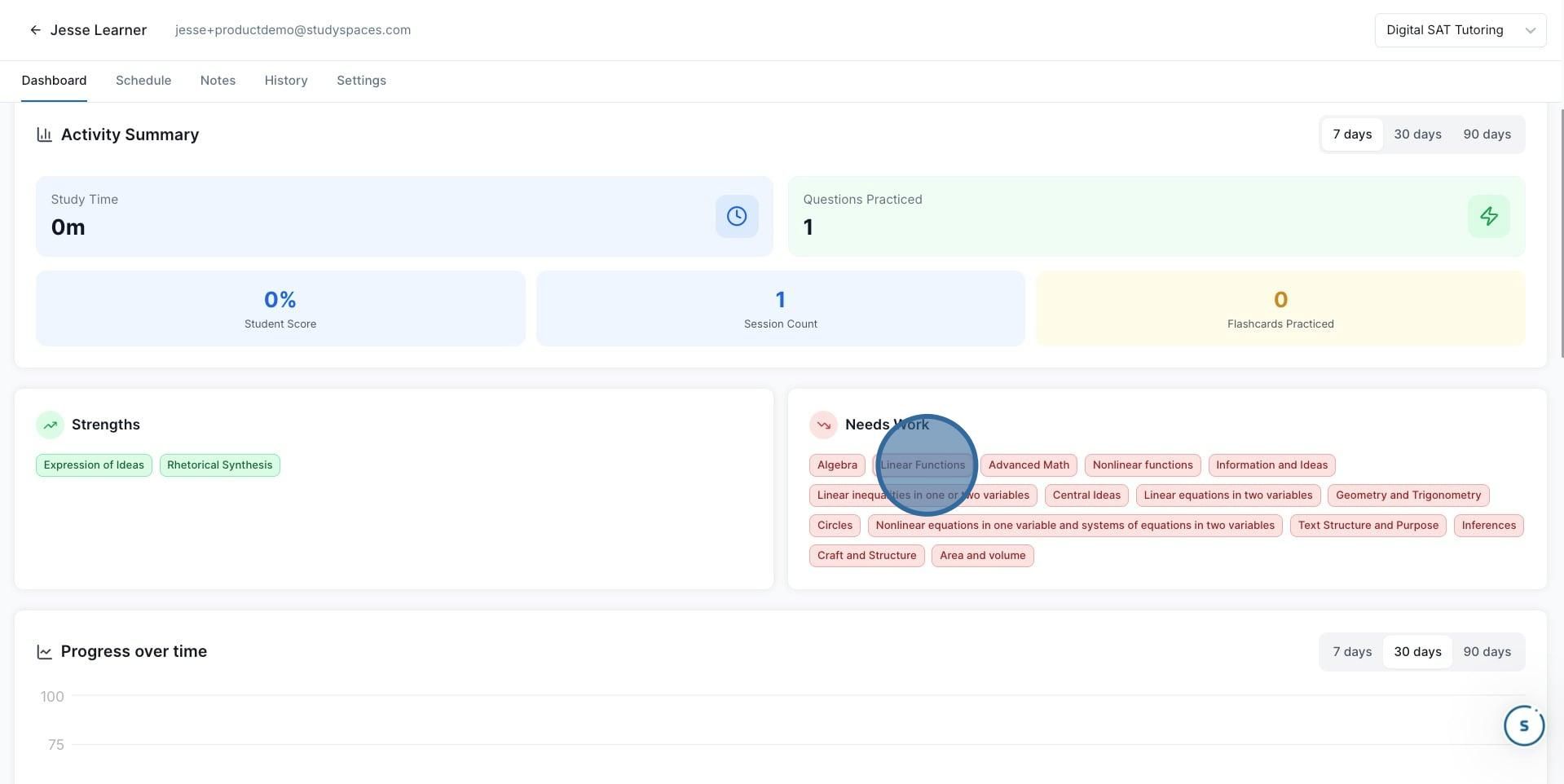
3. Find a weak tag in their analytics On the student's dashboard, scroll down to the Needs Work section. This shows all the topic tags where the student has been struggling. Click on the tag you want to target, in this example, Linear Functions. This opens a detailed view of the student's performance on questions under that tag.
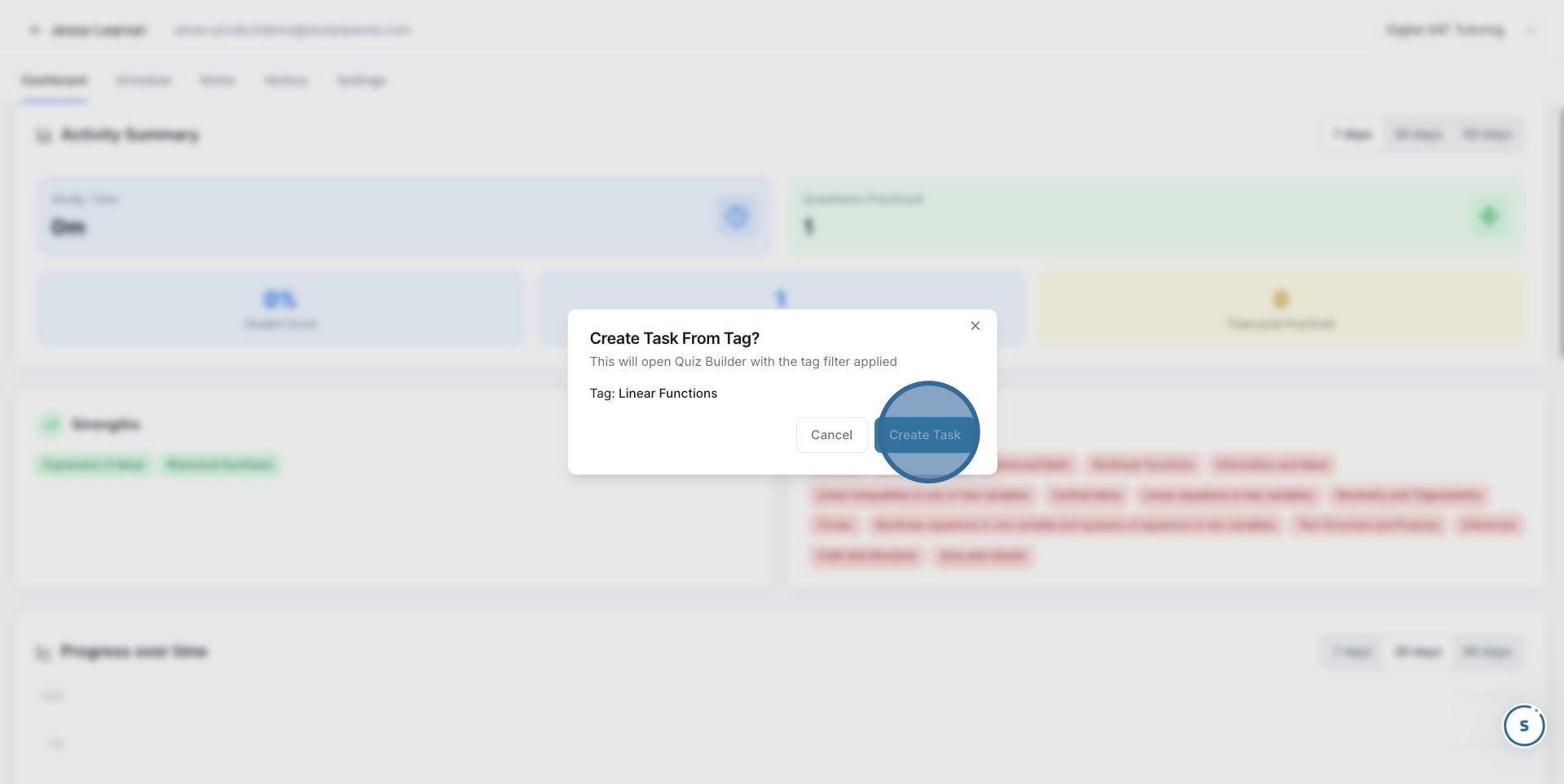
4. Click "Create Task" A confirmation dialog will appear: "Create Task From Tag?" This will open the Quiz Builder with the tag filter already applied, so all the questions in the assignment will be relevant to that topic. Click Create Task to proceed.
5. Review the question pool The Quiz Builder will open a Preview Questions screen showing all available questions tagged with Linear Functions (e.g., 30 questions). You can browse the full question list, check each question's difficulty, and see the student's previous practice status. Select the questions you want to include, or use Bulk Select to add them all at once.
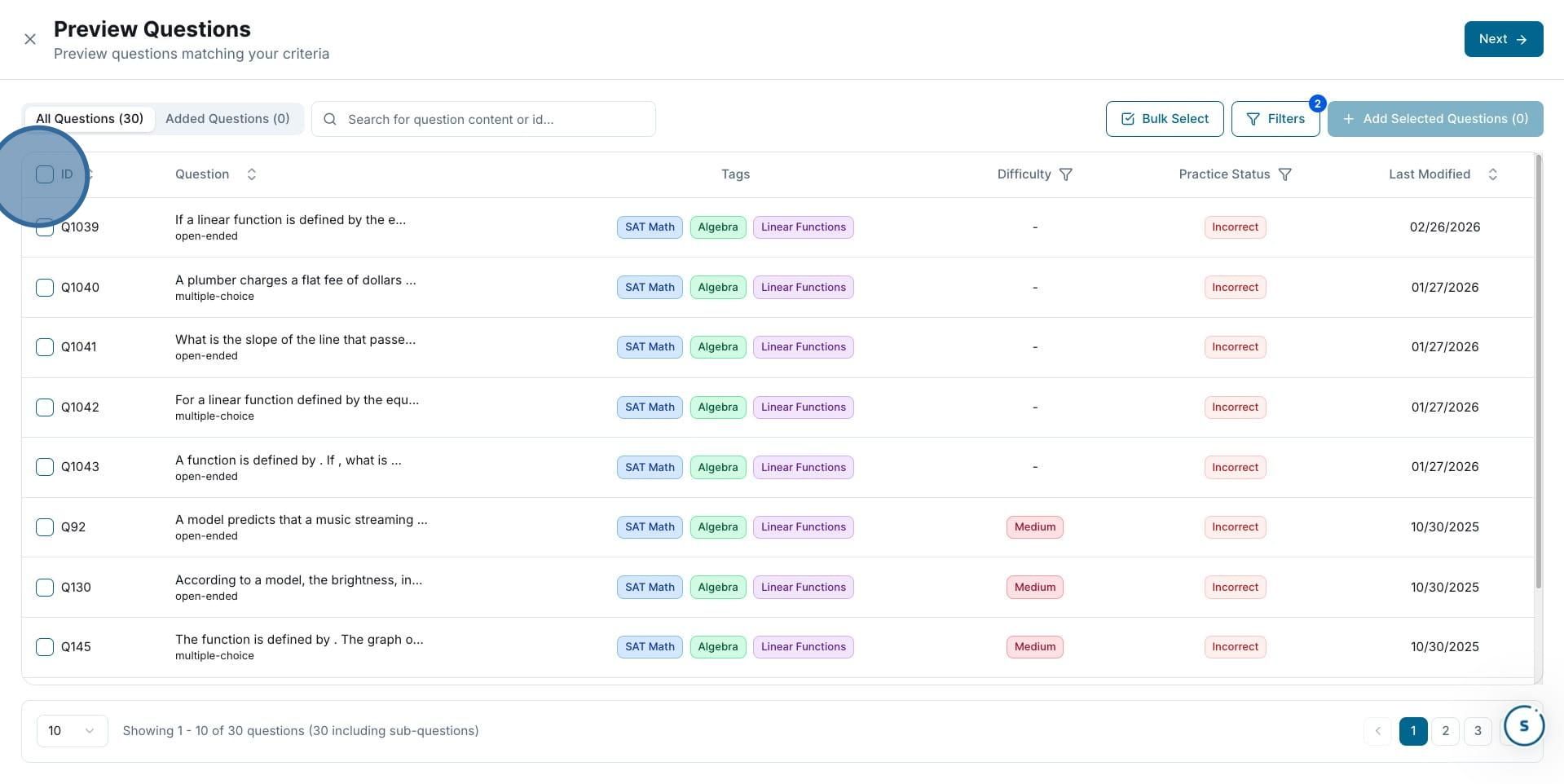
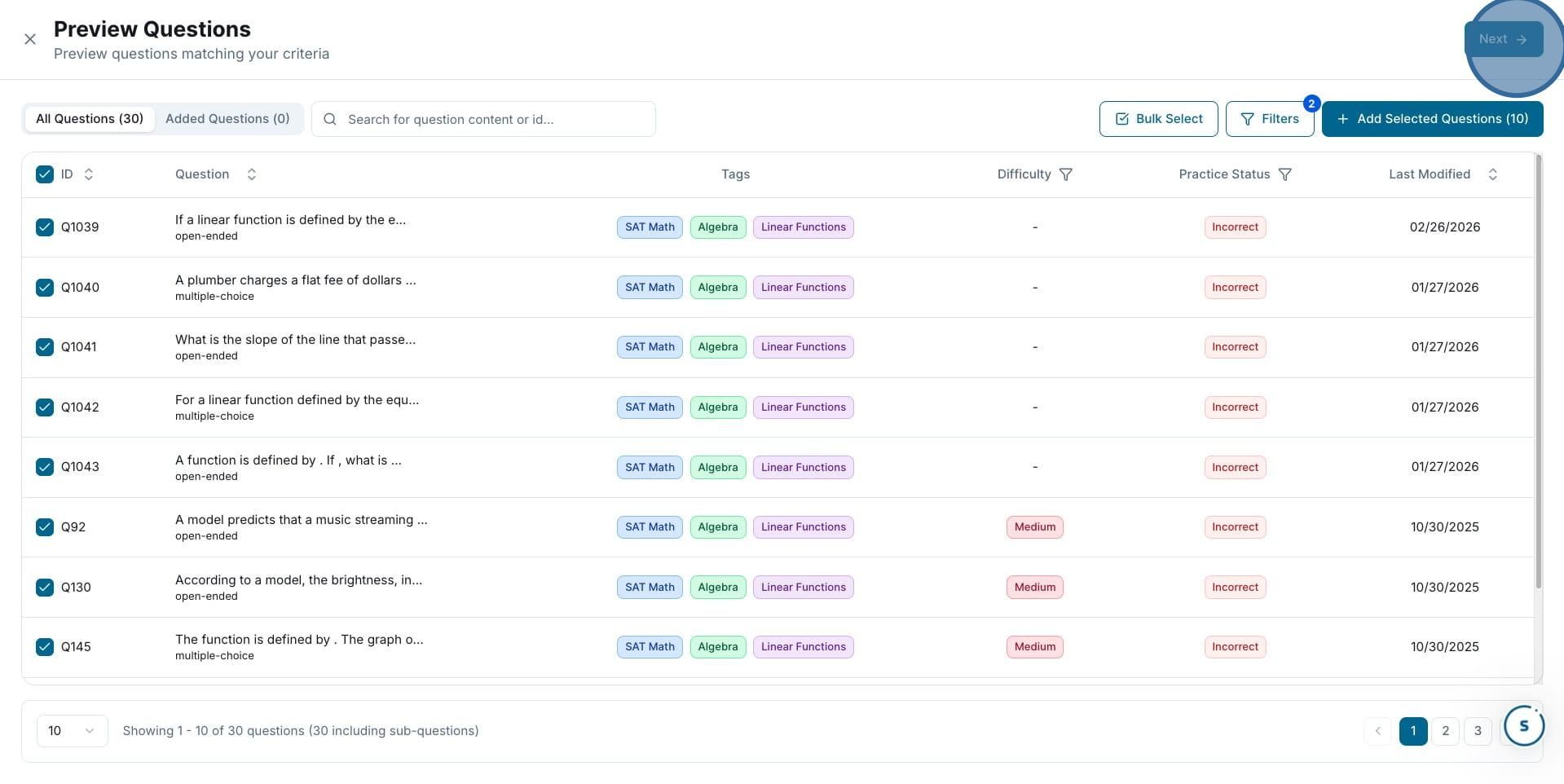
6. Click "Next" Once you've selected your questions (the button will update to show how many you've added, e.g., Add Selected Questions (10), click Next to move on to the assignment configuration step.
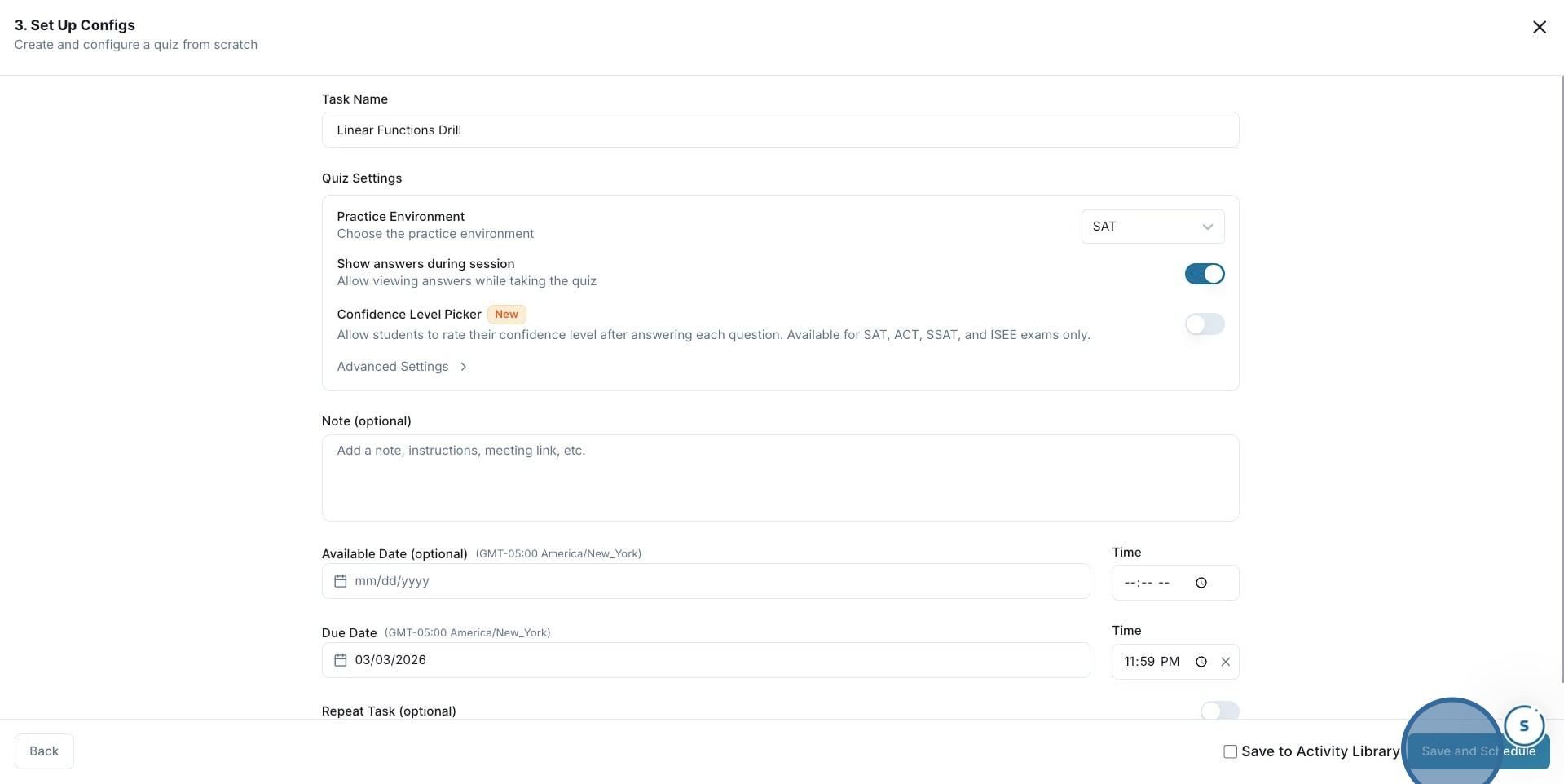
7. Configure and schedule the assignment On the Set Up Configs screen, give the task a name (e.g., Linear Functions Drill) and adjust the quiz settings as needed.
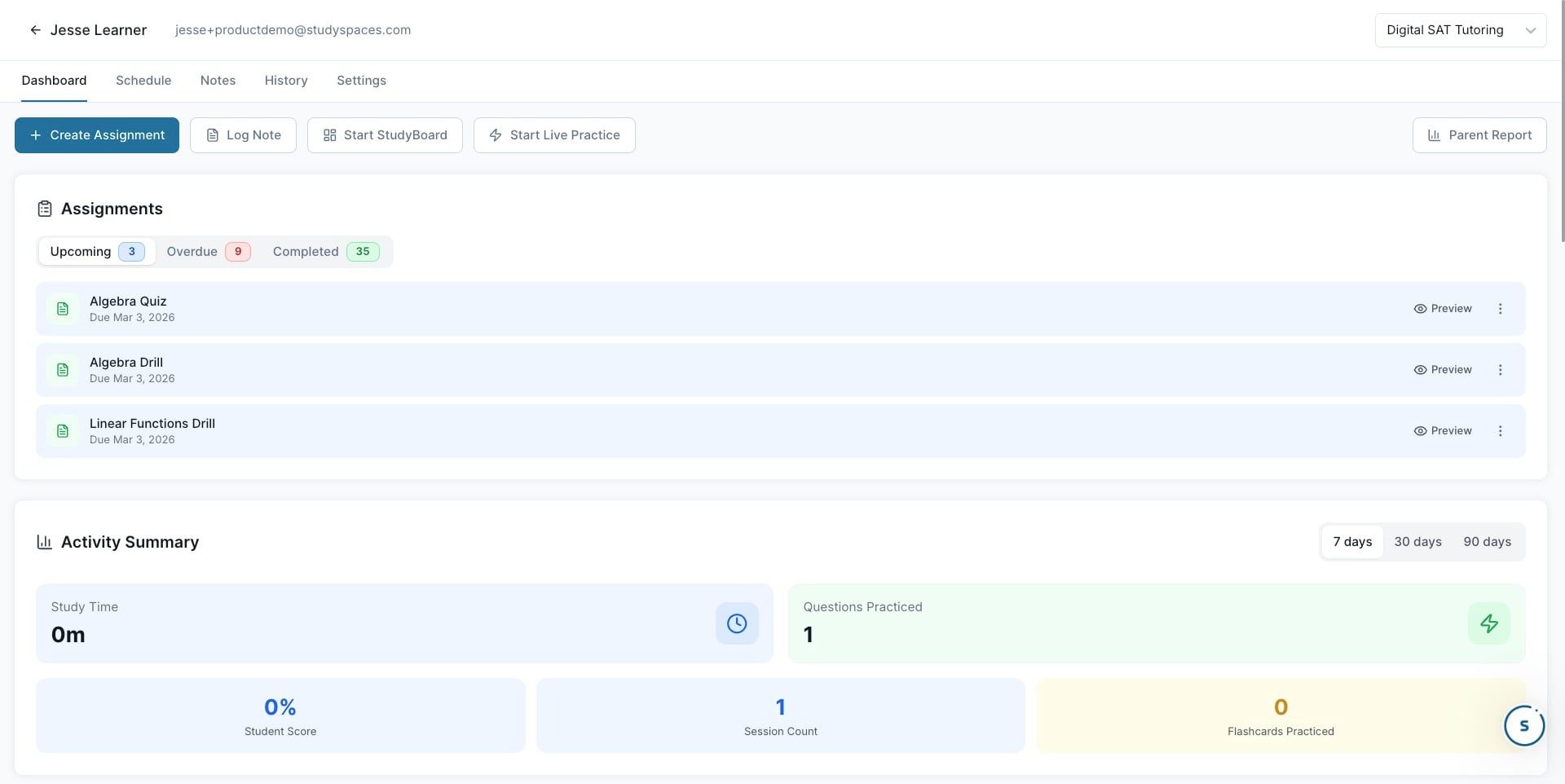
8. Done 🚀! The assignment will now appear in the student's profile under Upcoming assignments. They'll be able to see and complete it from their student portal. You can preview the assignment at any time from the student's dashboard.
Was this helpful?
Still need help? Ask the team